
Guides / Branding and navigation
How to Add External Links to the Portal Menu
Short answerGo to Design → Menu Builder and edit the menu. Under Custom Links, enter a Menu Title and the URL, select Add to menu, place the item where you want it and select Save.
Page Builder builds pages inside the portal, so you can’t set up an external website there. To send portal users to your company website, a help center or a third-party tool, add the address to a portal menu as a custom link.
Before you start
- You need access to the Design menu in the admin portal.
- Create the menu first. See How to Create Portal Navigation Menus.
- Have the full address of the page you want to link to, for example
https://www.example.com/support.
Add a custom link
- Go to Design → Menu Builder.
- Select the three dots (…) next to the menu, then select Edit.
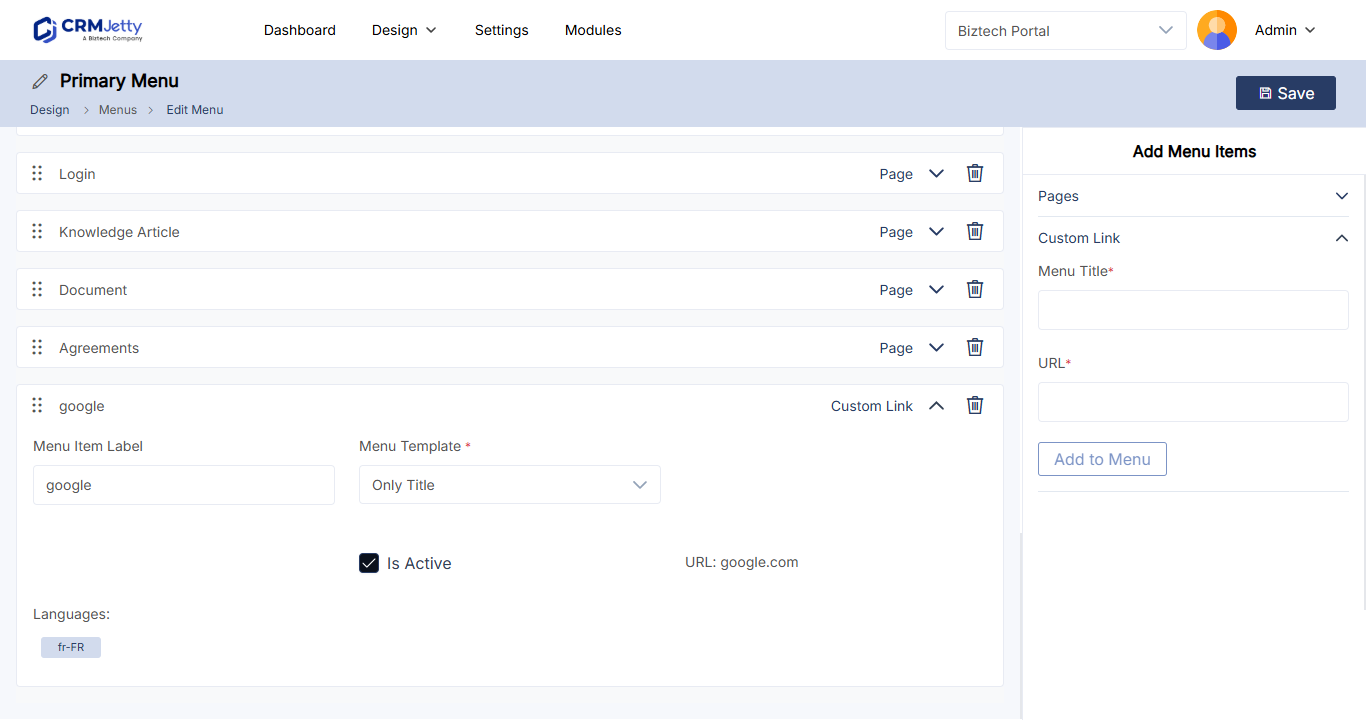
- On the right, under Custom Links, enter a Menu Title: the text portal users see.
- In URL, enter the address you want portal users to go to.
- Select Add to menu. The link appears with the other menu items on the left.
- Select Save.
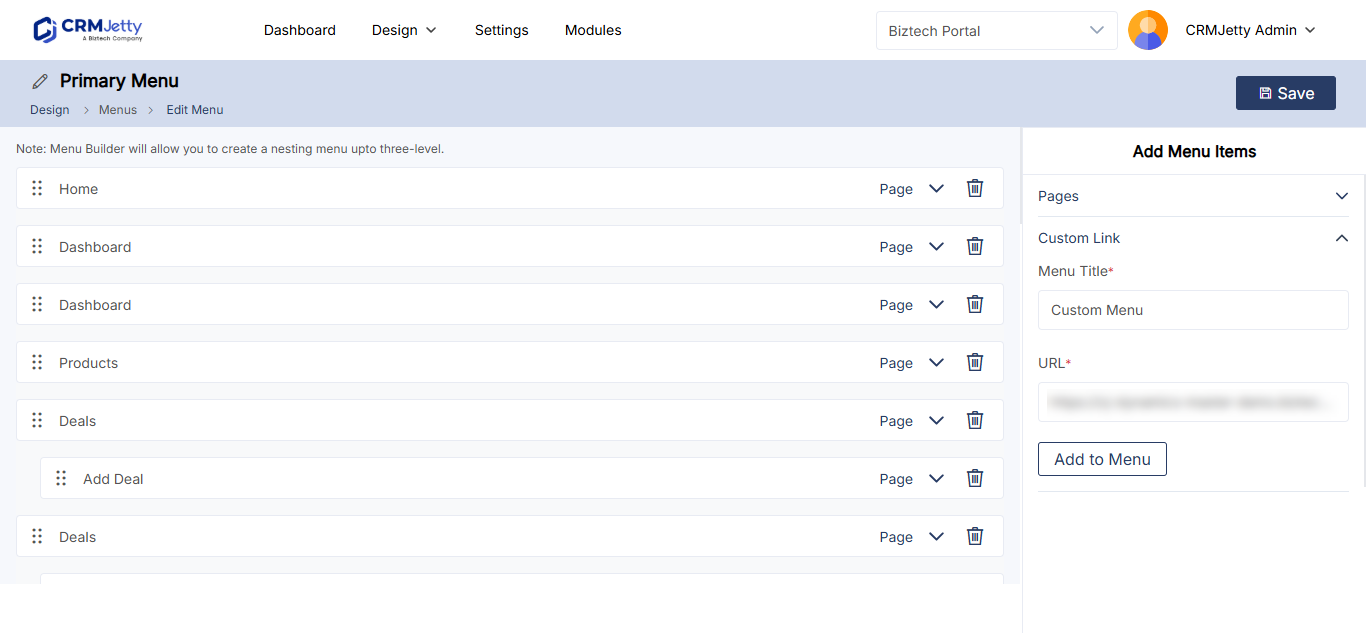
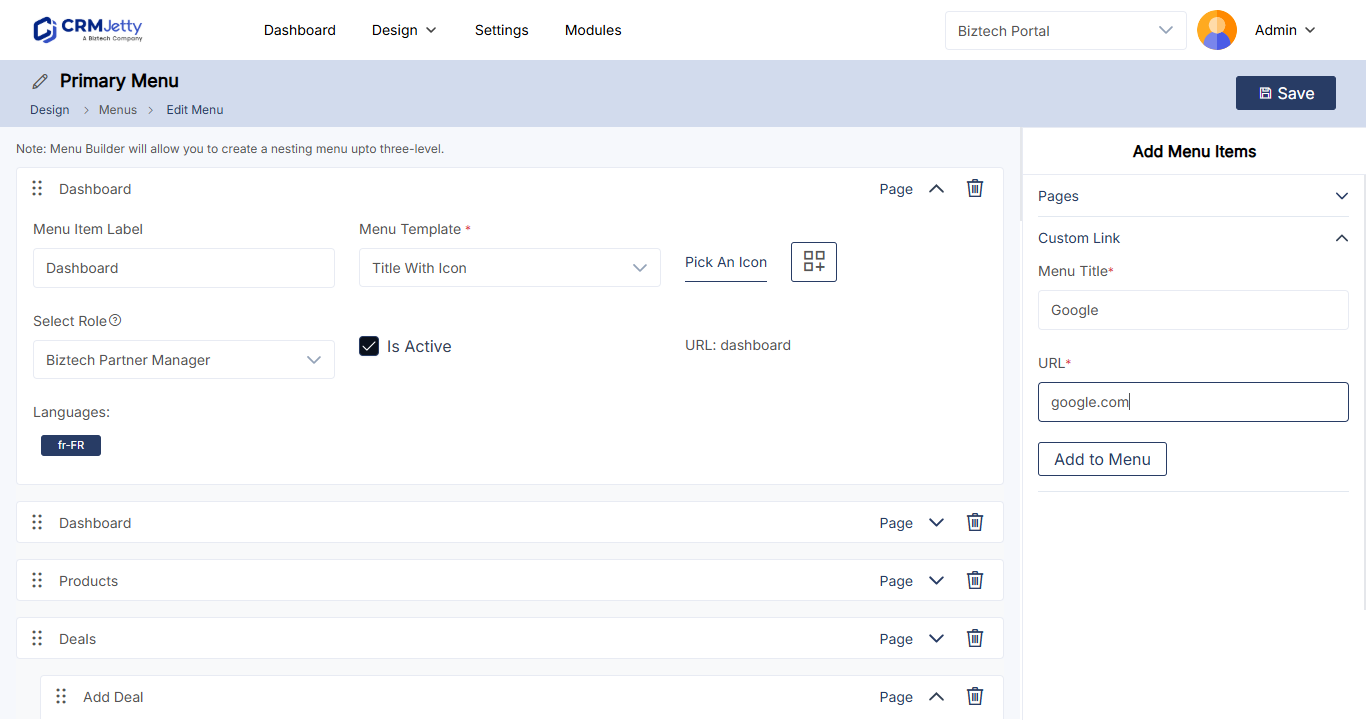
| Field | What to enter |
|---|---|
| Menu Title | The label shown in the menu, for example Company Website. |
| URL | The address portal users go to when they select the item. |
Place and configure the link
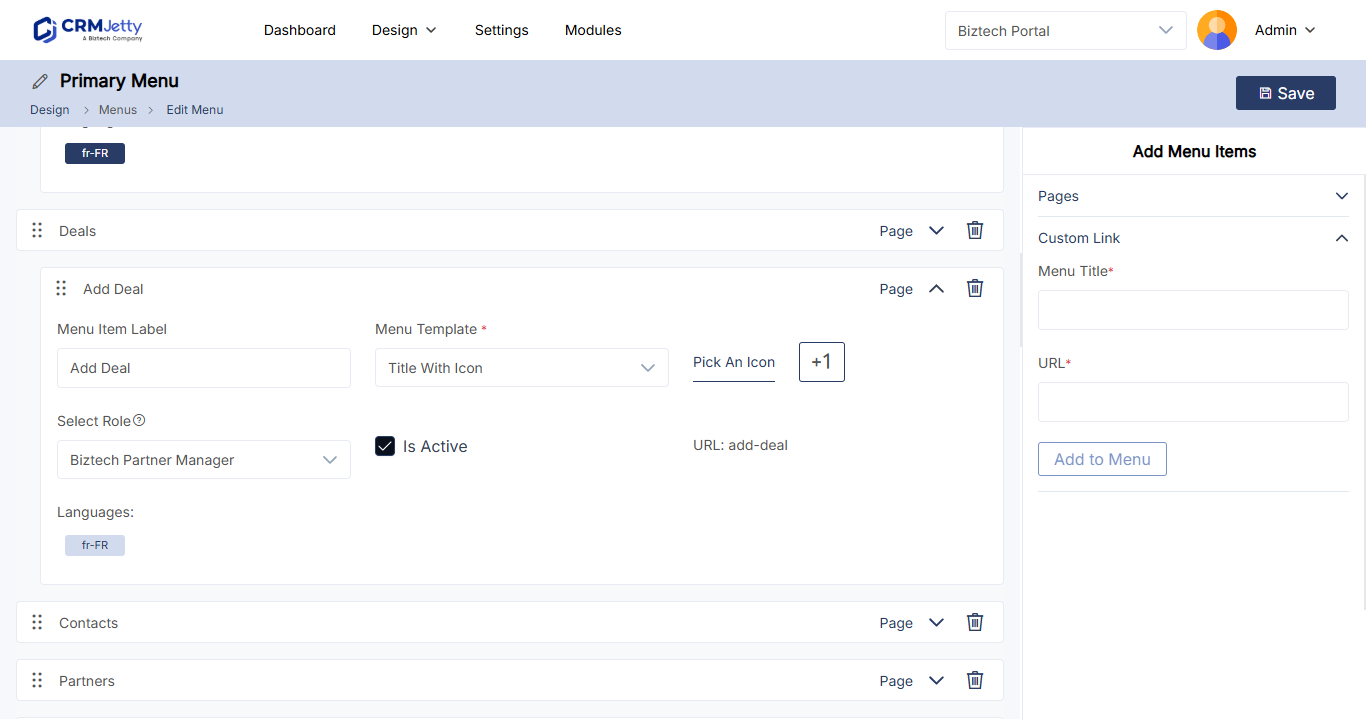
- Drag the link to where you want it. To make it a sub-menu item, drag it under another menu item. A menu can have up to three levels.
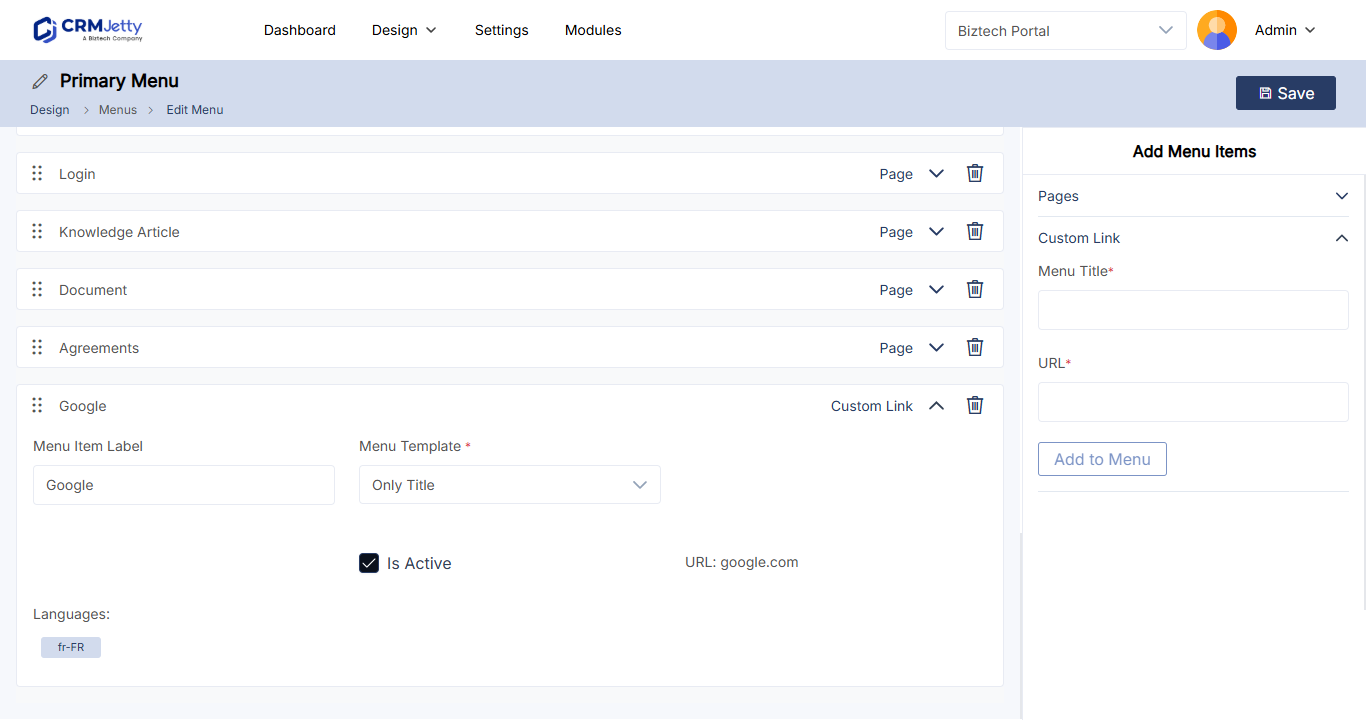
- Select the down arrow on the link to open its settings.
- Change the settings you need from the table below.
- Select Save.
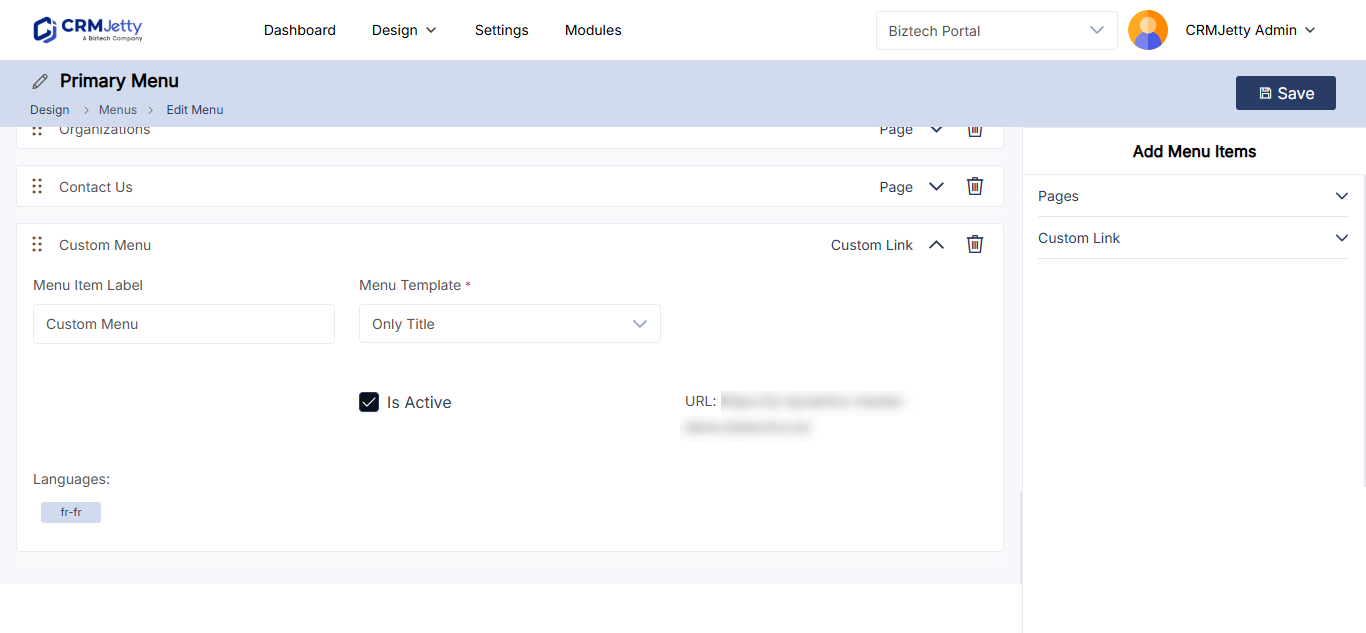
| Setting | What it does |
|---|---|
| Menu Item Label | The text shown for the link. |
| URL | The custom URL you entered. |
| Is Active | Shows or hides the link in the portal. |
You can also add an icon or image to the link and limit it to certain roles, as for any menu item. See How to Create Portal Navigation Menus.
The link appears in the portal on every page that shows this menu in a Menu widget.
Tip: If you want to show external content inside a portal page rather than link away from the portal, use the IFrame widget in Page Builder. See How to Embed External Content with an IFrame.
Related articles
Did this solve it?No, contact support