
How to Publish, Draft and Duplicate Portal Pages
Each portal page is either published or a draft. Published pages are live in the portal. Draft pages are disabled in the portal, so you can work on them, or take them offline, without portal users seeing them. Duplicate a page to start a similar page from a copy.
Before you start
- You need access to the Design menu in the admin portal.
- Create the page first. See How to Create Pages in CRMJetty Portal.
Page actions at a glance
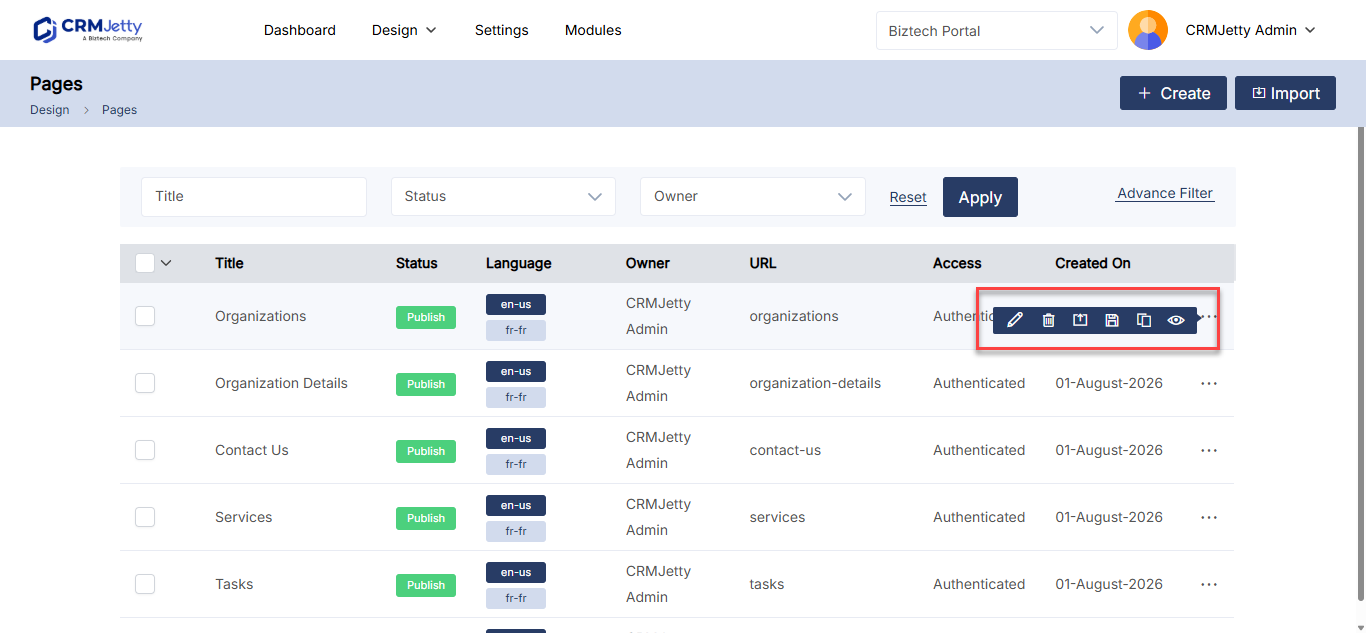
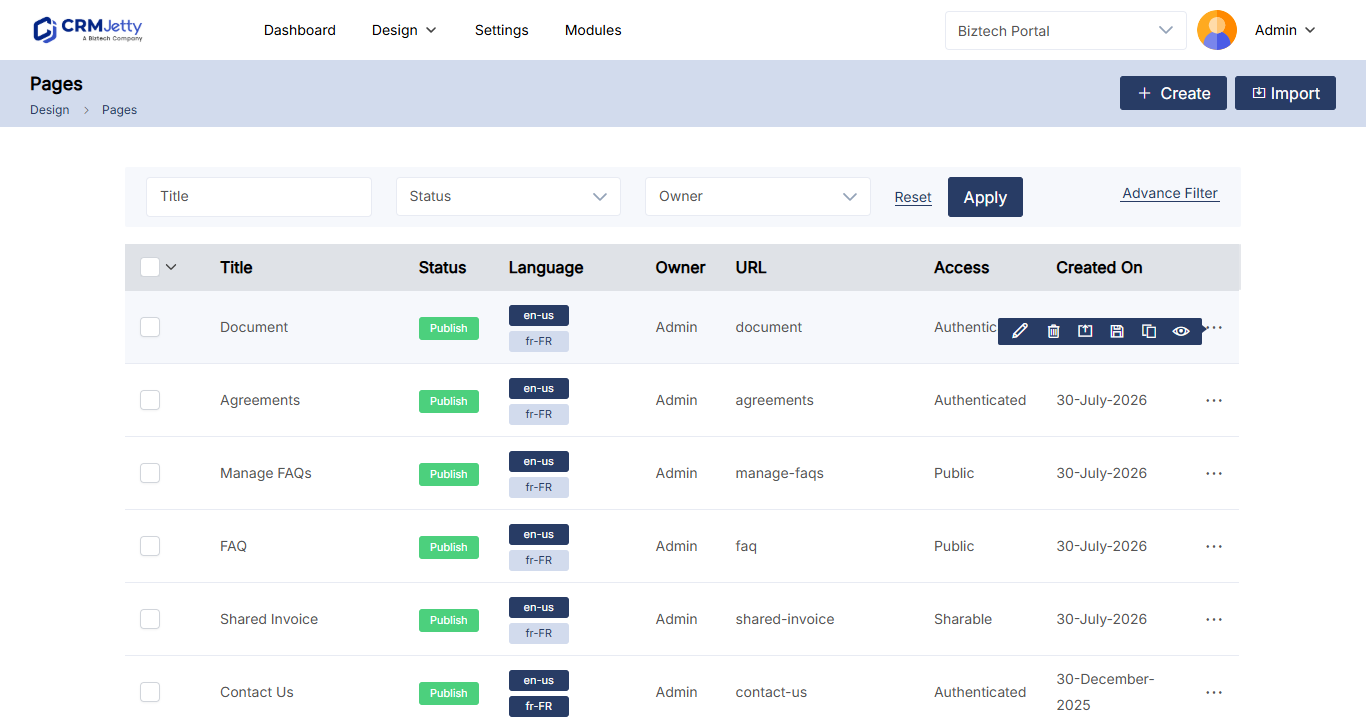
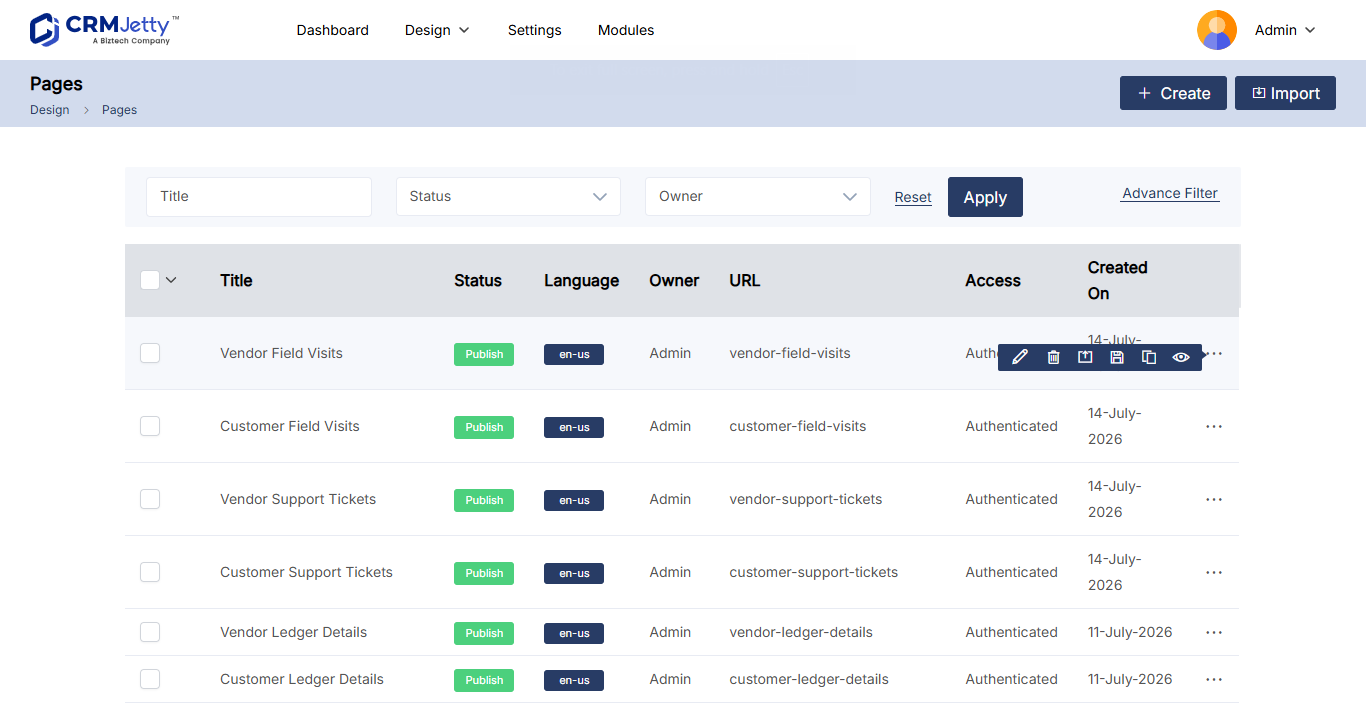
In Design → Page Builder, select the three dots (…) next to a page to see its actions.
| Action | What it does |
|---|---|
| Edit | Opens the page settings and layout. Select Update to save changes. |
| Publish | Makes a draft page live in the portal. Shown when the page is a draft. |
| Draft | Takes a published page out of the portal. Shown when the page is published. |
| Duplicate | Copies the page as “Page Name – Copy”. |
| Preview | Shows the page layout in a read-only window. |
| Delete | Permanently removes the page after you confirm. |
Publish a page
- Go to Design → Page Builder.
- Select the three dots (…) next to the draft page.
- Select Publish.
A success message appears on the right of the screen. The page is now live, and you can select it in menus and widgets.
You can also publish from the page editor: select Publish when the layout is ready.
Move a page to draft
- Select the three dots (…) next to the published page.
- Select Draft.
A success message appears. The page is now disabled in the portal.
Note: Draft pages do not appear in page selection, for example when you add pages to a menu. Publish the page again to use it. See Why a Portal Page Is Missing from Page Selection.
Duplicate a page
- Select the three dots (…) next to the page.
- Select Duplicate.
The copy appears in the list as “Page Name – Copy”, for example Orders - Copy, and a success message confirms it. Open the copy with Edit to change its title, URL slug and layout.
Tip: To reuse a layout across many pages, save it as a template instead. See How to Create and Reuse Portal Page Templates.
Publish, draft or duplicate several pages at once
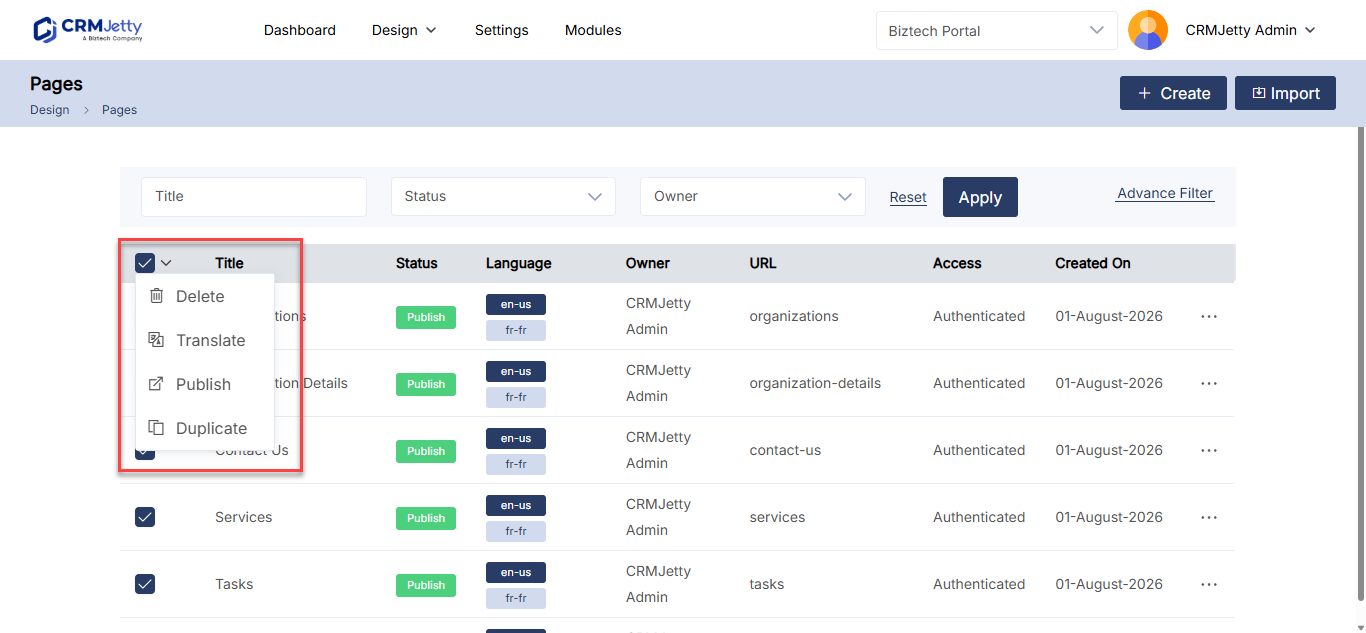
- In the page list, select the checkbox next to each page.
- Open the bulk action options.
- Select Publish, Draft or Duplicate.
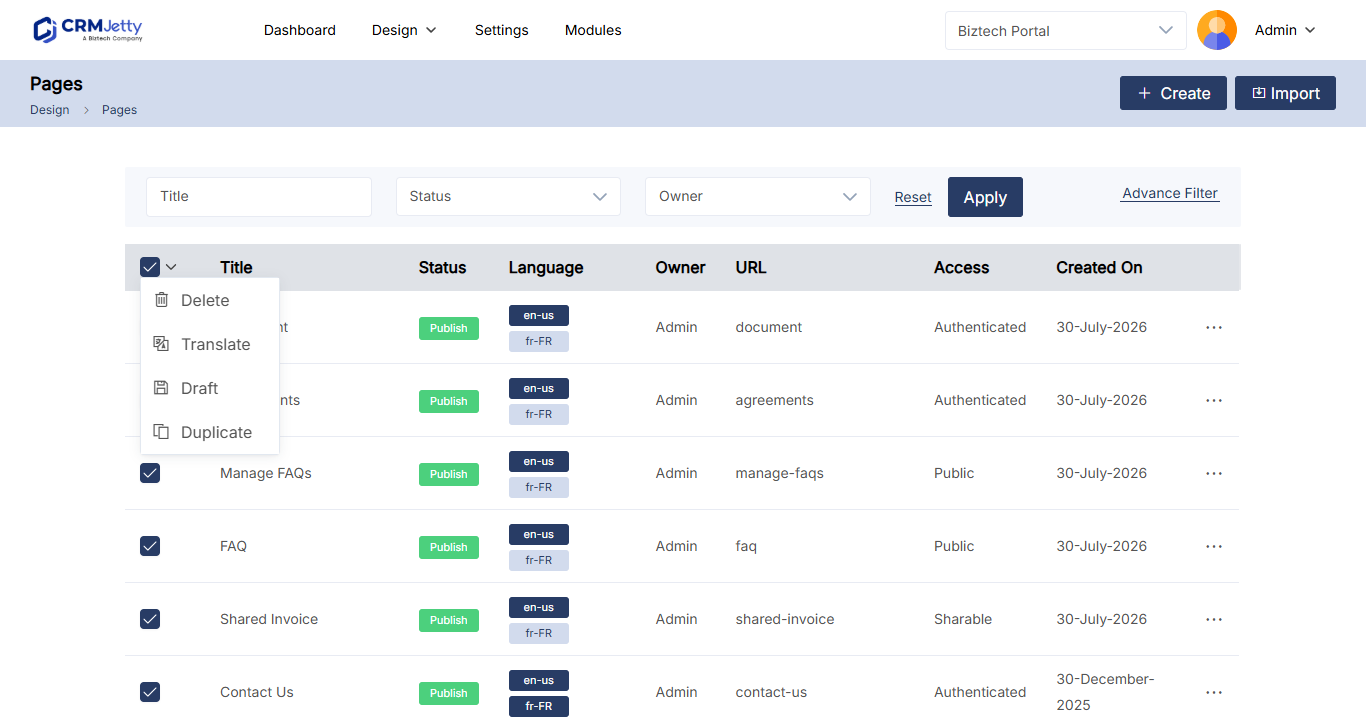
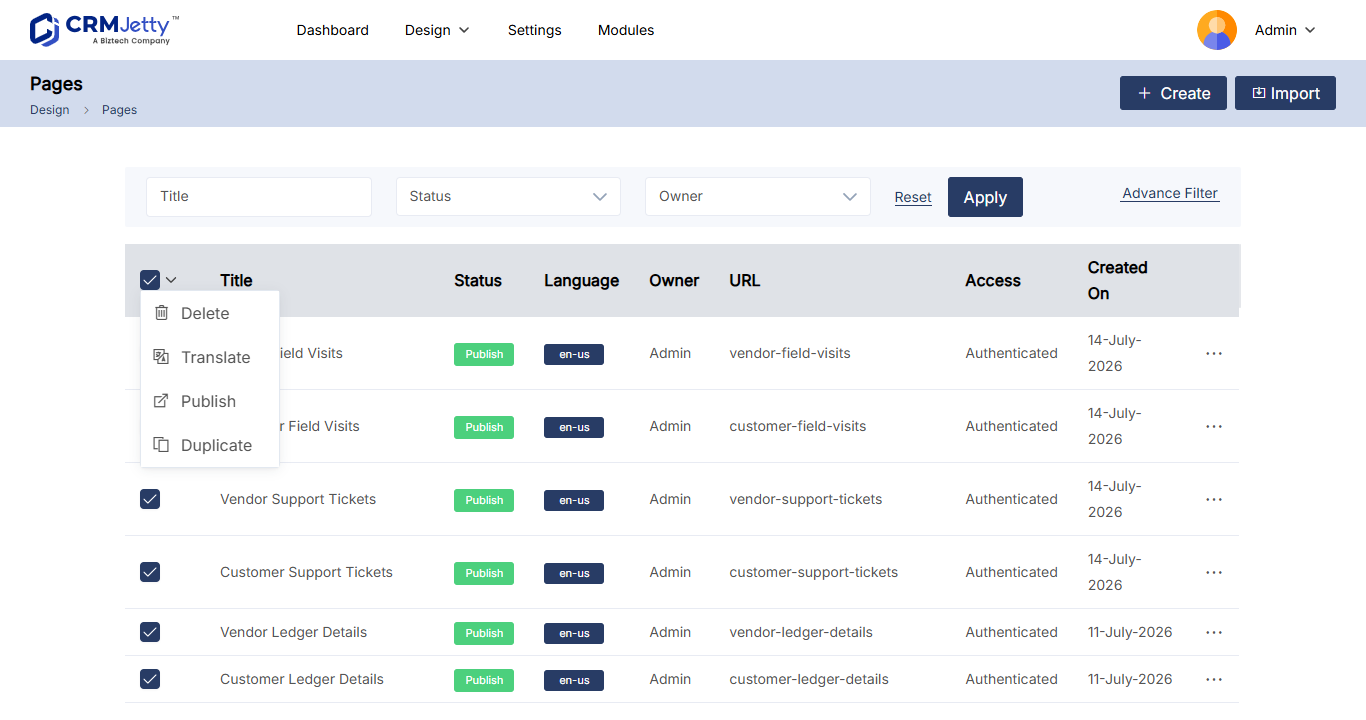
A success message appears when the action finishes.
Note: When you move pages to draft in bulk, select only published pages.
Preview a page
- Select the three dots (…) next to the page.
- Select Preview.
A window shows the page layout. You cannot add or change content in the preview.
Related articles
- How to Create Pages in CRMJetty Portal
- Why a Portal Page Is Missing from Page Selection
- How to Create and Reuse Portal Page Templates
- How to Create Portal Navigation Menus