
Guides / Pages
Why a Portal Page Is Missing from Page Selection
Short answerThe page is a draft. Draft pages are disabled in the portal and do not appear in page selection. Publish the page in Design → Page Builder and it becomes available.
When you choose a page for a menu item, a button or a banner link, the list shows only published pages. If a page you designed is missing, it is almost always still a draft.
Why it happens
A page you have designed but not published is saved as a draft. Draft pages are disabled in the portal, so they are left out of every page selection list, such as:
- the Pages list in Design → Menu Builder
- Select Page in the Button widget
- Select Page under Redirect to in the Banner widget
Fix it: publish the page
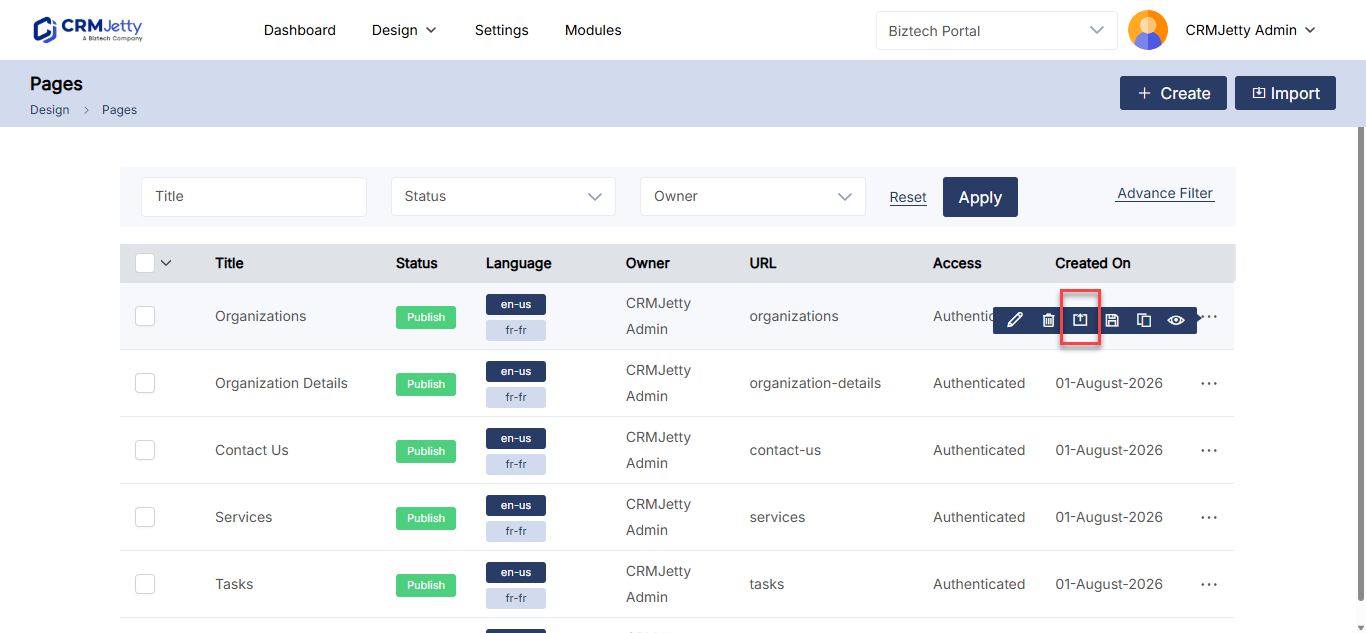
- Go to Design → Page Builder.
- Find the page in the list.
- Select the three dots (…) next to the page.
- Select Publish.
- Go back to the menu or widget and select the page again.
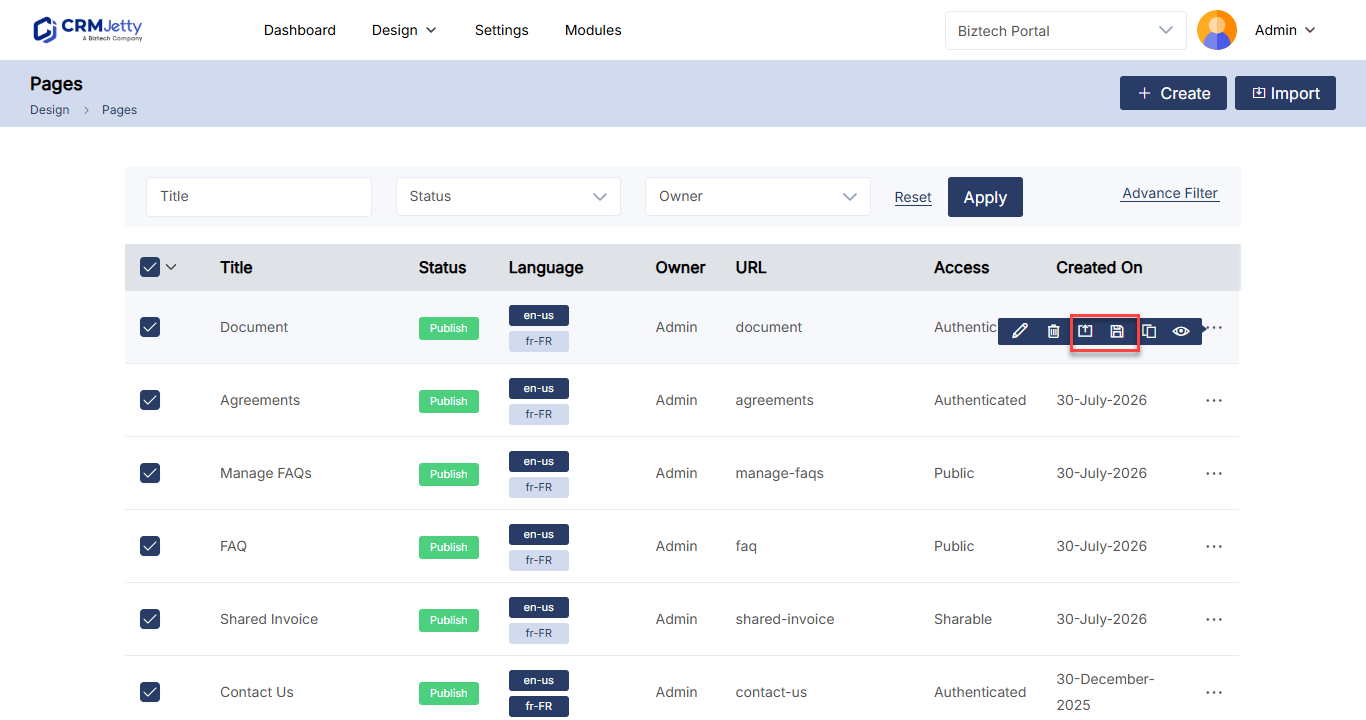
If the page is still being worked on, finish the layout first, then publish it. For publishing in bulk, see How to Publish, Draft and Duplicate Portal Pages.
Tip: Publish a page before you link to it from menus, buttons or banners. If you later move it back to draft, update those links so portal users do not reach a disabled page.
Related articles
- How to Publish, Draft and Duplicate Portal Pages
- How to Create Pages in CRMJetty Portal
- How to Create Portal Navigation Menus
- How to Add Buttons to a Portal Page
Did this solve it?No, contact support