
How to Enable Two-Factor Authentication in the Portal
Two-factor authentication (2FA) adds a second step to portal sign-in. After a portal user enters their password, the portal emails them a one-time password (OTP). They can open the portal only after they enter it. If someone learns a portal user’s password, they still can’t sign in without access to that user’s email.
Before you start
- You need access to Settings → Portal Settings → Site Management in the admin portal.
- Set up SMTP first. The OTP is sent by email, so portal users can’t sign in if email isn’t working. See How to Configure SMTP Email in CRMJetty Portal.
- Make sure portal users have a valid, registered email address.
How sign-in works with 2FA
- The portal user enters their email or username and password on the login page.
- The portal emails a one-time password to their registered email address.
- The portal user enters the OTP in the portal.
- If the OTP is correct and still valid, the portal user is signed in.
Turn on two-factor authentication
- Go to Settings → Portal Settings → Site Management.
- Open your site for editing.
- Go to the Security settings.
- Turn on Two Factor Authentication.
- Fill in the OTP settings in the table below.
- Select Save.
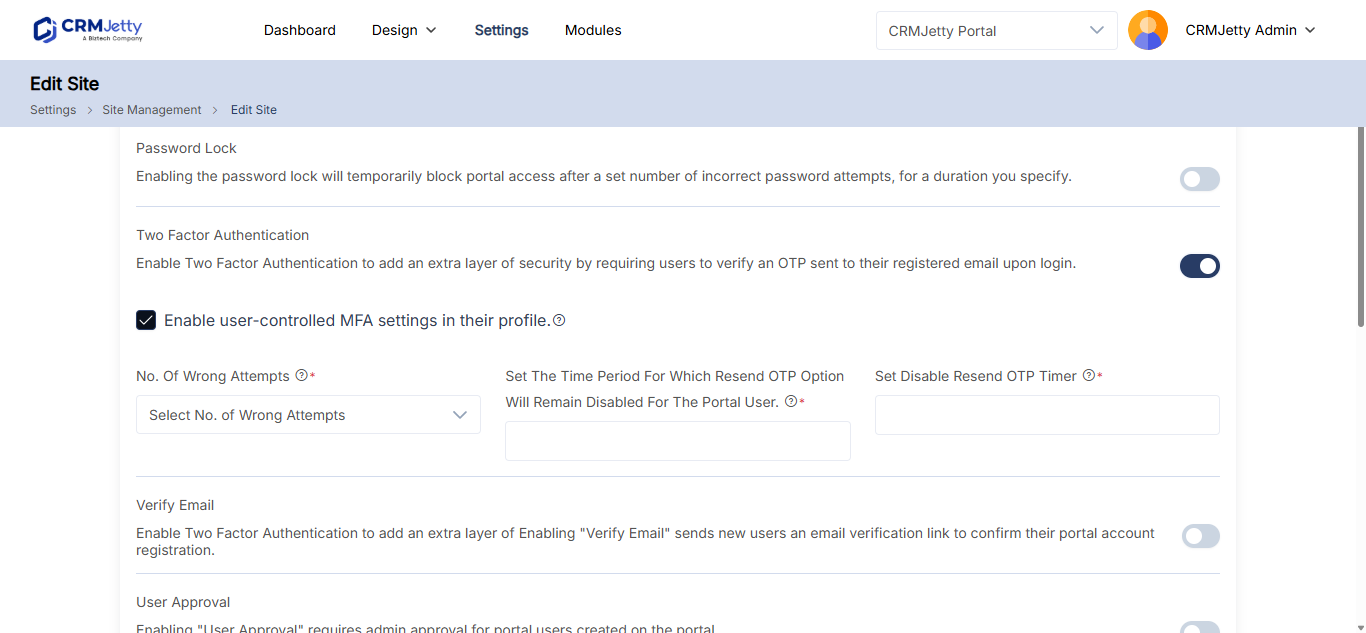
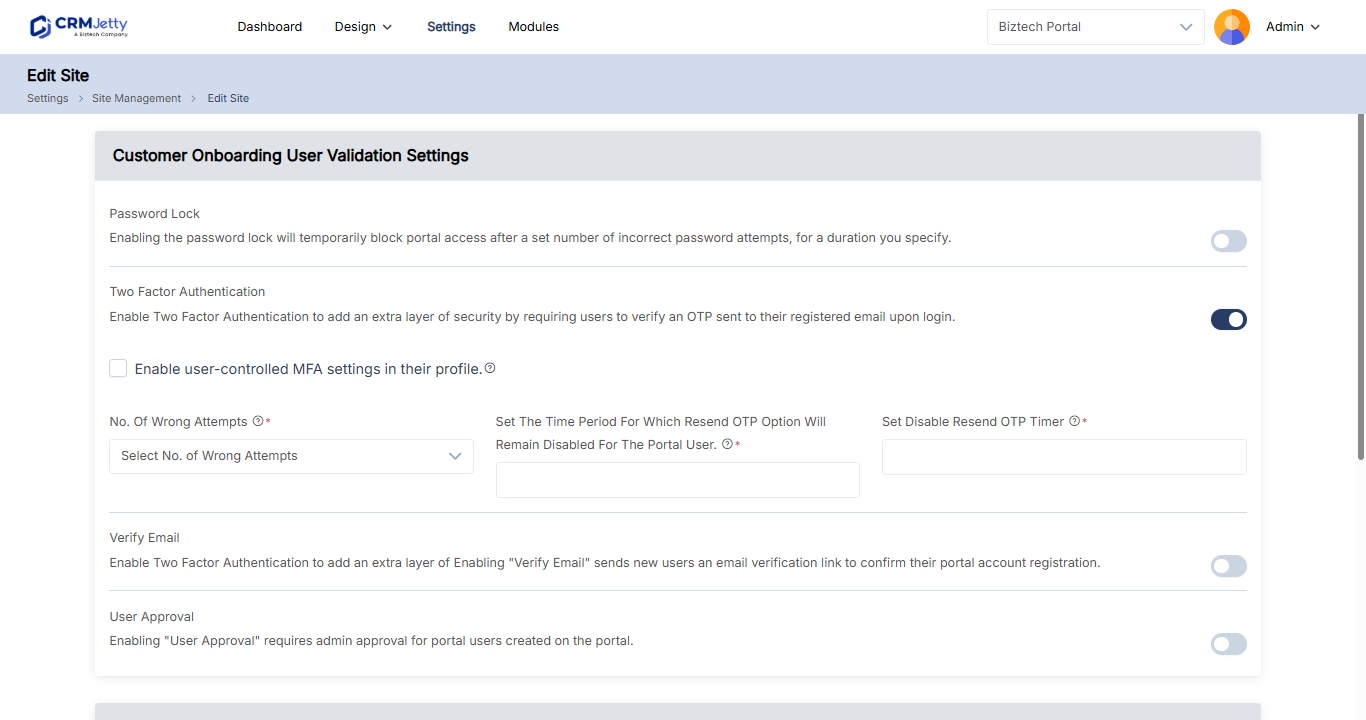
| Setting | What it does |
|---|---|
| OTP Active Duration | How long the OTP stays valid. |
| No. of Wrong OTP Attempts | How many times a portal user can enter a wrong OTP. |
| Set OTP Timer | The countdown timer shown with the OTP in the portal user’s email. |
| Disable Resend OTP | How long portal users must wait before they can request a new OTP. |
Security settings apply per site. If you run several sites, turn on 2FA for each one. See How to Create and Manage Multiple Portal Sites.
Lock accounts after wrong passwords
Password Lock is in the same Security settings. It locks a portal user out for a while after too many wrong passwords, which slows down password-guessing attacks. Use it together with 2FA.
- In the site’s Security settings, turn on Password Lock.
- In No. of Wrong Attempts, enter how many failed sign-ins are allowed before the lock.
- In Password Lock Timer, enter how long the lock lasts.
- Select Save.
| Setting | What it does |
|---|---|
| No. of Wrong Attempts | The maximum number of failed sign-ins before the portal user is locked out. |
| Password Lock Timer | How long the lockout lasts. |
Other sign-in protections
The Security settings also include:
| Setting | What it does | Learn more |
|---|---|---|
| Email Verification | New portal users confirm their email address before they use the portal. | How to Enable Email Verification and Admin Approval |
| User Approval | An admin approves new portal users before they can access the portal. | How to Enable Email Verification and Admin Approval |
| Custom Password Complexity | Sets the password length range and the required character types. | How to Set Up Password Reset for Portal Users |
| Password Expiration | Makes portal users change their password after a set period. | How to Set Up Password Reset for Portal Users |
Note: These settings protect portal user sign-in. Sign-in to the admin portal has its own MFA. See How to Set Up Admin MFA and IP Restrictions.
Customize the OTP email
To change the subject or text of the OTP email, edit its template under Settings → Portal Settings → Template Scripting → Email Templates (Business Central: Settings → Portal Settings → Email Templates, action Portal Login OTP). See How to Customize Portal Email Templates.
Troubleshooting
Portal users don’t receive the OTP: Check your SMTP settings and send a test email. Ask the portal user to check their spam folder. See How to Fix Portal Emails That Are Not Sending.
The OTP is rejected: The OTP may have expired. Ask the portal user to request a new one after the Disable Resend OTP period, or increase OTP Active Duration.
A portal user is locked out after wrong passwords: The portal user can sign in again when the Password Lock Timer ends. If they have forgotten their password, they can reset it. See How to Set Up Password Reset for Portal Users.
Related articles
- How to Add reCAPTCHA to Portal Forms
- How to Enable Email Verification and Admin Approval
- How to Set Up Password Reset for Portal Users
- CRMJetty Portal Security and Data Protection