
How to Generate Widget Content with the AI Content Generator
The AI Content Generator drafts text for widget text boxes, such as a banner title or a slider description, from a prompt you write. It fills in one text box at a time. It does not build pages, layouts or widgets; you still design the page in Page Builder.
Before you start
- You need access to Design → Page Builder in the admin portal.
- Add the widget to a page first. See How to Create Pages in CRMJetty Portal.
- The AI Content Generator uses your own AI key. It is included on every plan. See CRMJetty Plans and Feature Availability.
Widgets that support the AI Content Generator
| Widget | Text you can generate |
|---|---|
| Banner | Banner’s Header and Banner’s Subheader text |
| Slider | The header and description text of each slide |
| Content Slider | The Slider Title and the text of each slide |
| Testimonial | The Slider Title and the description of each testimonial |
Generate text
- Go to Design → Page Builder.
- Select the three dots (…) next to the page and select Edit.
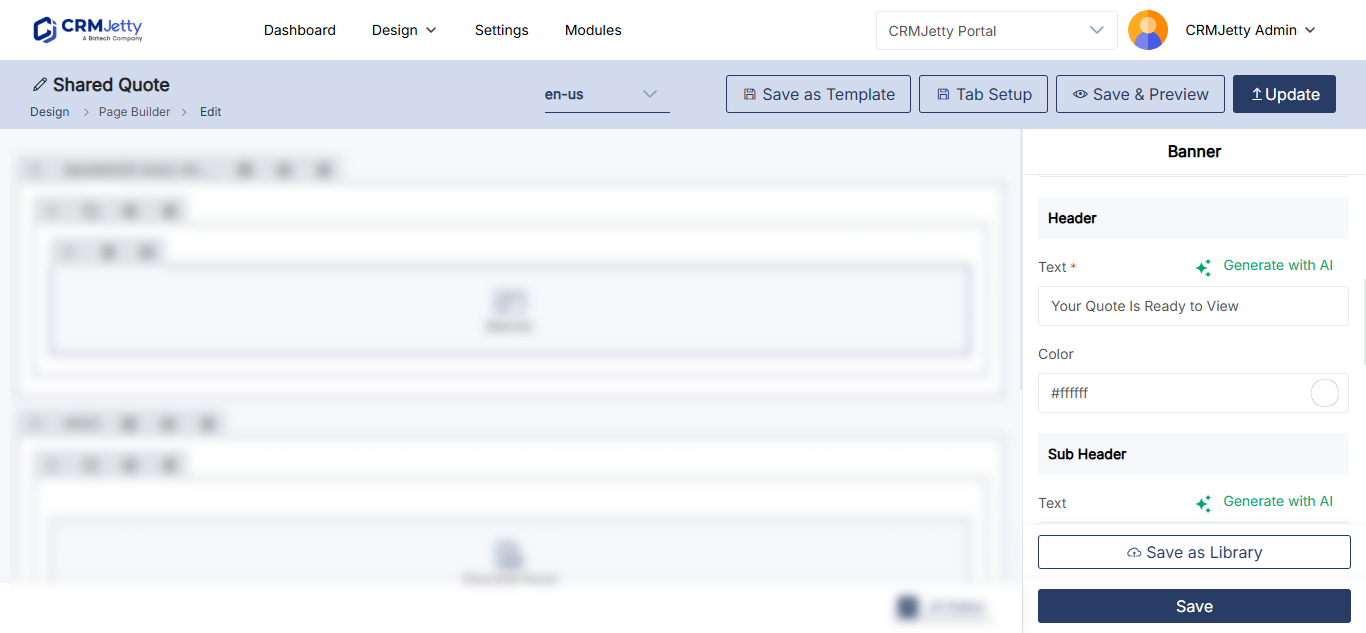
- Select the Settings icon on the widget. The configuration panel opens.
- Under the text box you want to fill, select Generate AI. On slides, the option is Generate with AI.
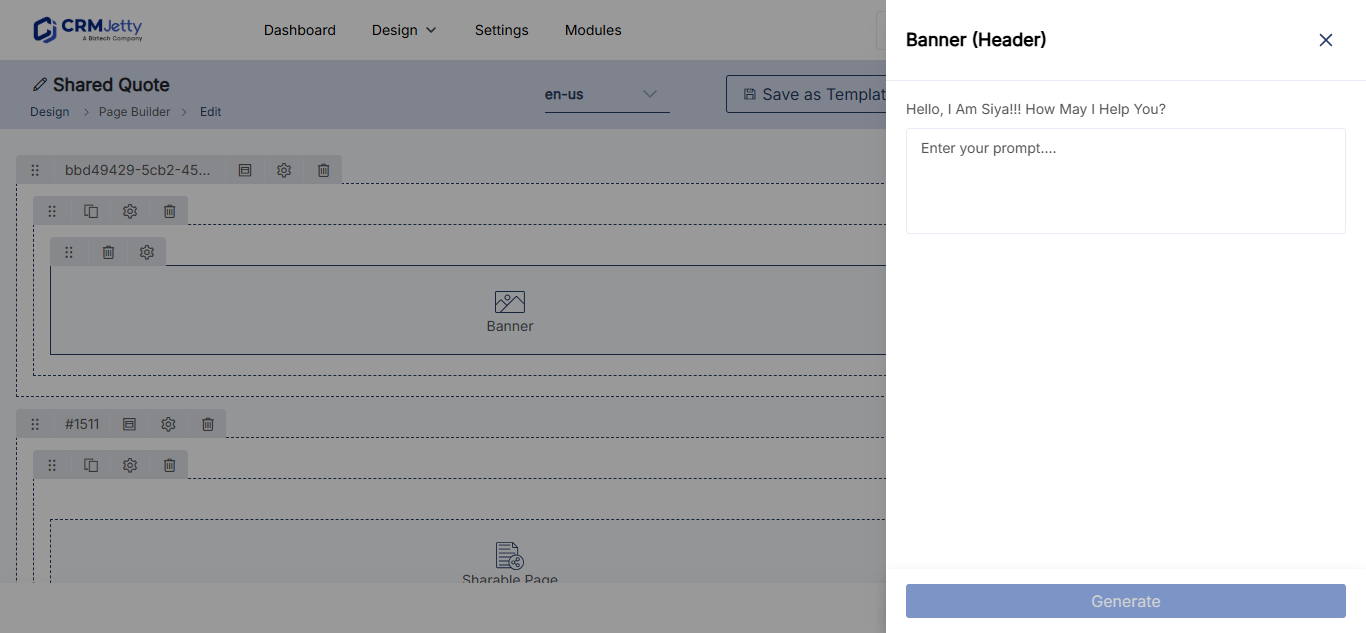
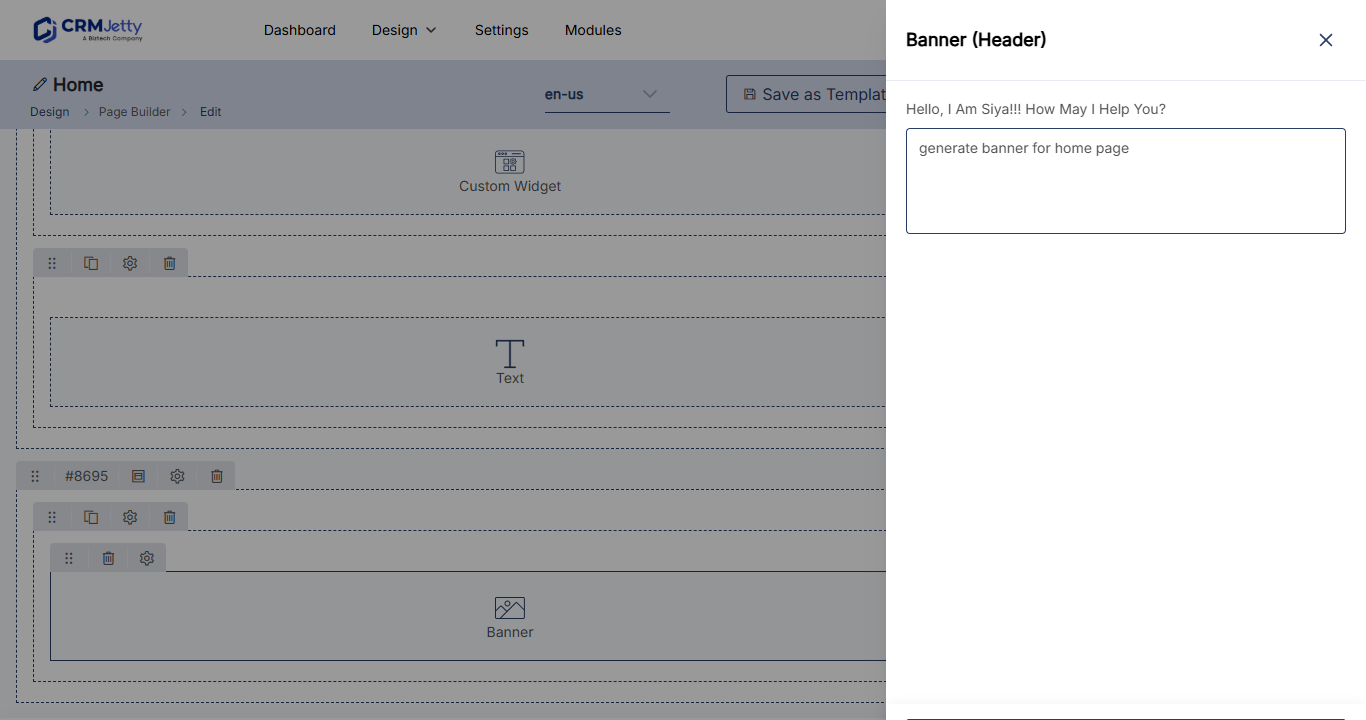
- In the prompt box, describe the text you want.
- Select Generate. The text appears in the text box.
- Review the text and edit it if needed.
- Select Save, then publish the page.
Regenerate text
If you don’t like the result, select Generate AI (or Generate with AI) again, enter a prompt and select Generate. The new text replaces the text in the box.
Tip: If you have edited the text and want to keep it, copy it somewhere before you regenerate. Regenerating overwrites the box.
Example prompts
| Widget and field | Example prompt |
|---|---|
| Banner header | “Write a title for an e-commerce website.” |
| Banner subheader | “Write a short description for an e-commerce website.” |
| Content Slider title | “Write a title for an ecommerce contact slider.” |
| Content Slider slide | “Write a welcoming header for a support slider.” |
| Testimonial slider title | “Write a title for a travel agency testimonial slider.” |
| Testimonial description | “Write a short description for a travel agency testimonial slider.” |
| Slider header | “Write a header for a real estate testimonial slider.” |
Say who the text is for, what it should say and how long it should be. Generate text for each slide separately so each one says something different.
Important: Check generated text before you publish. Make sure names, claims and offers are correct for your organization. For testimonials, publish only real quotes you have permission to use; don’t publish generated text as a customer’s words.
Related articles
- How to Add a Banner to a Portal Page
- How to Add Sliders and Testimonials to Portal Pages
- How to Create Pages in CRMJetty Portal