
How to Set Up Case Deflection in Your Customer Portal
Case deflection helps portal users find an answer on their own before they create a support case. The portal user types their question in the Case Deflection widget and sees matching articles and solutions. If nothing helps, they continue to your Create Case page. Fewer repetitive questions reach your support team.
Case deflection is a standard portal feature: it searches your existing content. It is not an AI feature.
Before you start
- You need access to Design → Page Builder in the admin portal.
- Have a knowledge base with published articles, so there is something to suggest. See How to Set Up a Knowledge Base in Your Customer Portal.
- Have a published page where portal users create a case, for example a Create Case page with a case form. See How to Manage Support Cases in the Customer Portal.
- If you want to limit which records the widget searches, create a workflow first. See How to Apply Workflows to Portal Widgets.
How case deflection fits into your support pages
A typical setup uses two pages:
| Page | What it contains | What the portal user does |
|---|---|---|
| Support or Search page | The Case Deflection widget. | Searches for an answer and reads the suggested articles. |
| Create Case page | A Form widget with your case form. | Creates a case if no article solved the problem. |
Link portal users to the Support page first, for example from the portal menu or a Get Help button. The widget then sends them on to the Create Case page.
Add the Case Deflection widget
- Go to Design → Page Builder.
- Open the page for editing, or select Create to start a new page.
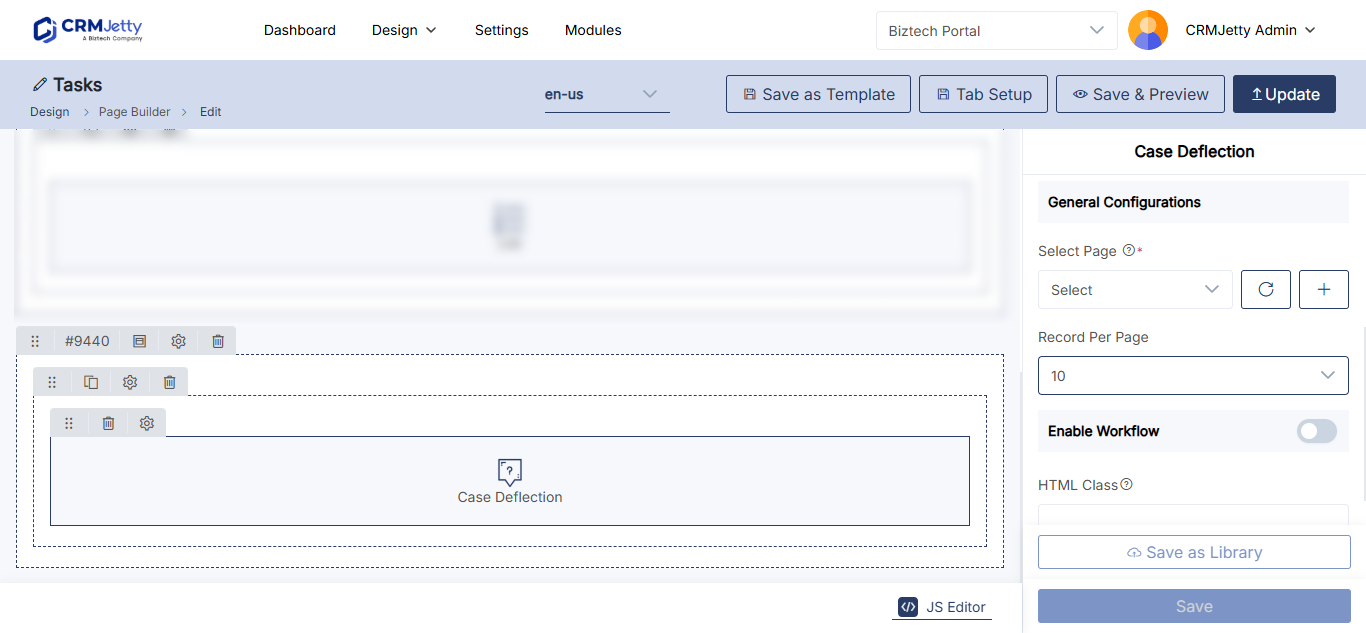
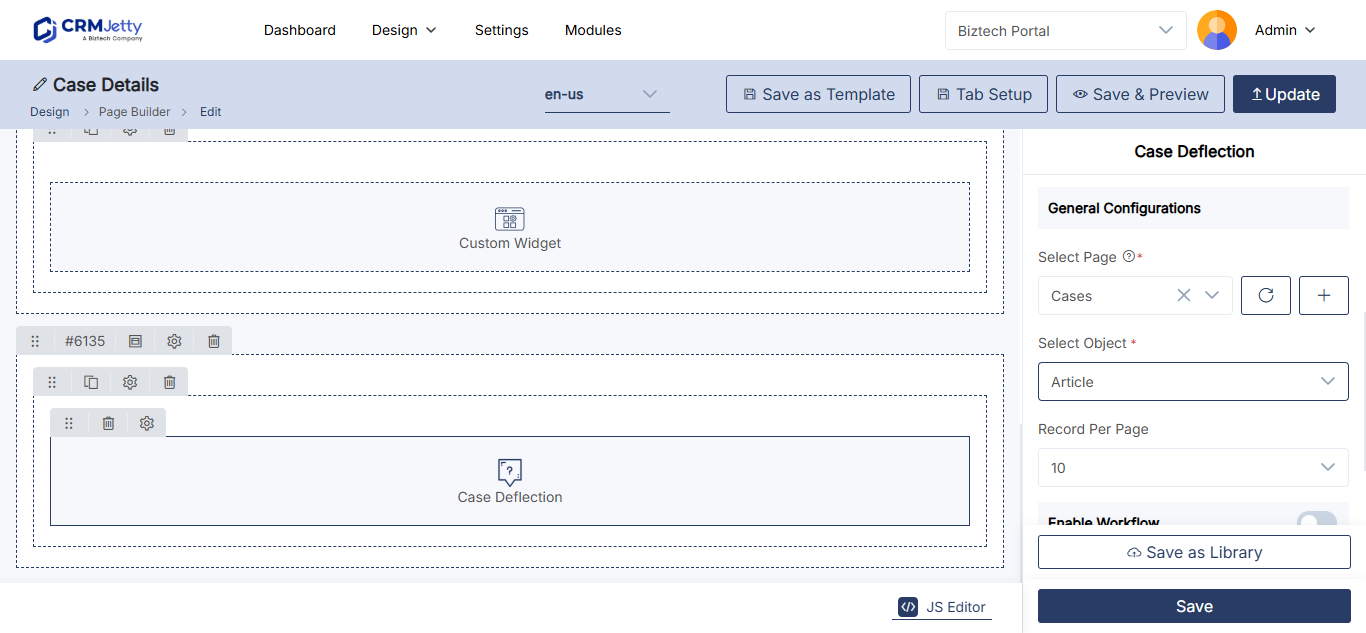
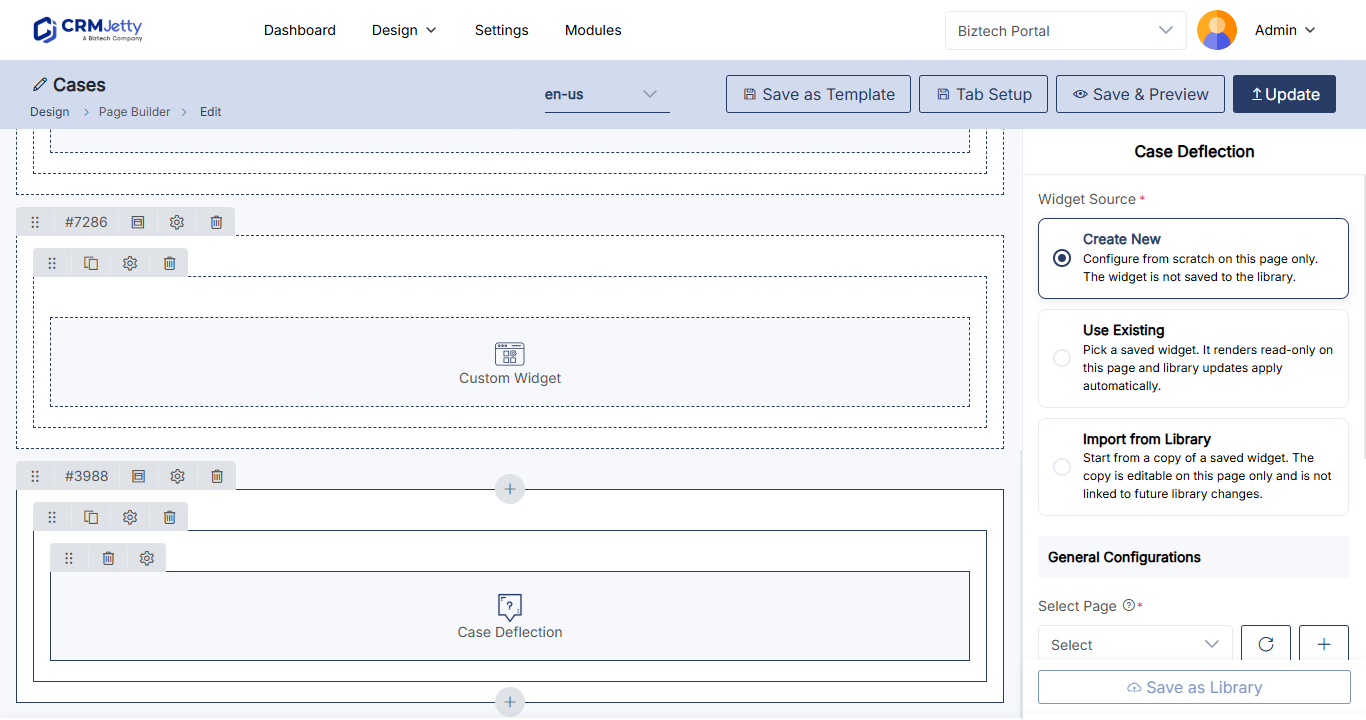
- In the widget panel, select Case Deflection. The widget is added to the grid.
- Select the Settings icon on the widget to open its configuration panel.
- Fill in the settings in the tables below.
- Select Save.
- Publish the page.
The widget goes live in the portal only after you publish the page.
Case Deflection widget settings
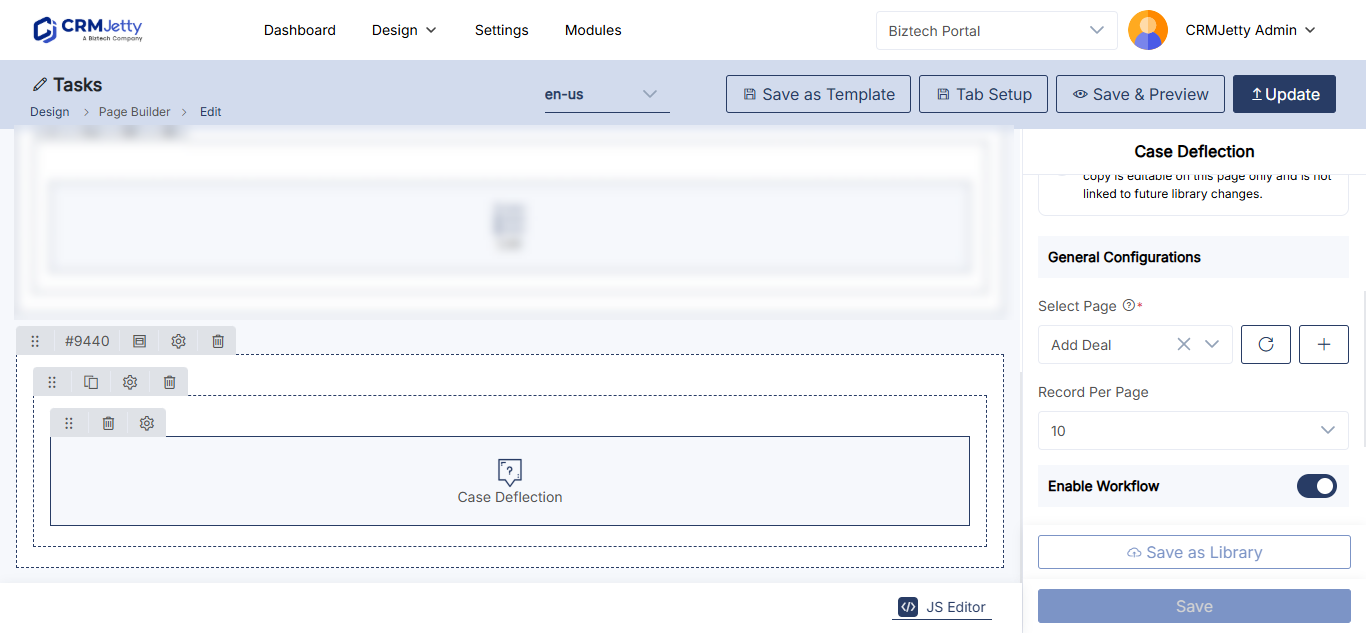
General Configuration
| Setting | What to enter |
|---|---|
| Select Page | The page portal users go to when they still need help, for example your Create Case page. |
| Records Per Page | How many suggested records show on each page of results. |
| Enable Workflow | Turn on to apply a workflow to the widget. |
| Select Workflow | The workflow that decides which data loads in the widget. |
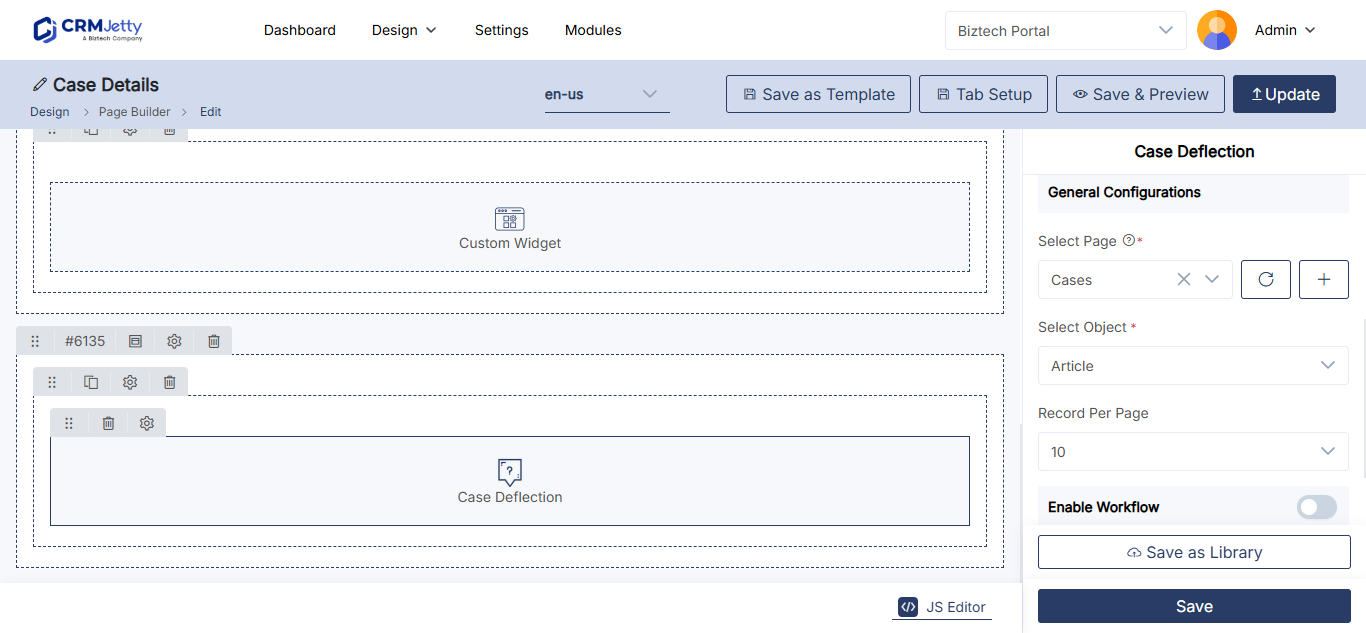
Case Deflection Setting
| Setting | What to enter |
|---|---|
| HTML Class | One or more custom CSS classes to style the widget. |
| HTML ID | A unique ID for the widget, to target it with CSS or JavaScript. |
| Custom | Custom options for your implementation, if any. |
| Card View | Shows the suggested records as cards, for a compact layout. |
For classes and IDs, see How to Add Custom HTML IDs and CSS Classes to Widgets.
To remove the widget from the page, select its Delete icon.
Note: Only published pages appear in Select Page. Publish your Create Case page first.
What portal users see
- The portal user opens the page with the Case Deflection widget.
- They enter their question or keywords.
- The widget suggests relevant articles and solutions.
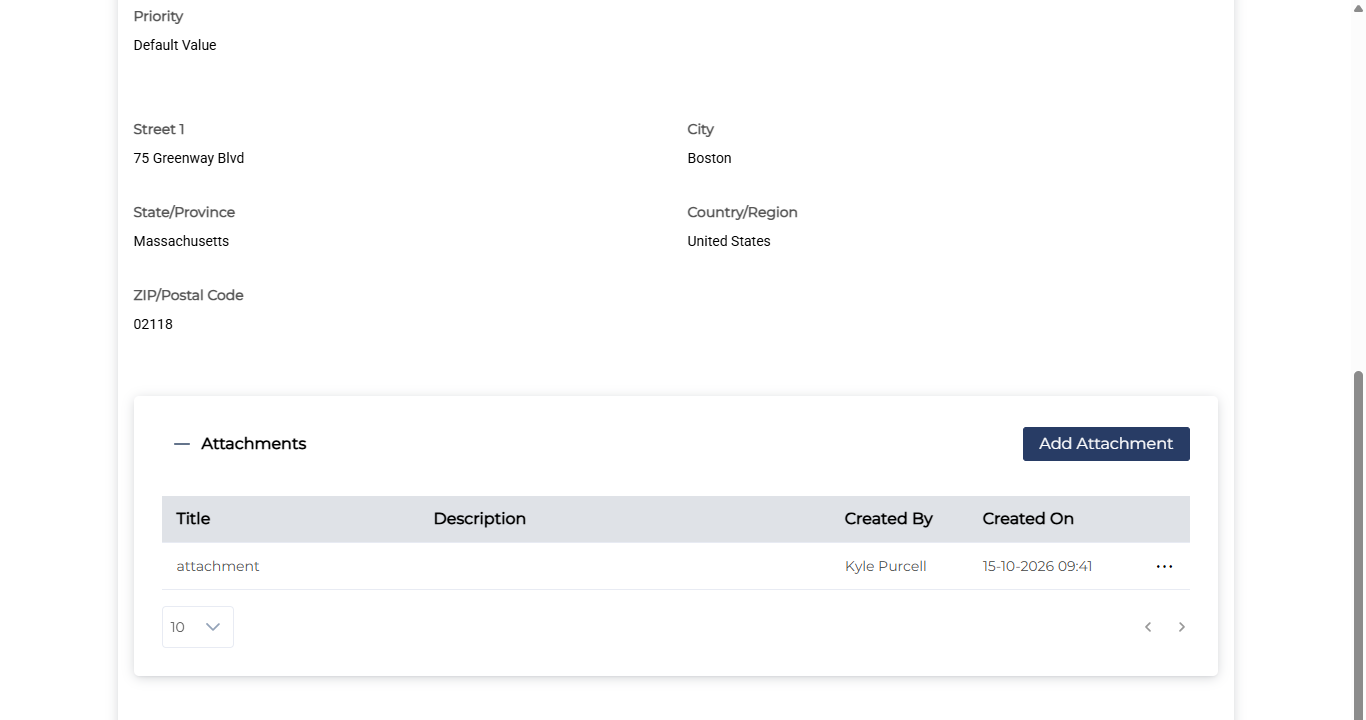
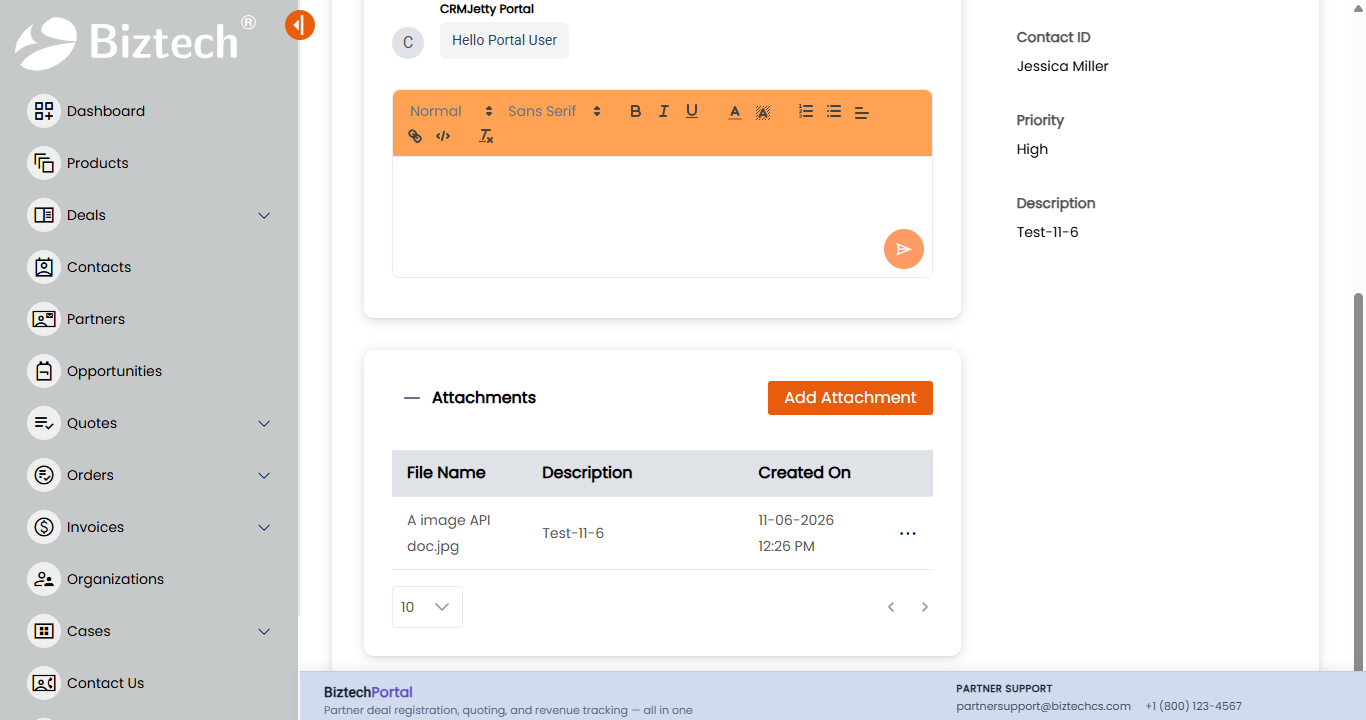
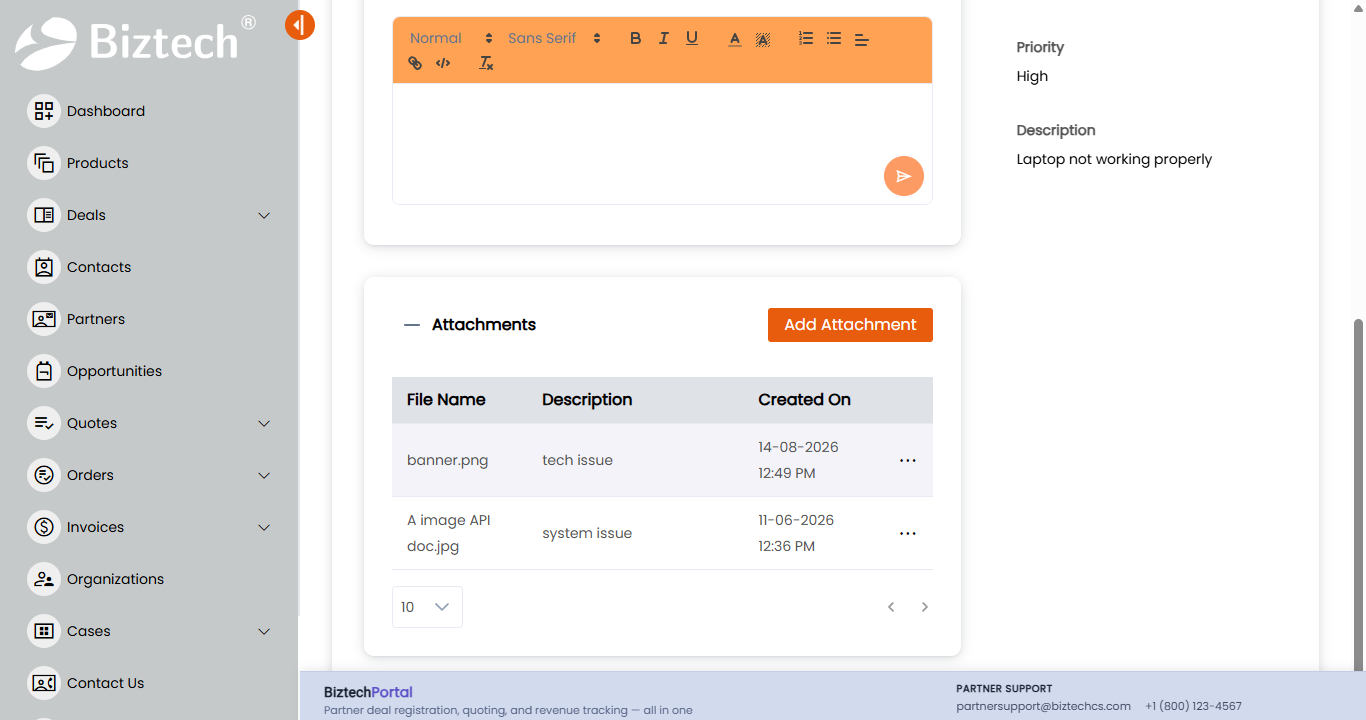
- If an article answers the question, they are done. If not, they continue to the page you selected in Select Page and create a case.
Troubleshooting
The Create Case page is missing from Select Page: The page is still a draft. Publish it, then open the widget settings again. See Why a Portal Page Is Missing from Page Selection.
The widget suggests no articles: Check that your CRM has published knowledge articles. If Enable Workflow is on, check that the workflow does not filter out all records.
You imported a page and are asked to configure case deflection: The import checks that integrations the page uses, including Case Deflection, are configured in this portal. See How to Export and Import Portal Configuration.
Related articles
- How to Set Up a Knowledge Base in Your Customer Portal
- How to Manage Support Cases in the Customer Portal
- How to Apply Workflows to Portal Widgets
- How to Create Pages in CRMJetty Portal