
How to Add Regex Validation to Form Fields
Regex (regular expression) validation makes a portal form field accept only values in a set format, such as a postal code, a phone number or an ID like ABC-1234. Portal users who enter a value in the wrong format see your error message and can’t submit the form until they fix it. This keeps the data that reaches your CRM consistent.
Before you start
- You need admin access to the CRMJetty admin portal.
- Regex validation works on fields with the String data type (text fields).
- The form must already exist. See How to Create a Portal Form for Any CRM Entity.
Regex settings
| Setting | What to enter |
|---|---|
| Enter Regex Pattern | The regular expression the value must match. It defines the required format, such as digits only or a fixed ID format. |
| Enter Regex Validation Message | The error message portal users see when their value doesn’t match. Say what the correct format is, for example “Enter a 5-digit ZIP code”. |
Steps
- Go to Design → Form Builder.
- Select Edit on the form.
- Select the Settings icon on the string field you want to validate. The Field Configuration panel opens.
- In Enter Regex Pattern, enter your pattern. See the examples below.
- In Enter Regex Validation Message, enter the message portal users see when the value is wrong.
- Select Save.
- Publish the form.
- Open the form in the portal and test it with a valid and an invalid value.
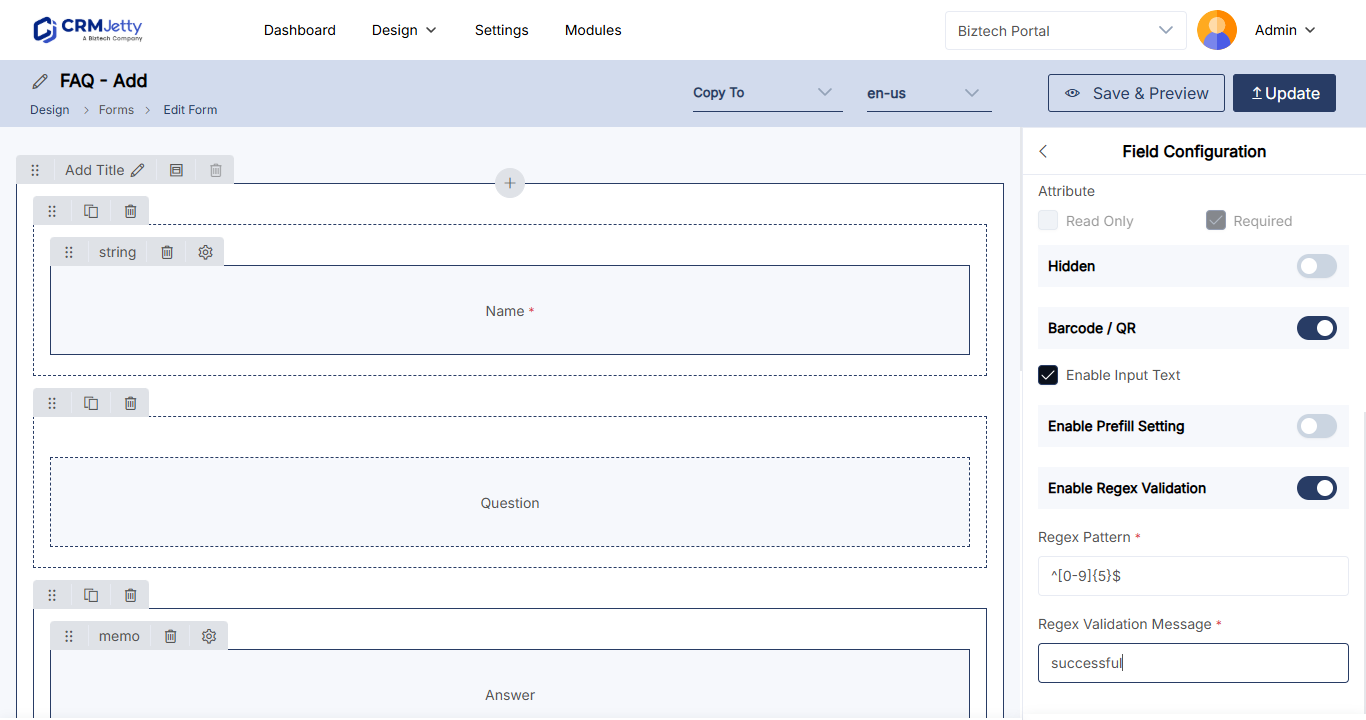
Example patterns
Each pattern starts with ^ and ends with $, so the whole value must match, not just part of it.
| Use it for | Pattern | Accepts | Rejects |
|---|---|---|---|
| US ZIP code | ^[0-9]{5}$ |
90210 |
9021, 90210-1234 |
| Order or ticket ID | ^[A-Z]{3}-[0-9]{4}$ |
ABC-1234 |
abc-1234, AB-1234 |
| Account code of 6 to 10 letters or digits | ^[A-Za-z0-9]{6,10}$ |
AC12345 |
AC-123, AB12 |
| Phone number | ^\+?[0-9]{7,15}$ |
+14155550123, 4155550123 |
415-555-0123, +1 415 555 |
| Email address (basic check) | ^[^@\s]+@[^@\s]+\.[^@\s]+$ |
name@example.com |
name@example, name example.com |
What each pattern means:
- US ZIP code:
[0-9]is one digit, and{5}means exactly five of them. - Order or ticket ID:
[A-Z]{3}is three capital letters,-is a literal hyphen, then[0-9]{4}is four digits. - Account code:
[A-Za-z0-9]is one letter or digit, and{6,10}allows 6 to 10 of them. Spaces and symbols are rejected. - Phone number:
\+?allows one optional plus sign at the start, then[0-9]{7,15}needs 7 to 15 digits. Spaces, dashes and brackets are rejected, so say so in your message. - Email address:
[^@\s]+is one or more characters that aren’t@or a space. The pattern needs text, an@, more text, a dot and more text. It catches typos but doesn’t prove the address exists.
Regex quick reference
| Symbol | Meaning |
|---|---|
^ and $ |
Start and end of the value. Use both so the whole value must match. |
[0-9] |
Any one digit. |
[A-Z], [a-z] |
Any one capital letter, any one lowercase letter. |
[^@\s] |
Any one character except @ and white space. |
{5}, {6,10} |
Exactly 5 of the item before it; 6 to 10 of the item before it. |
+ |
One or more of the item before it. |
? |
The item before it is optional (zero or one). |
\ |
Makes the next character literal, for example \+ for a plus sign or \. for a dot. |
Tip: Test a new pattern with sample values before you use it on a live page, for example on a test page that only admins know about. Draft forms don’t appear in the portal, so you can’t test the pattern on a draft. A pattern that is too strict blocks portal users from submitting the form.
Troubleshooting
Valid values are rejected: Check the pattern for unescaped special characters. A plus sign or dot must be written \+ or \. to match the character itself. Also check for spaces, dashes or lowercase letters in the value that the pattern doesn’t allow.
Invalid values are accepted: Make sure the pattern starts with ^ and ends with $. Without them, a value may pass if any part of it matches.
The validation doesn’t run: Check that you saved the field settings and published the form. Draft changes don’t appear in the portal.
Related articles
- How to Edit Form Field Labels and Placeholders
- How to Add Rating and QR Code Fields to Forms
- How to Design Add, Edit and Detail Form Layouts