
How to Create and Reuse Portal Page Templates
A template is a saved page layout: its sections, grids and widgets. Start new pages from a template to keep pages consistent and to save time, instead of building each layout from a blank page.
Before you start
- You need access to the Design menu in the admin portal.
- Know how Page Builder works. See How to Create Pages in CRMJetty Portal.
What a template saves
A template stores the layout only, not the widget configuration.
| Saved in the template | Not saved in the template |
|---|---|
| Sections, grids and which widgets sit where | Widget settings, such as the form a Form widget shows or the text in a Banner |
When you create a page from a template, configure each widget on the new page before you publish it.
Open Template Builder
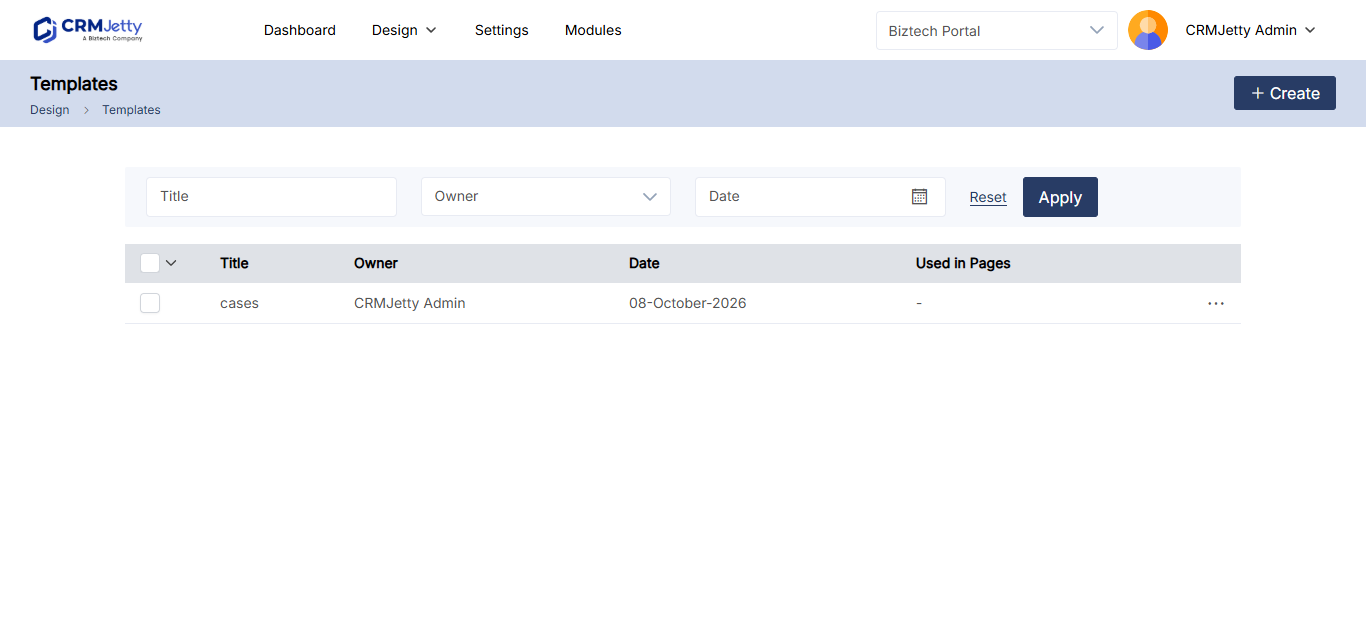
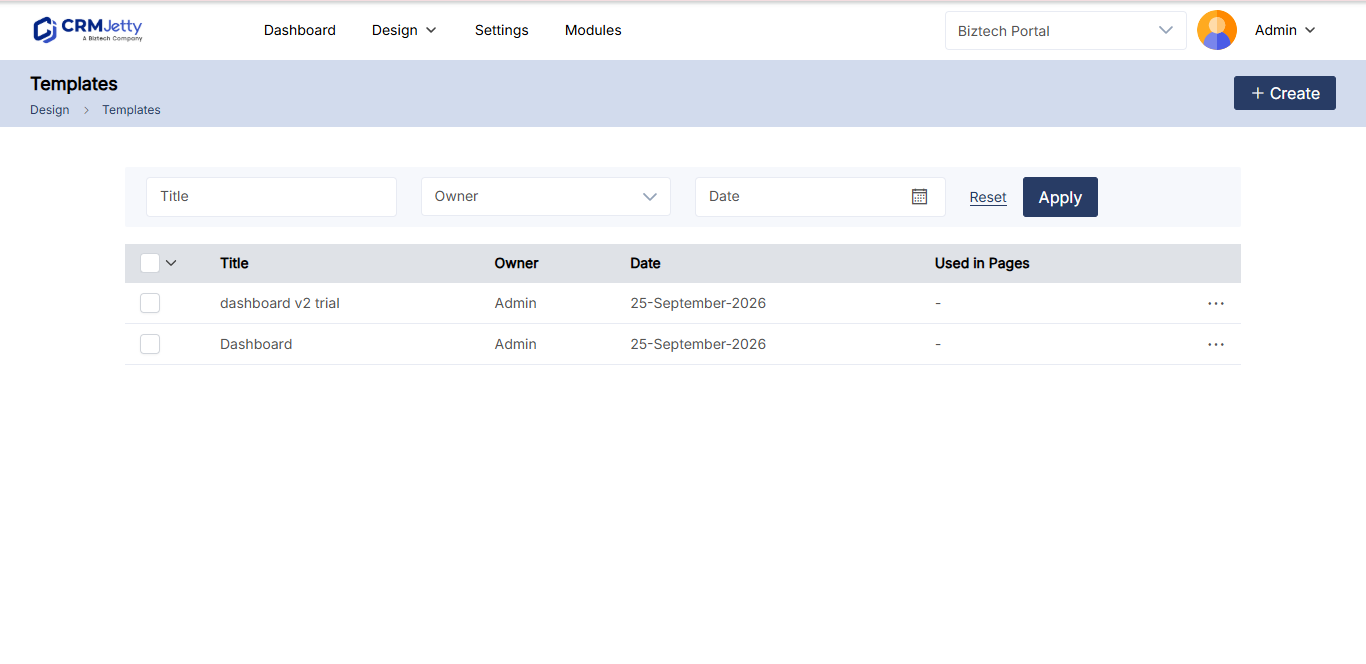
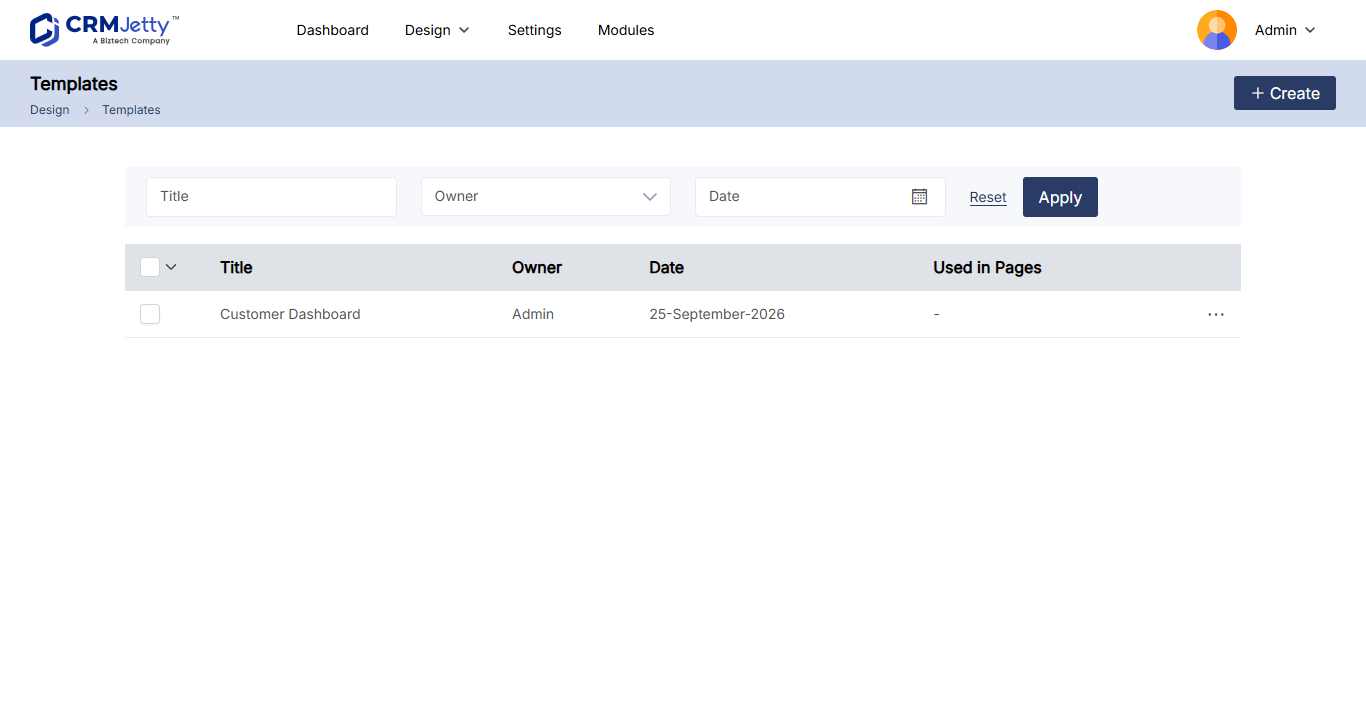
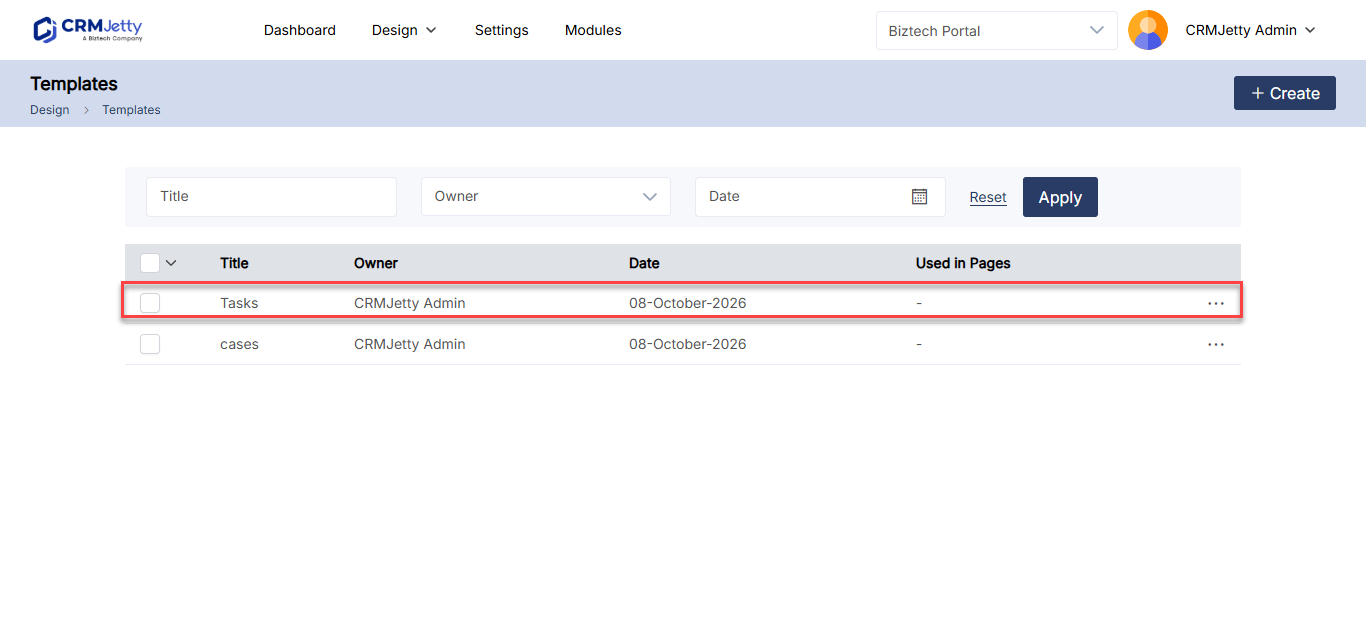
Go to Design → Template Builder. The template list shows these columns:
| Column | What it shows |
|---|---|
| Title | The name of the template. |
| Owner | The admin who created or owns the template. |
| Date | When the template was created or last modified. |
| Used in Pages | Which pages use the template. |
Create a template in Template Builder
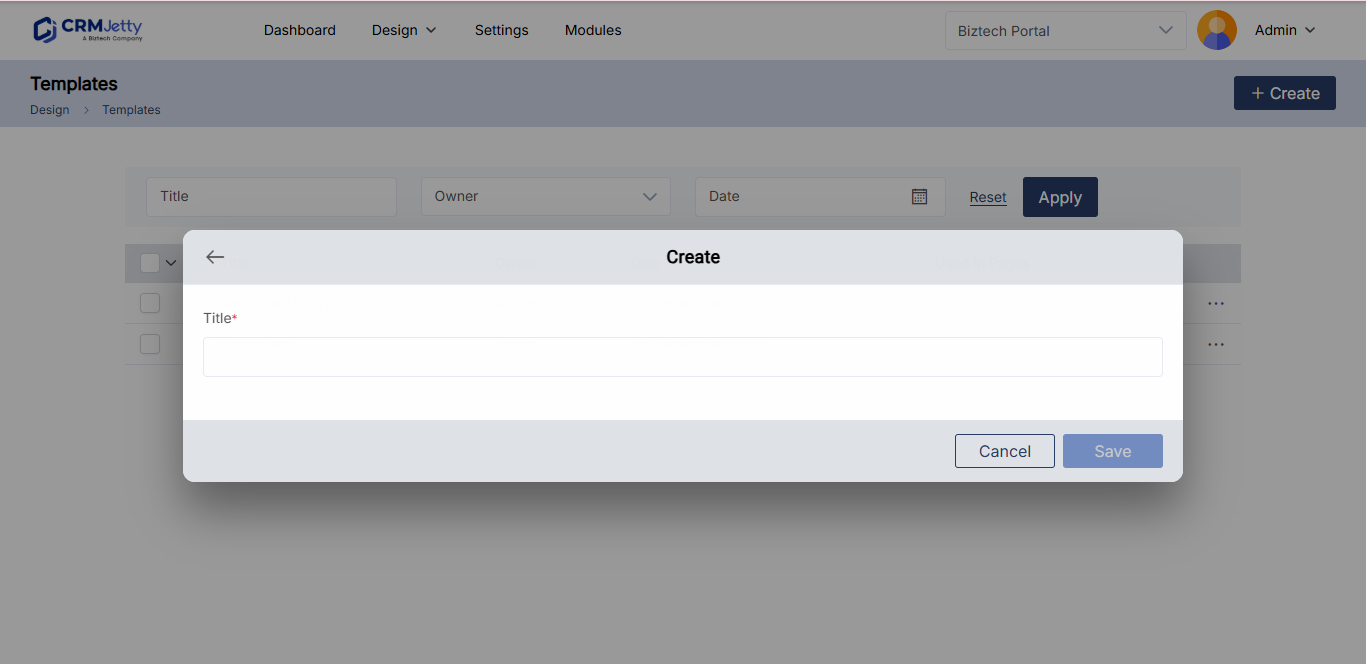
- In Template Builder, select + Create.
- Enter a Title for the template.
- Add sections and grids, then select the widgets the layout needs.
- Select Save.
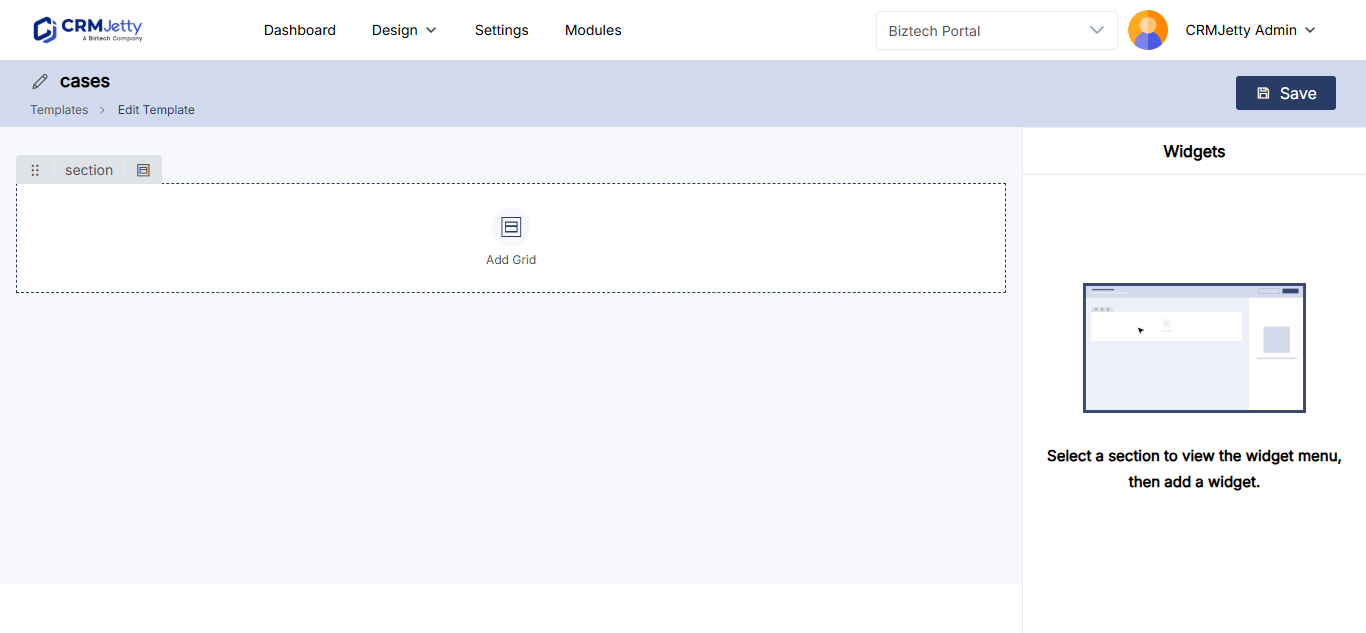
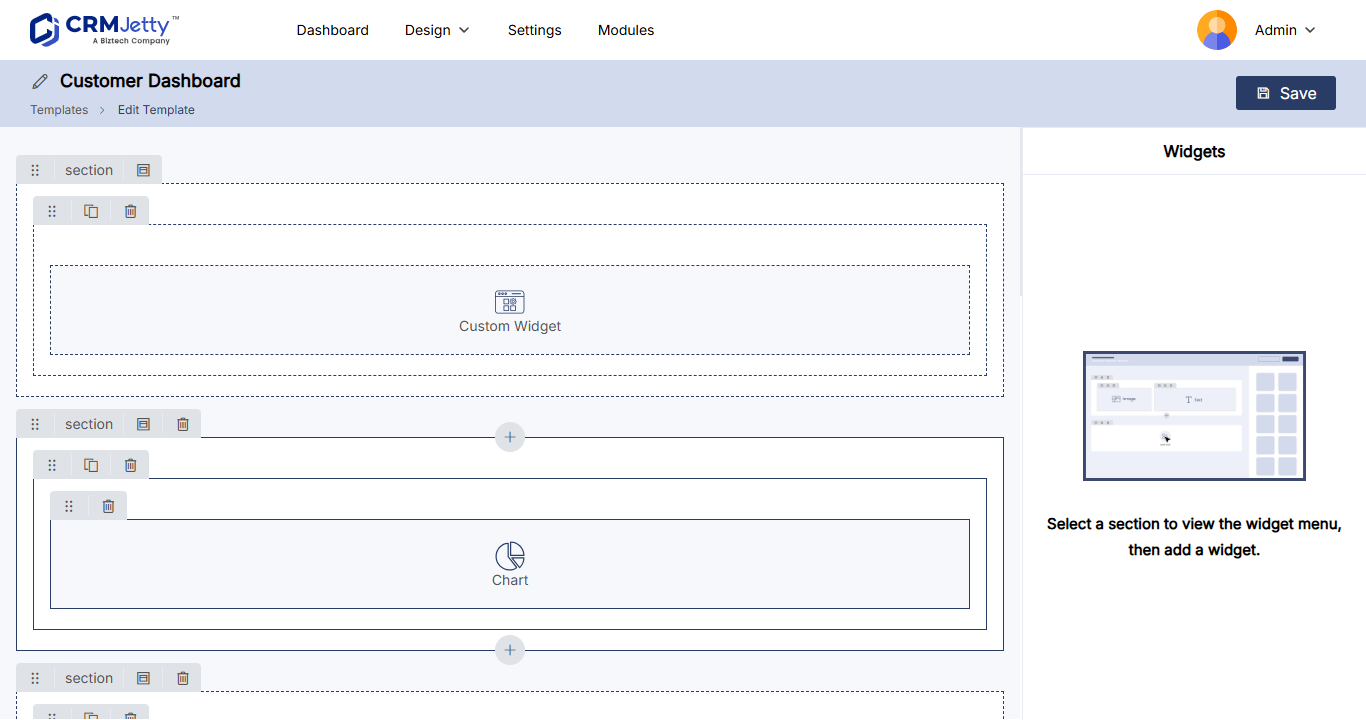
Note: You cannot configure widgets while you design a template. You configure them on each page that uses the template.
Save a page as a template
You can also turn a page layout you have already built into a template.
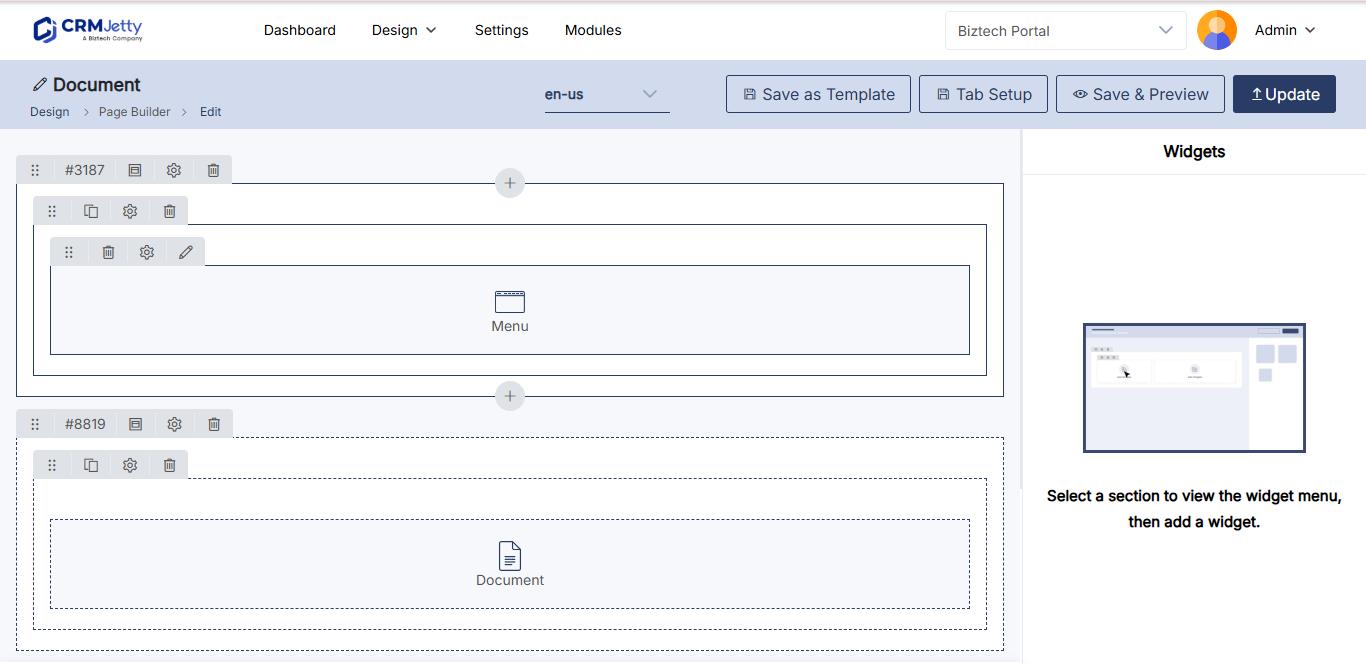
- Go to Design → Page Builder.
- Create a page, or open an existing page for editing.
- Design the layout.
- Select Save as Template.
The layout is saved as a template and appears in the template list straight away.
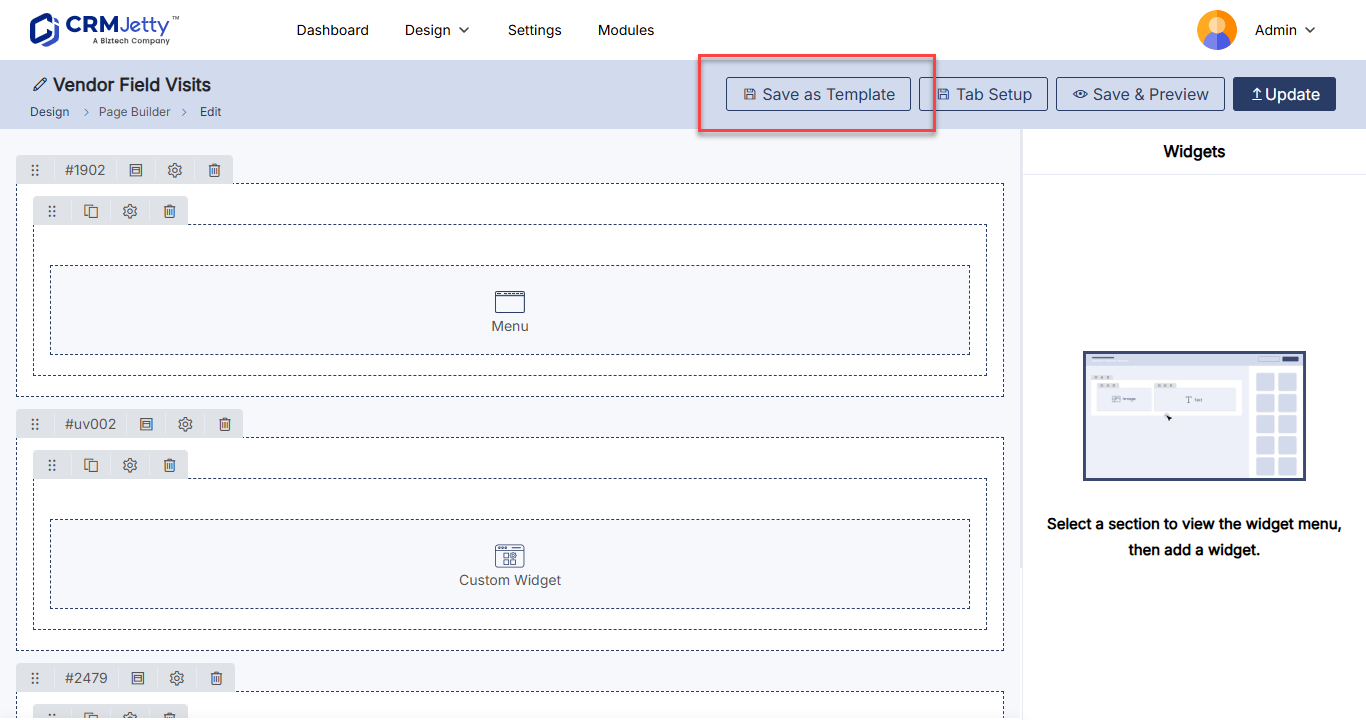
Note: If a template with the same name already exists, the new template is saved with a “copy” suffix, for example
page - copy.
Create a page from a template
- Go to Design → Page Builder and select Create.
- Fill in the page settings, such as Page Title, Page URL Slug and Page Access.
- In Select Template, choose the template.
- Select Next. The template layout opens.
- Configure each widget, and change sections and grids if needed.
- Select Publish.
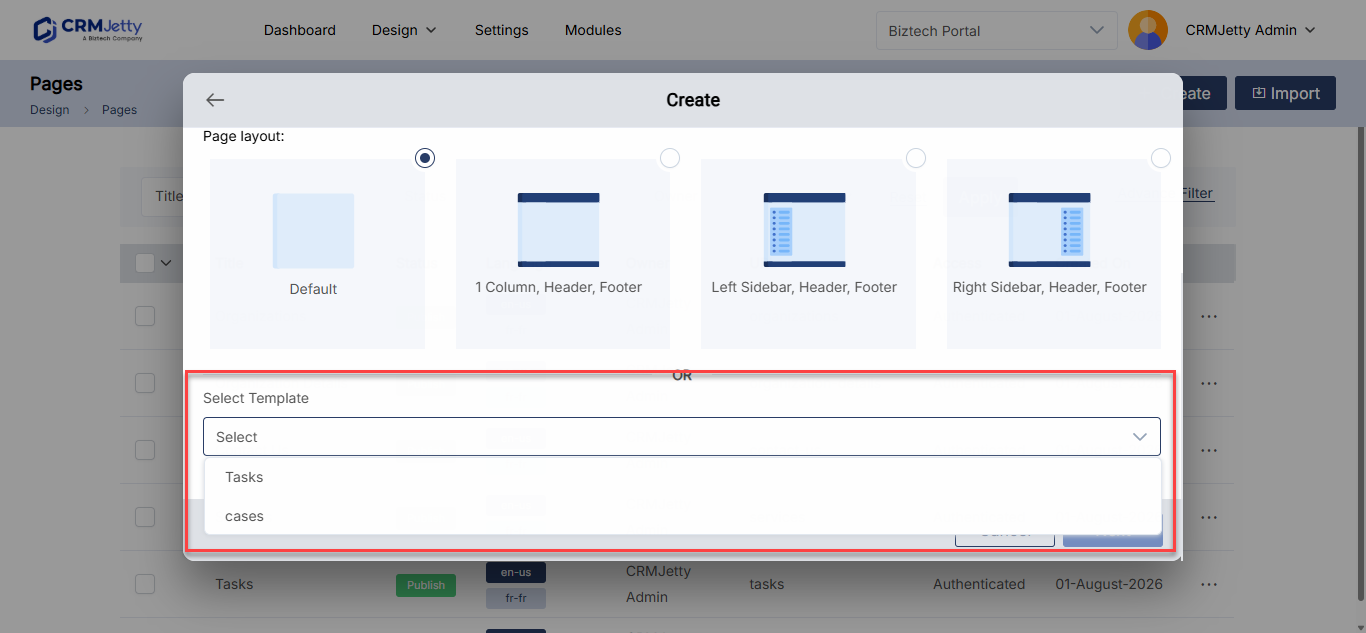
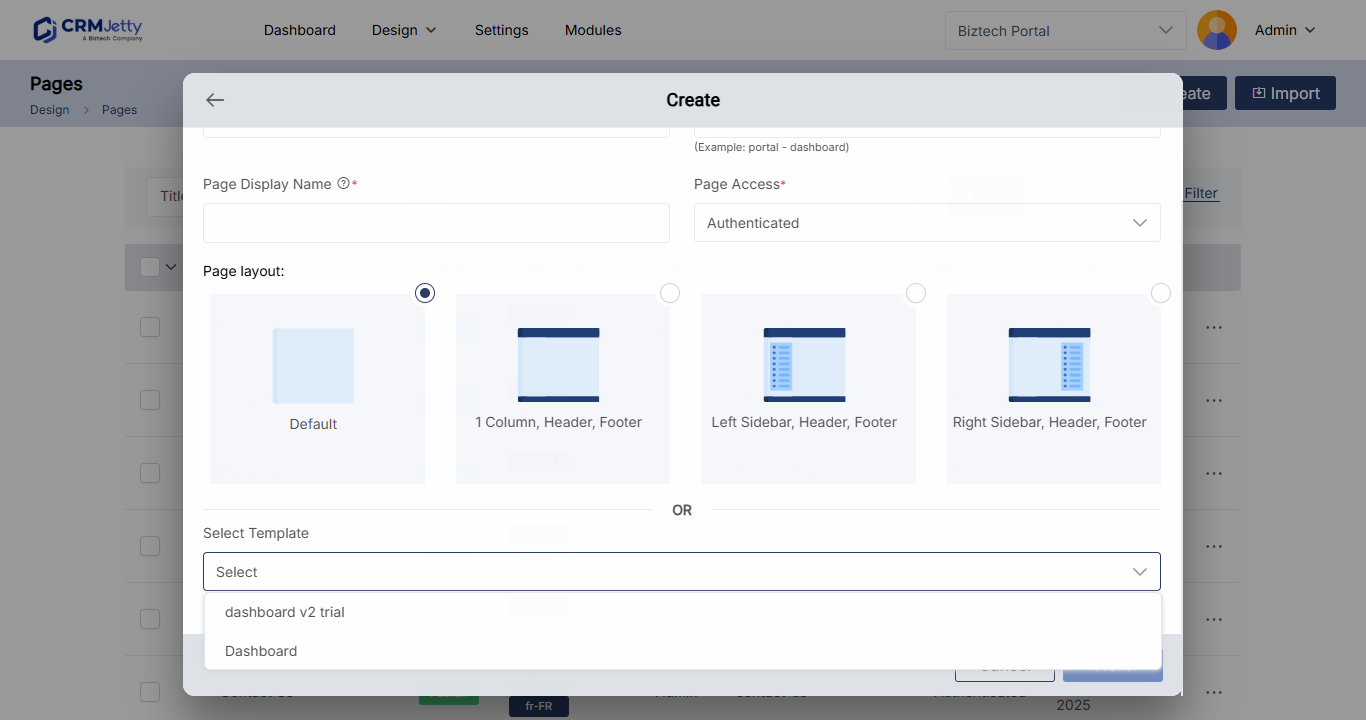
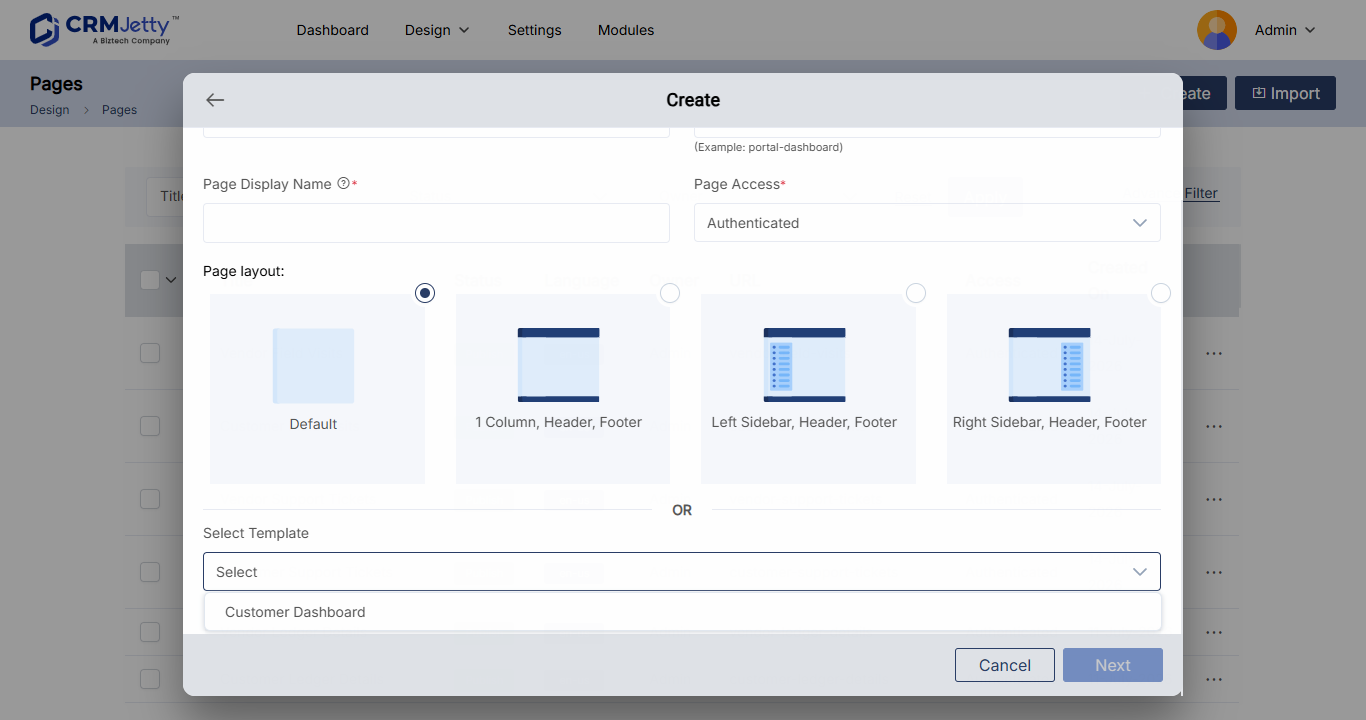
For each page setting, see Create a page.
Edit a template
- In the template list, select the three dots (…) next to the template.
- Select Edit.
- Change the title or layout.
- Select Save.
Duplicate templates
To copy one template:
- Select the three dots (…) next to the template.
- Select Duplicate.
The copy appears in the list as “Template Name – Copy”, for example Primary Template – Copy, and a success message confirms it.
To copy several templates at once:
- Select the checkbox next to each template.
- Open the bulk action options and select Duplicate.
Delete templates
To delete one template:
- Select the three dots (…) next to the template.
- Select Delete.
- In the warning pop-up, select OK.
To delete several templates, select their checkboxes, open the bulk action options, select Delete and then OK. Select Cancel to keep them.
Important: Deleting a template is permanent. Check the Used in Pages column first.
Related articles
- How to Create Pages in CRMJetty Portal
- How to Publish, Draft and Duplicate Portal Pages
- How to Set Public and Login-Only Portal Pages
- How to Add a Banner to a Portal Page