
Guides / Forms
How to Create Multi-Step Forms in the Portal
Short answerOpen an Add or Edit form in Design → Form Builder, check Enable Multi-Step Form under Web Forms, set the Previous and Next button labels and a layout, then update or publish the form. Each form section becomes one step.
A multi-step form shows the form content of an entity step by step in the portal. Each section of the form layout becomes one step, which makes long or complex forms easier for portal users to fill in.
Before you start
- You need admin access to the CRMJetty admin portal.
- Multi-step works only for Add and Edit type forms. It works with both Create New and Use Existing field selection.
- Plan your form in sections. Each section is one step. See How to Create Multi-Section Portal Forms.
Steps
- Go to Design → Form Builder.
- Open the Add or Edit form you want to split into steps, or create a new one.
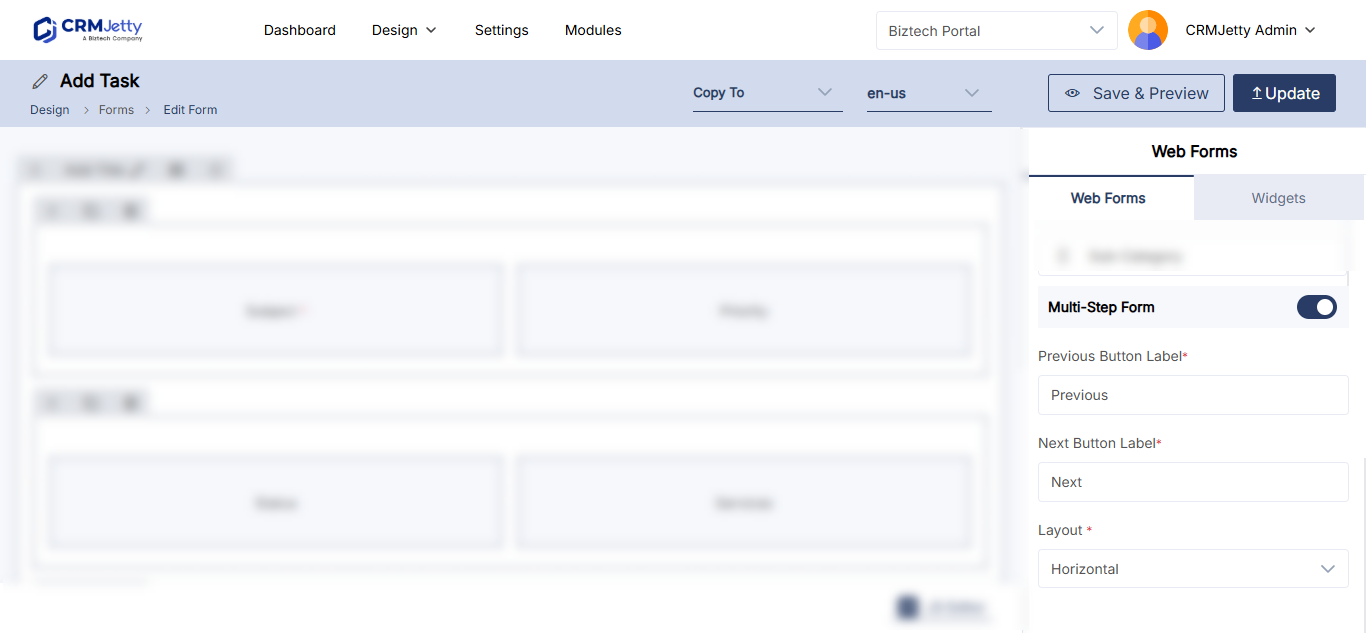
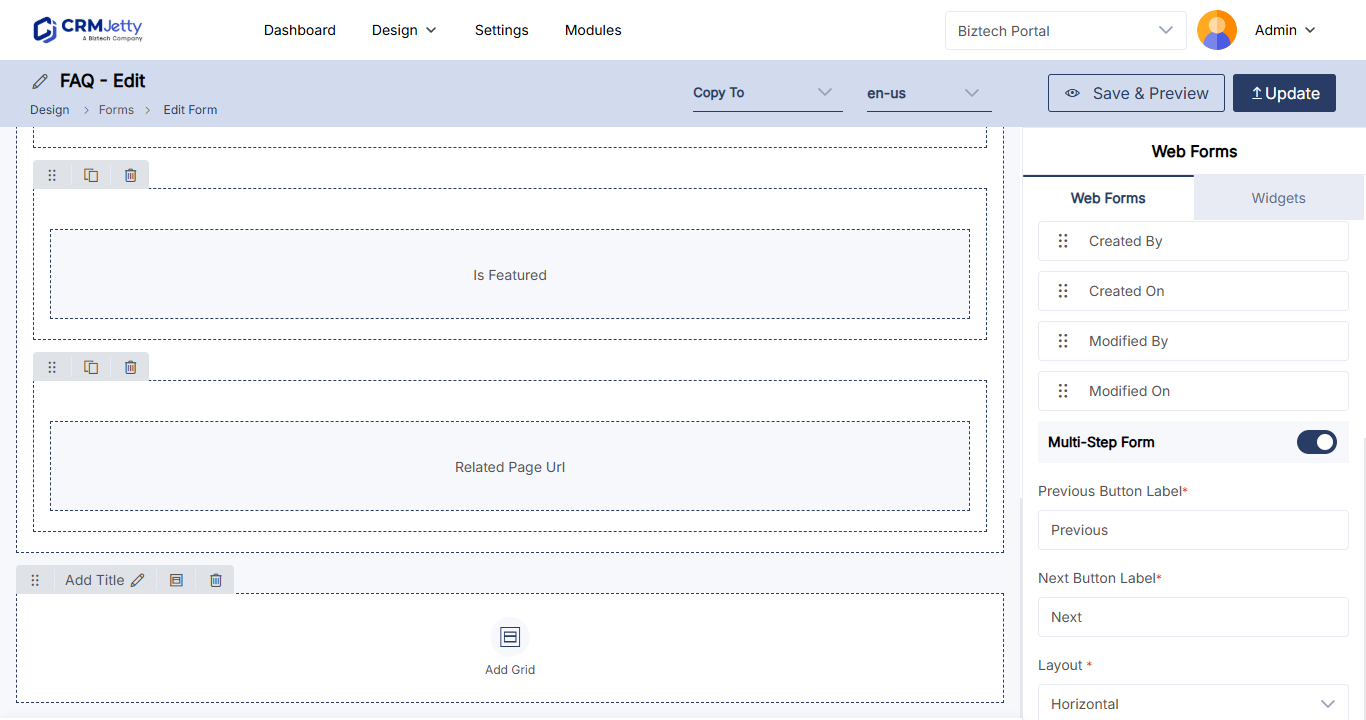
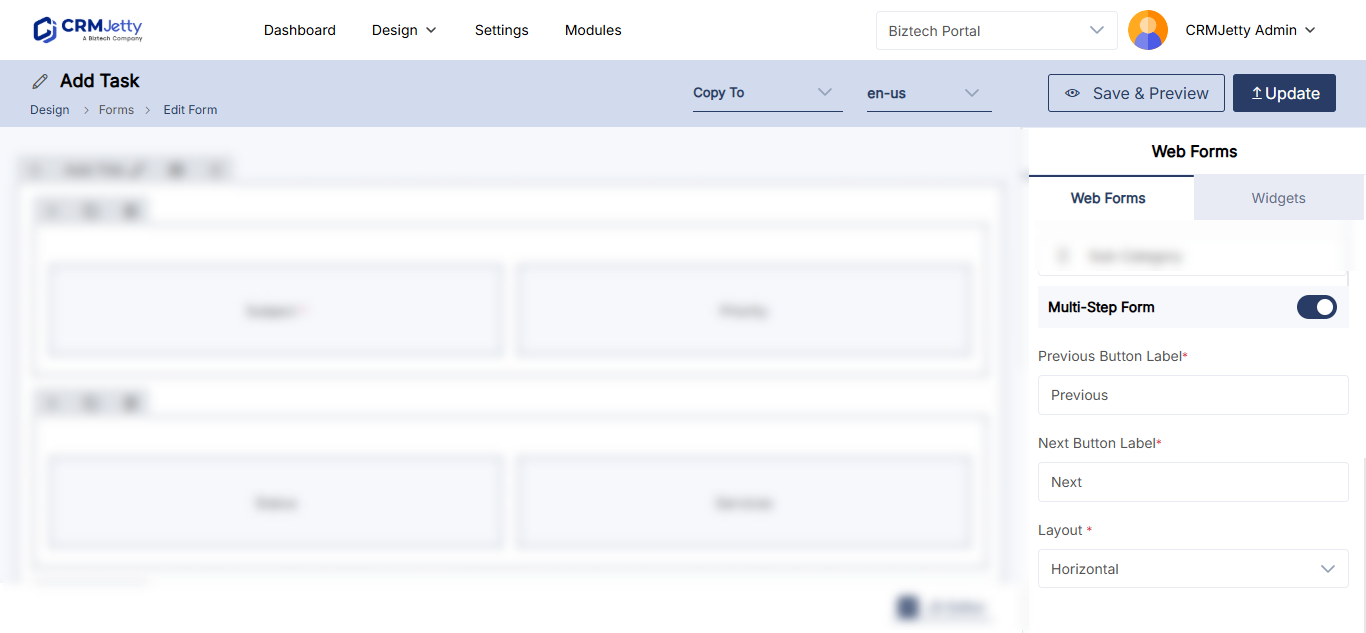
- In the form configuration panel, under Web Forms, check Enable Multi-Step Form.
- In Previous Button Label, enter the label for the button that takes users back to the previous section.
- In Next Button Label, enter the label for the button that moves users to the next section.
- Under Layout, select Horizontal, Right Vertical or Left Vertical.
- Update or publish the form.
- Add the form to a page in the Page Builder to preview the multi-step navigation.
What portal users see
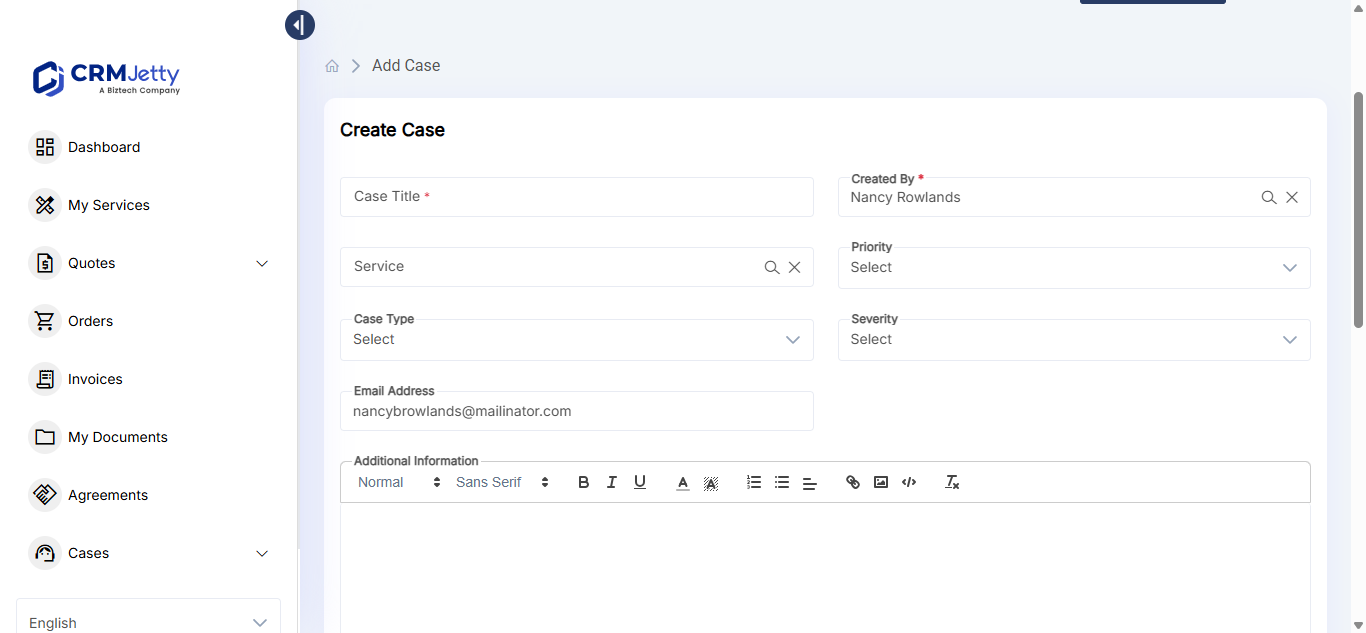
- When portal users add or edit a record, the form opens step by step. The steps are the sections in your form layout.
- After filling in a step, users select the Next button (or your custom label) to move to the next step.
- Users must complete the current step before moving on to the next one.
- The multi-step layout also applies when users edit an existing record.
Troubleshooting
The Enable Multi-Step Form option is missing: Check the form type. The option is available only for Add and Edit type forms, not Detail forms.
The form shows as a single step: The form has only one section. Add more sections to the layout; each section becomes one step.
Related articles
- How to Create Multi-Section Portal Forms
- How to Design Add, Edit and Detail Form Layouts
- How to Create a Portal Form for Any CRM Entity
- How to Link Parent and Child Records in a Form
Did this solve it?No, contact support