
How to Let Customers Download Invoice PDFs
Portal users can download their invoices as PDF files from the invoice list in the portal. You decide how the PDF looks with a downloadable template, then turn on downloads for the list that shows invoices.
Note: This feature is available on selected plans. See Pricing.
Before you start
- You need access to Settings and Design in the admin portal.
- Enable the invoice entity (Dynamics 365), object (Salesforce) or table (Business Central) for the portal. See How to Enable CRM Entities and Custom Objects in the Portal. For Business Central, see How to Configure Business Central Table Sync.
- Have a published invoice list, and a portal page that shows it. See How to Create List Views in CRMJetty Portal.
- Give portal user roles View permission on invoices. See How to Set Add, Edit and Delete Permissions by Role.
- To write the template, you need basic HTML and CSS.
Create the invoice template
The template sets the layout of the PDF: which invoice fields it shows and how they look.
- Go to Settings → Portal Settings → Template Scripting.
- Open the Downloadable Template section and select Create.
- In the pop-up, enter a Title, for example
Invoice PDF, and select Save. The template creation page opens. - In Data Source, select your invoice entity.
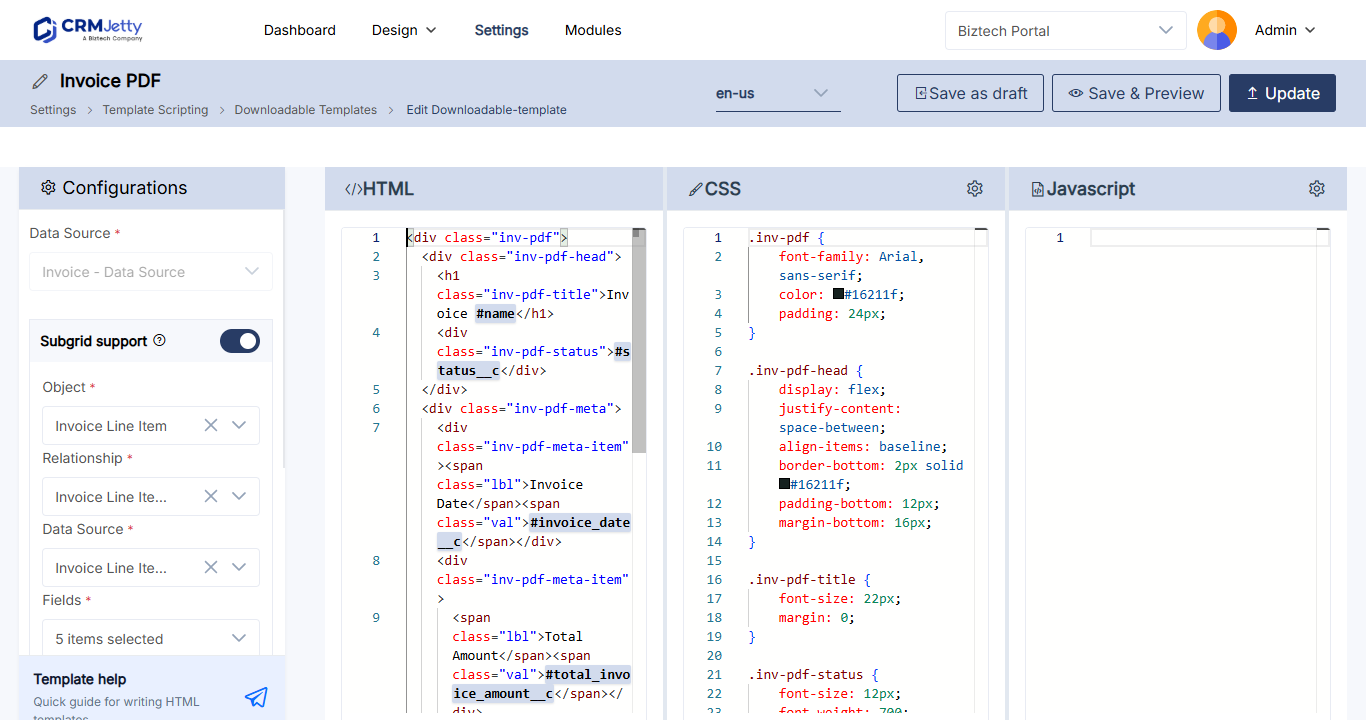
- Enter the template code in the HTML, CSS and JavaScript sections.
- Select Publish.
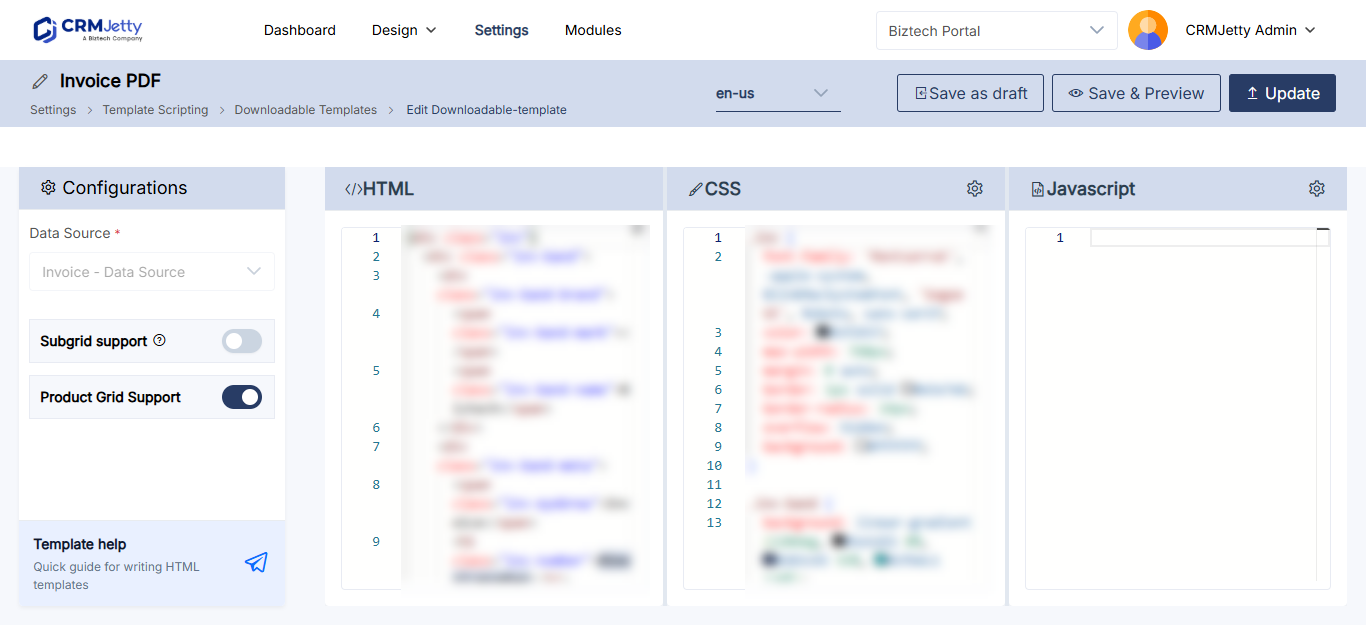
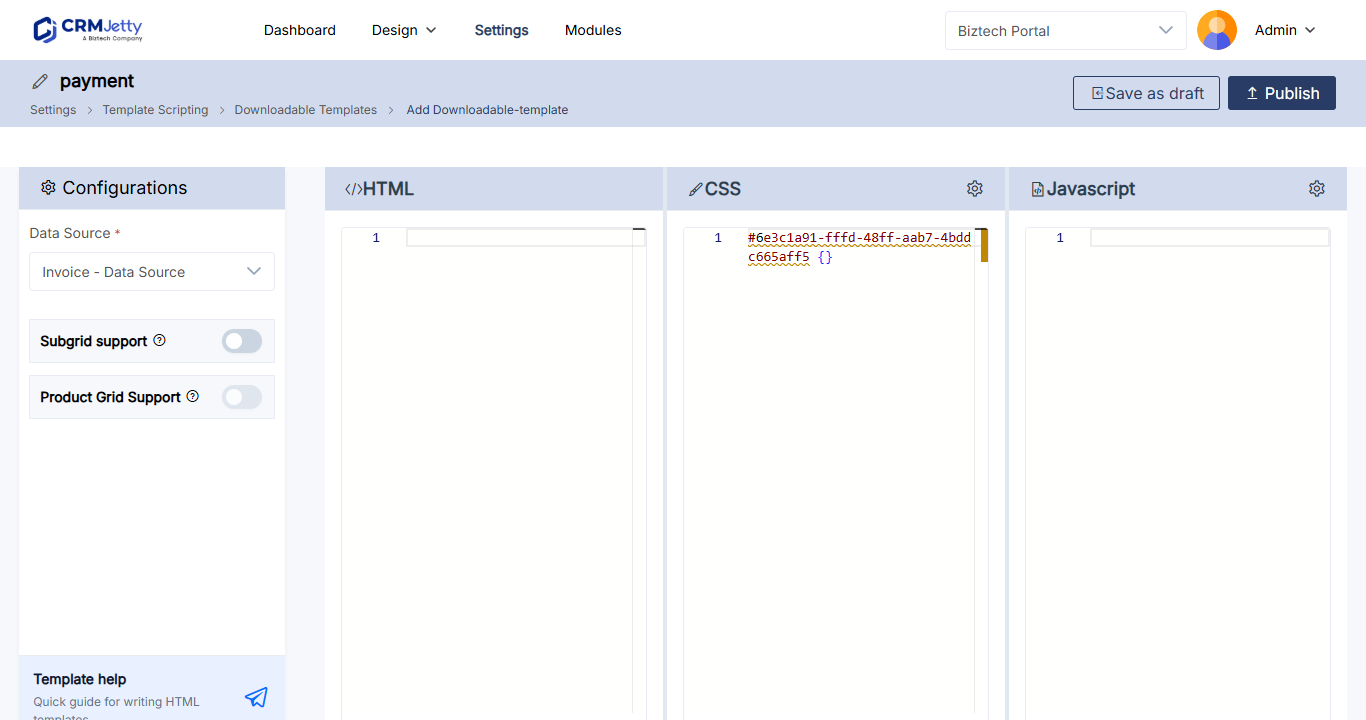
Tip: Select Template Help for a quick guide to building templates.
Only published templates can be used. Select Save as Draft instead of Publish to finish the template later.
Add invoice lines with Subgrid Support
To include related records in the PDF, such as the line items of an invoice, turn on Subgrid Support in the template and fill in these settings:
| Setting | What to select |
|---|---|
| Entity | The related entity, for example the invoice line entity. |
| Relationship | The relationship between the invoice and the related entity. |
| Fields | The fields of the related records to include. |
For more on writing templates, see How to Generate Downloadable PDF Documents.
Turn on downloads in the invoice list
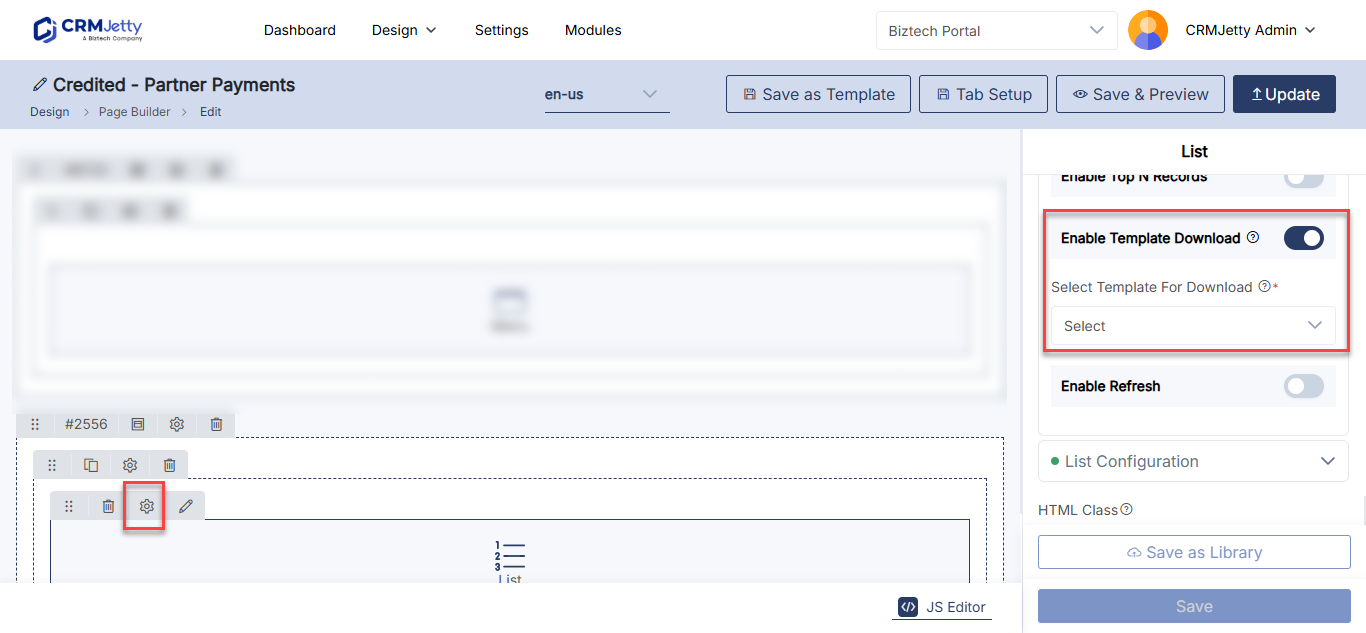
- Go to Design → Page Builder and open the page that shows invoices.
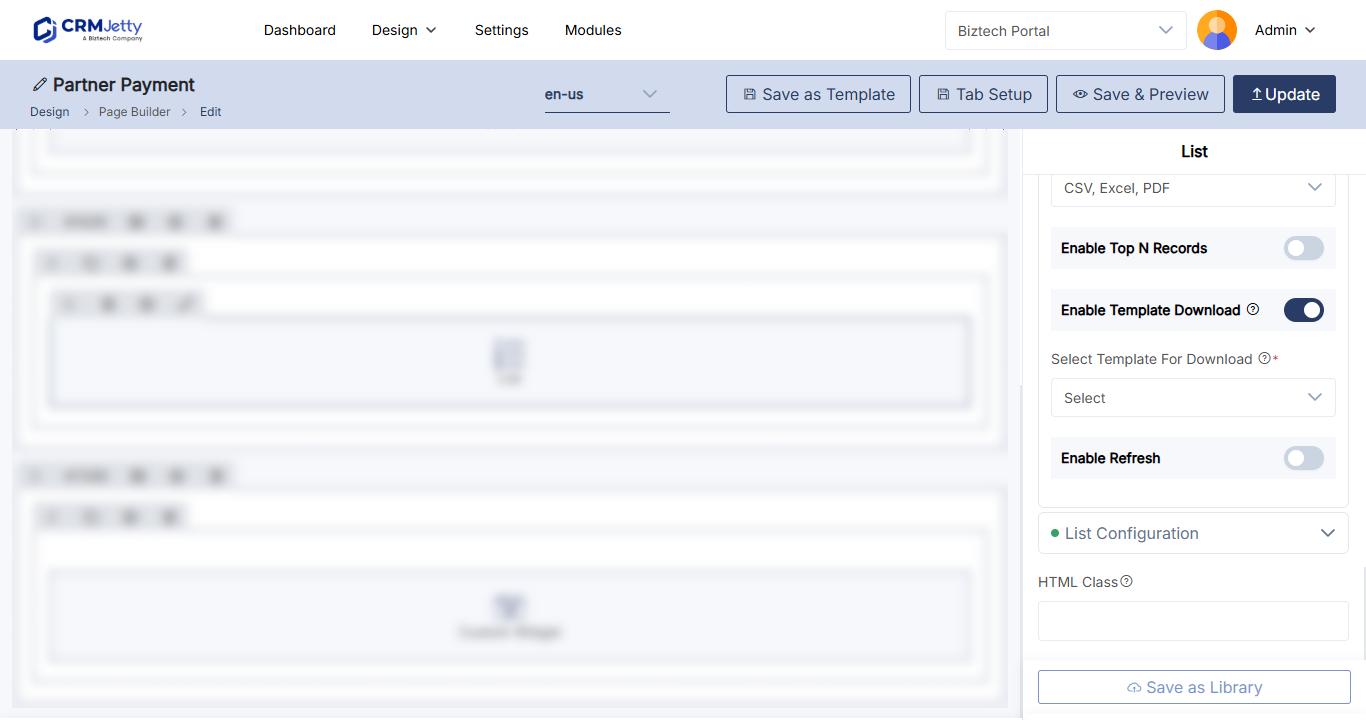
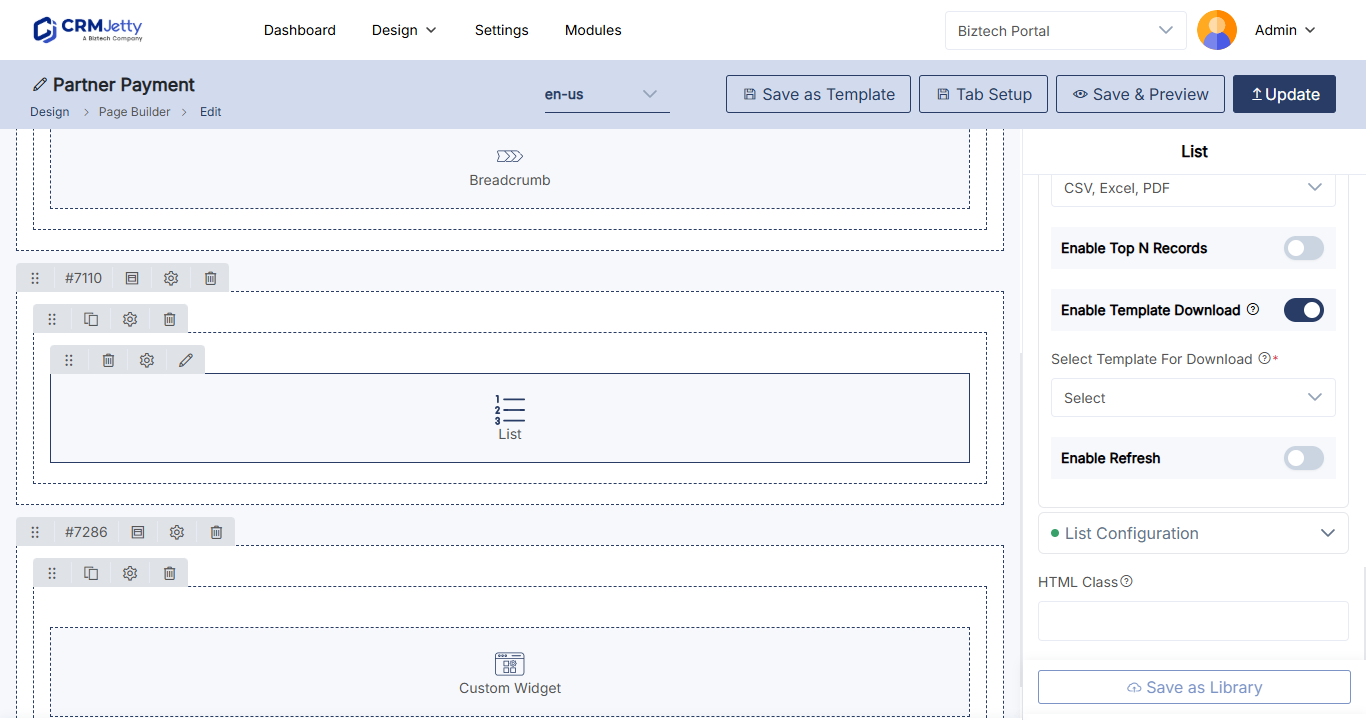
- Select the Settings icon on the List widget that shows the invoice list.
- Turn on Template Download.
- In Select Template, select your invoice template.
- Select Save.
- Publish the page.
You can also offer downloads in a sub-grid on a form, for example invoices on an account detail form. The sub-grid has the same Template Download and Select Template settings. See How to Add Sub-Grids to Portal Forms.
How portal users download an invoice
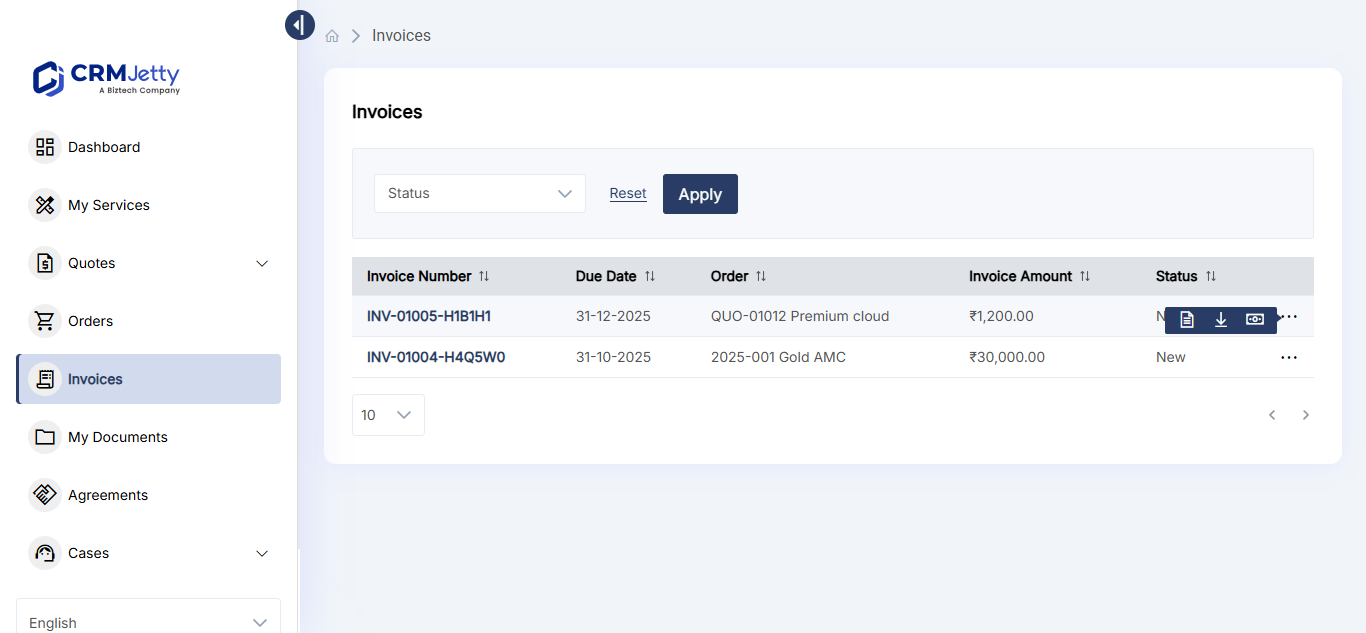
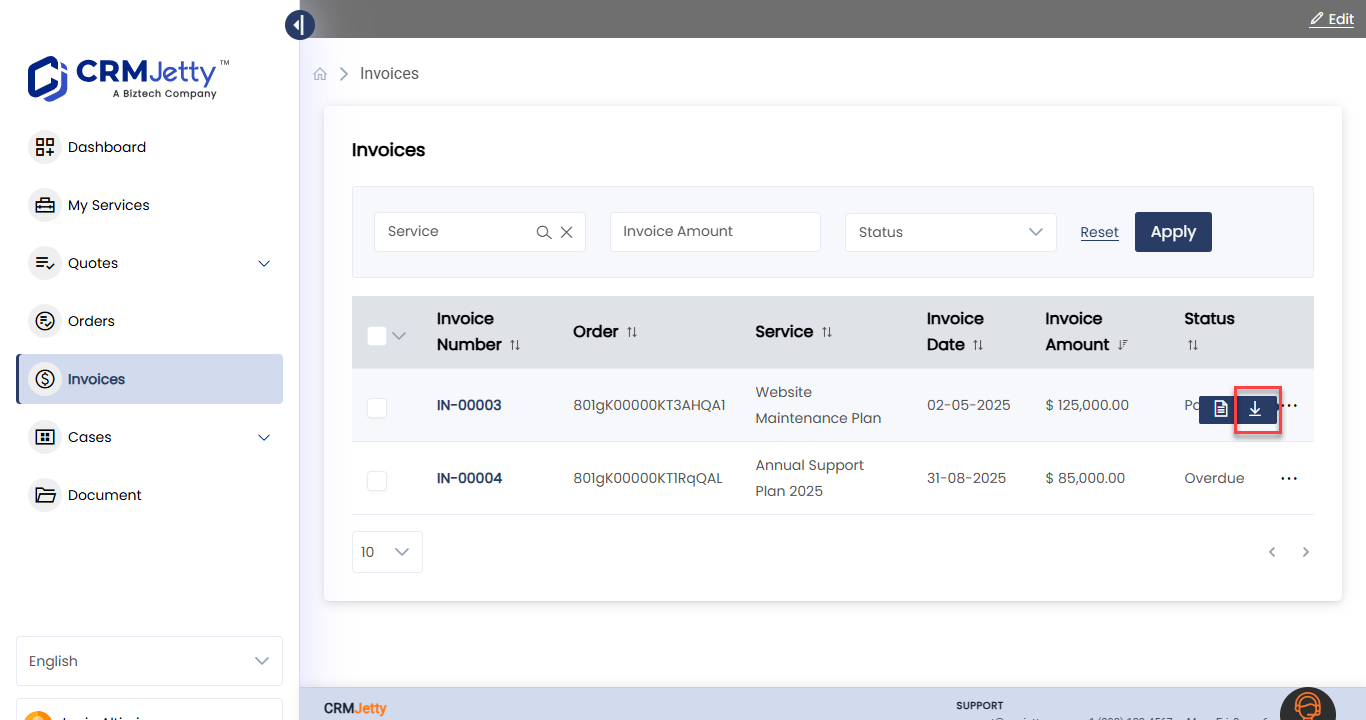
- In the portal, the portal user opens the invoice page, for example Invoice.
- The page lists their invoices.
- They select Download for the invoice.
The invoice downloads as a PDF file.
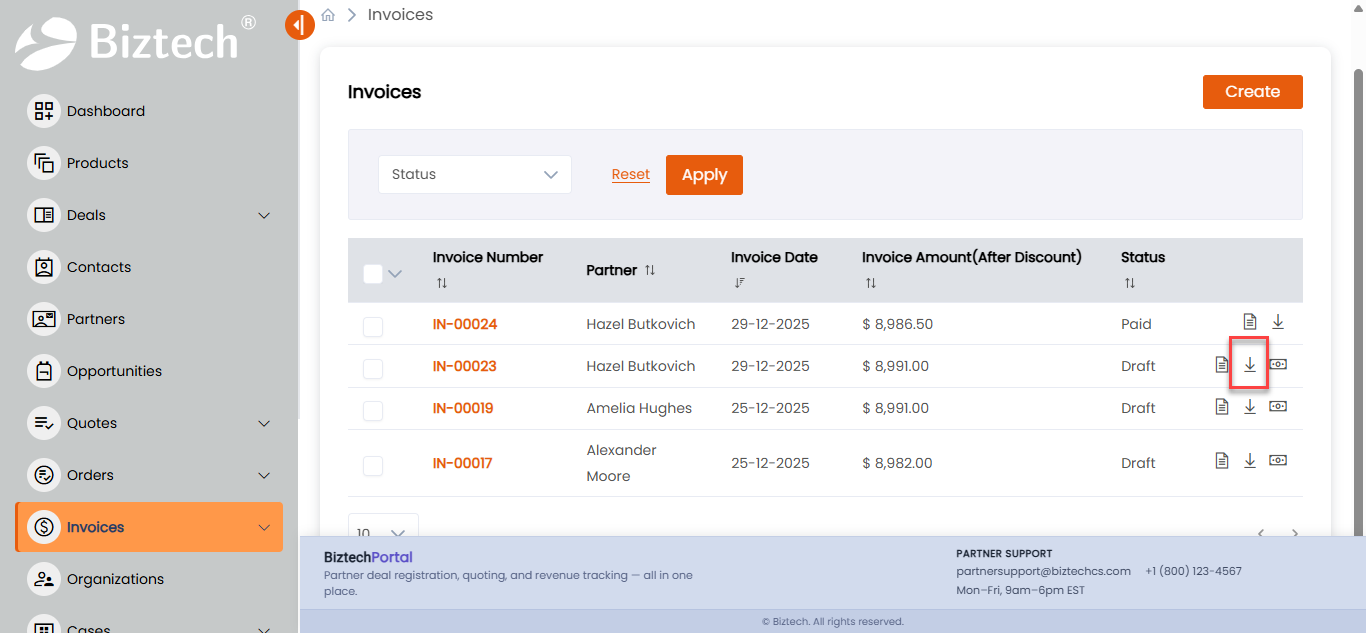
Note: Template Download creates a document for each record from your template. It is different from Enable Export, which exports the list records as a CSV, Excel or PDF file.
Troubleshooting
The template is missing from Select Template: The template is still a draft. Open it under Template Scripting and select Publish.
The Download option does not appear in the portal: Check that Template Download is on in the List widget, then save and publish the page again.
Portal users don’t see any invoices: Check that their role has View permission on the invoice entity, and that the list shows records related to the portal user.
Related articles
- How to Create List Views in CRMJetty Portal
- How to Add Sub-Grids to Portal Forms
- How to Accept Stripe and PayPal Payments in the Portal
- How to Add a Pay Now Button to Portal Records