
How to Translate Portal Forms and Lists
Forms and lists hold CRM content, such as field labels and messages. After you enable more languages in the portal, translate each form and list so portal users see it in their language. The portal translates the content for you; it takes a few seconds per record.
Before you start
- You need access to the CRMJetty admin portal.
- Enable the languages in the portal. See How to Set Up a Multilingual Customer Portal.
- Translate the field labels first, under Settings → Portal Settings → Language Configuration, with CRM selected as the label type. Form and list translation uses these labels, so fields you haven’t translated there won’t be translated in the form or list.
Check which languages are translated
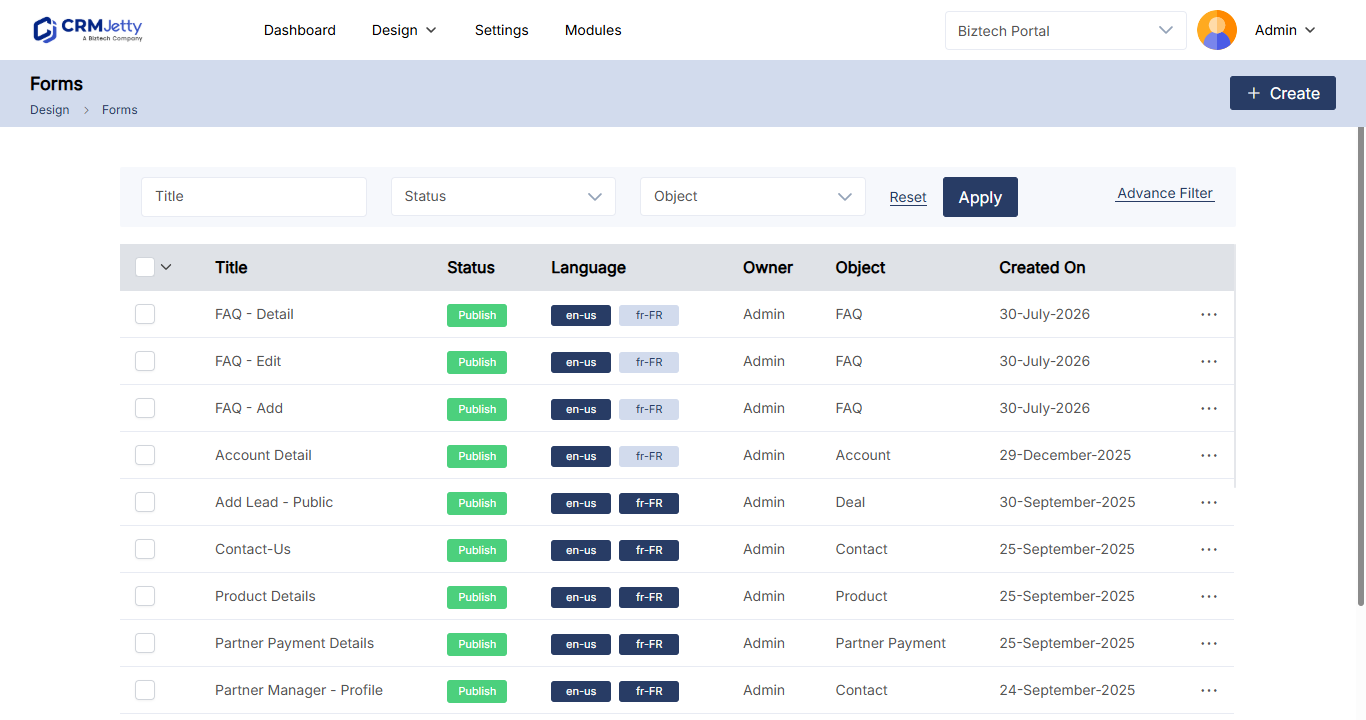
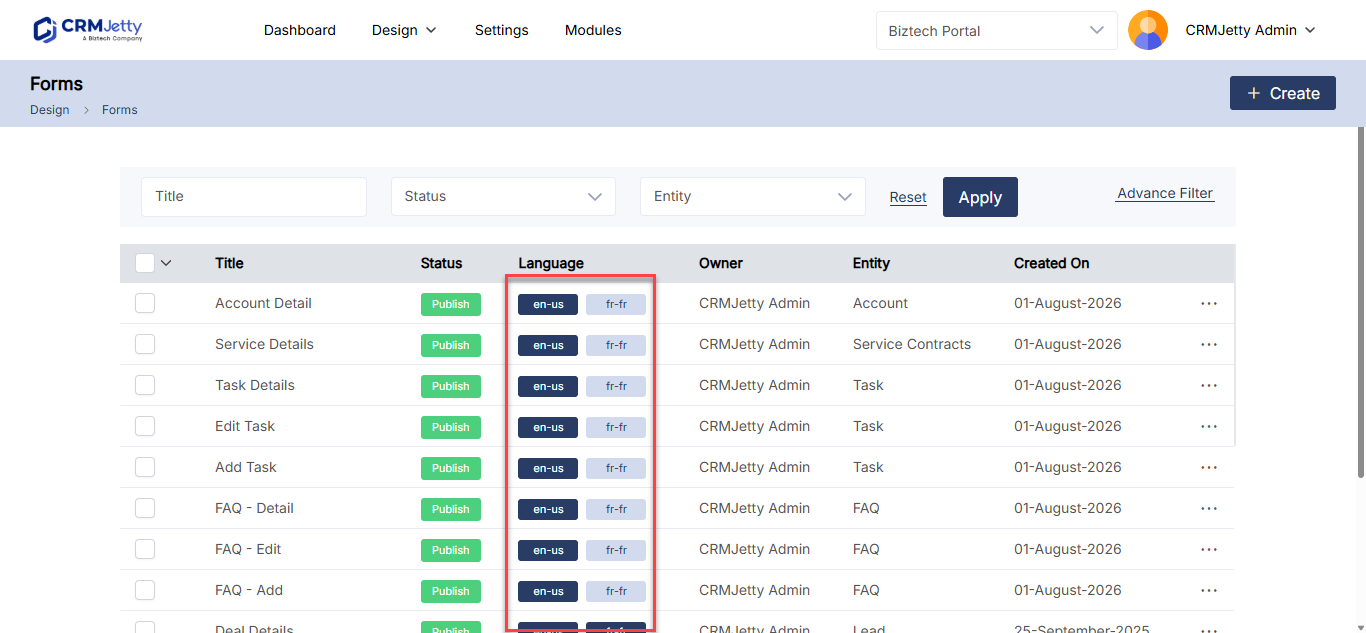
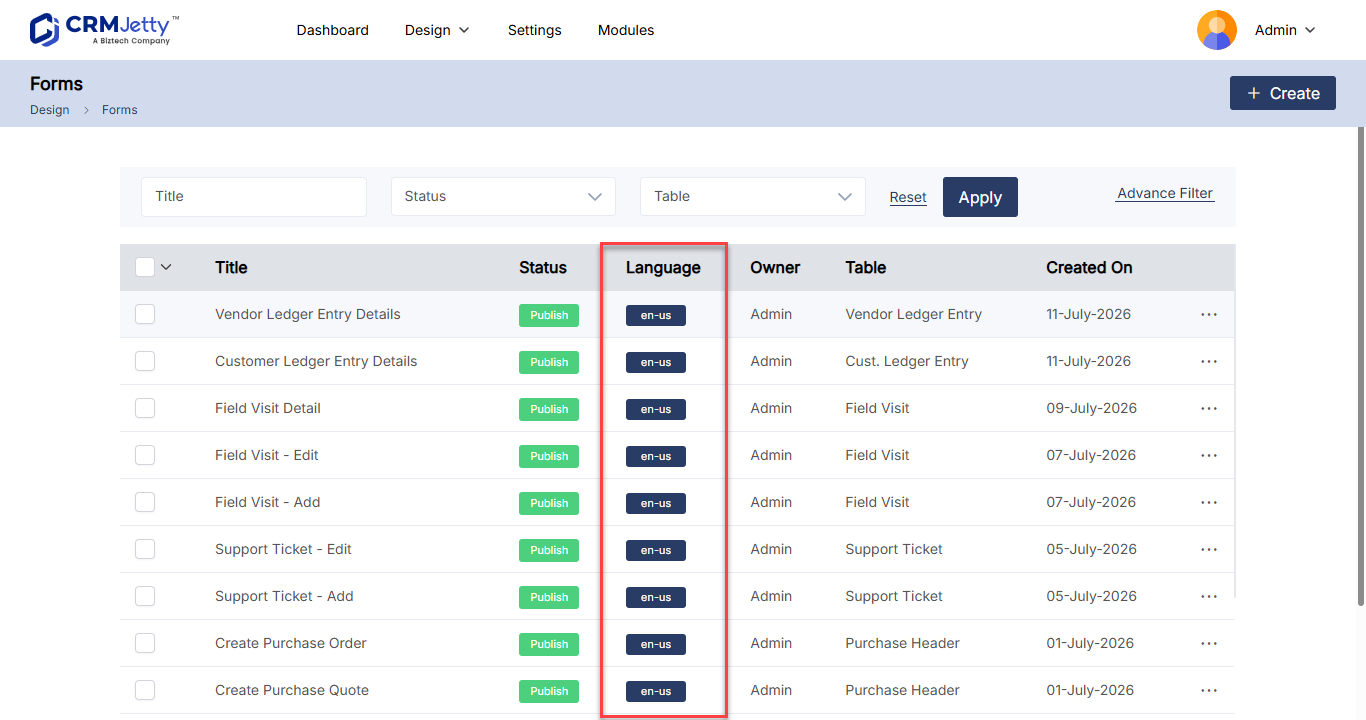
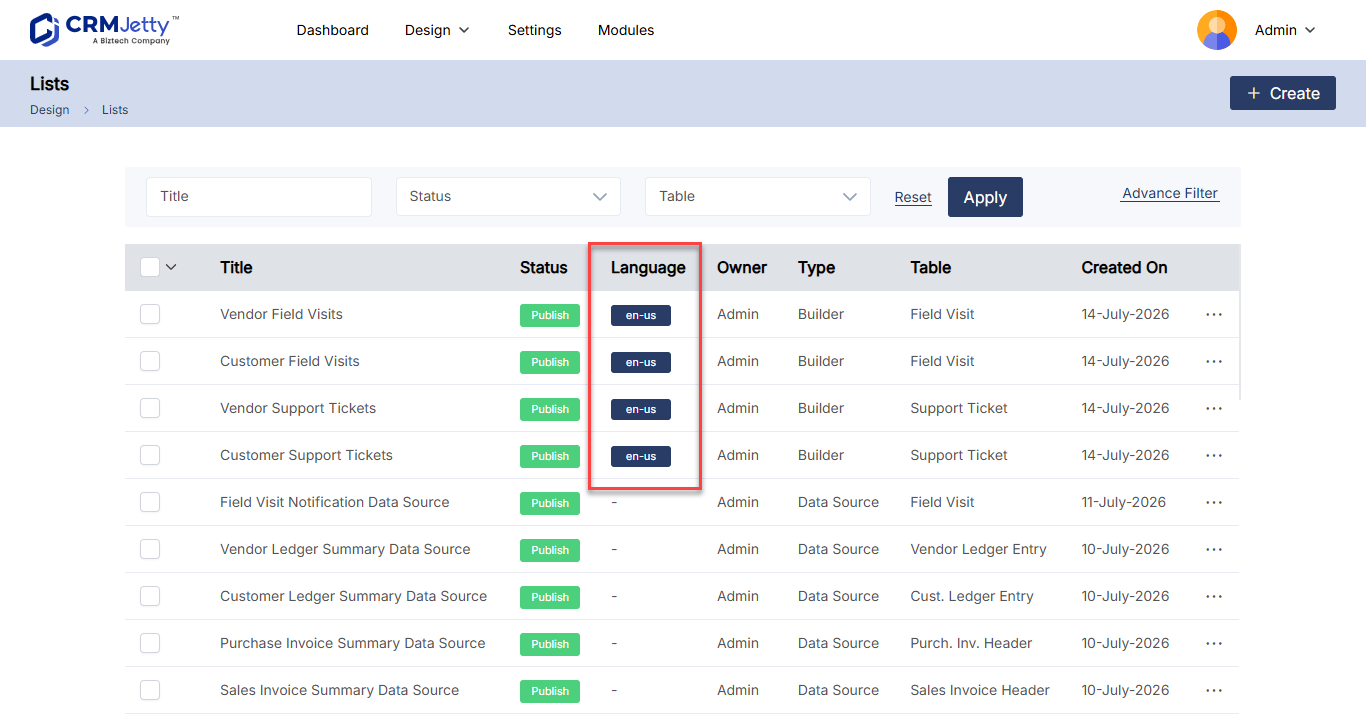
On the Design → Form Builder and Design → Lists pages, the Language column shows a button for each enabled language.
| Button | Meaning |
|---|---|
| Dark-colored | The form or list is translated into this language. |
| Light-colored | The form or list is not translated into this language yet. |
Translate a form
You can translate a form from the list page or from the form itself.
From the list page
- Go to Design → Form Builder.
- In the Language column of the form, select the light-colored button of the language.
Or select the form’s record options and select the Translate icon.
From the form
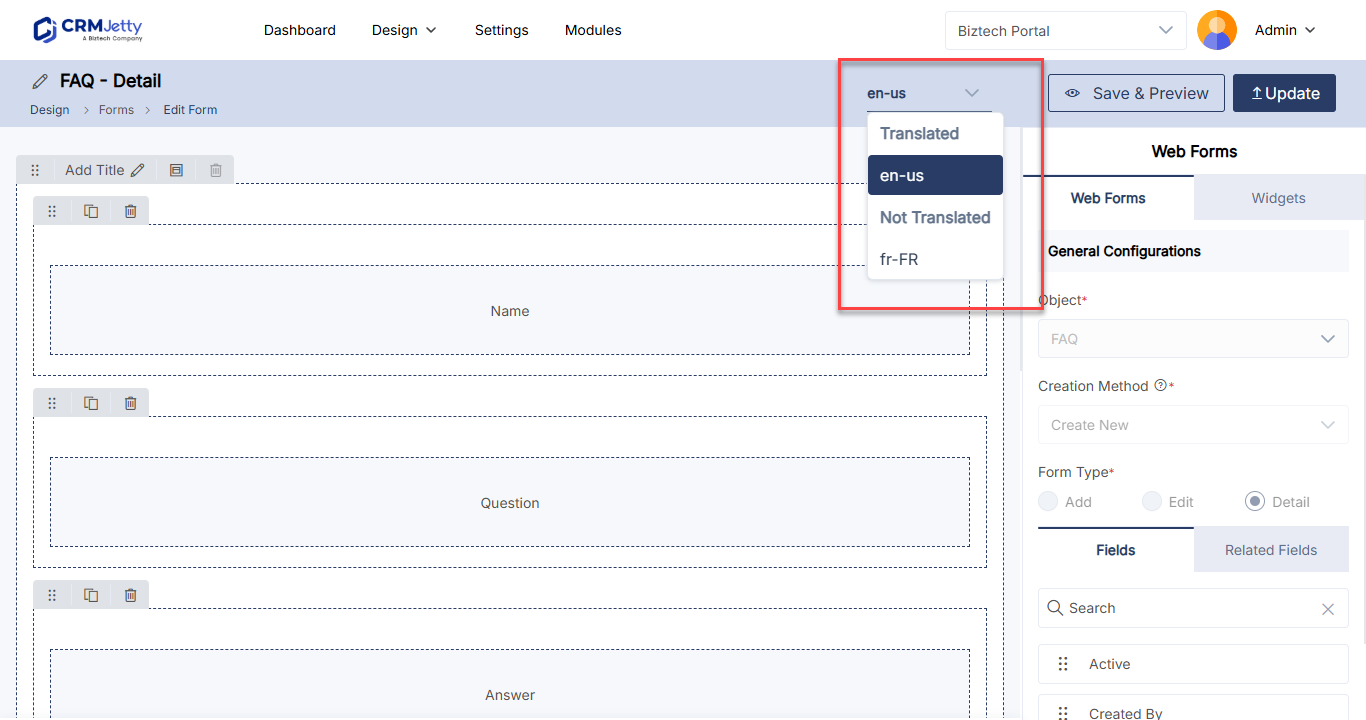
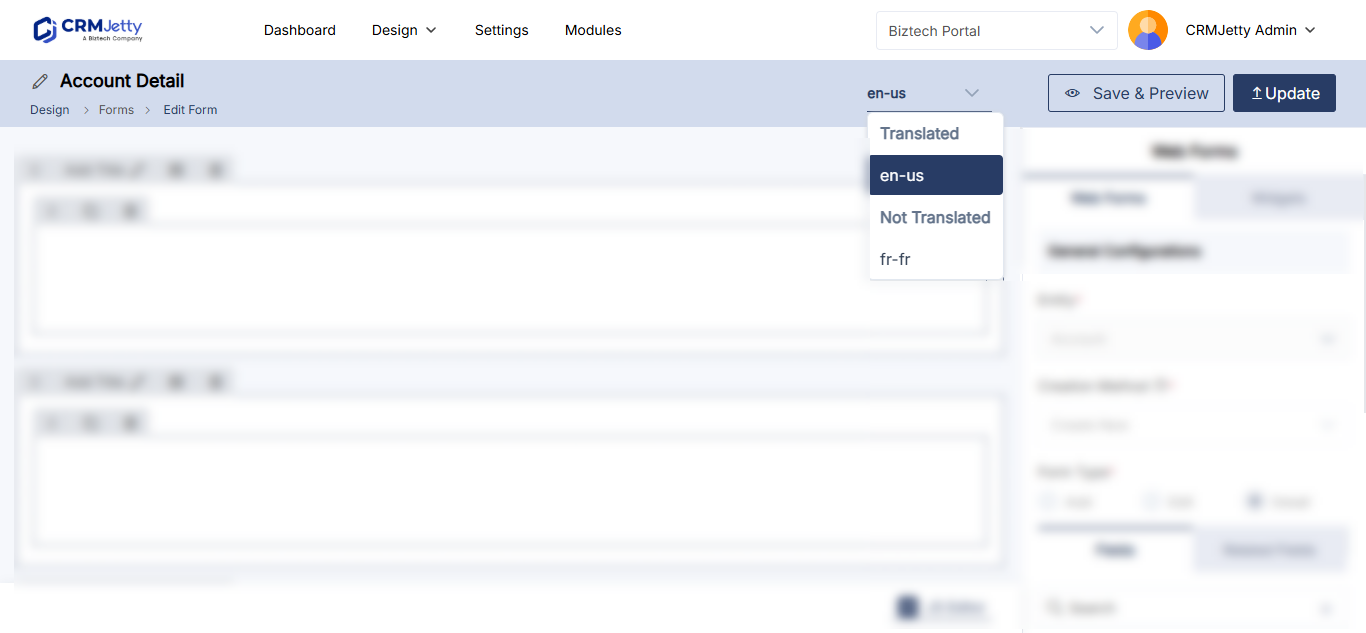
- Open the form in edit mode.
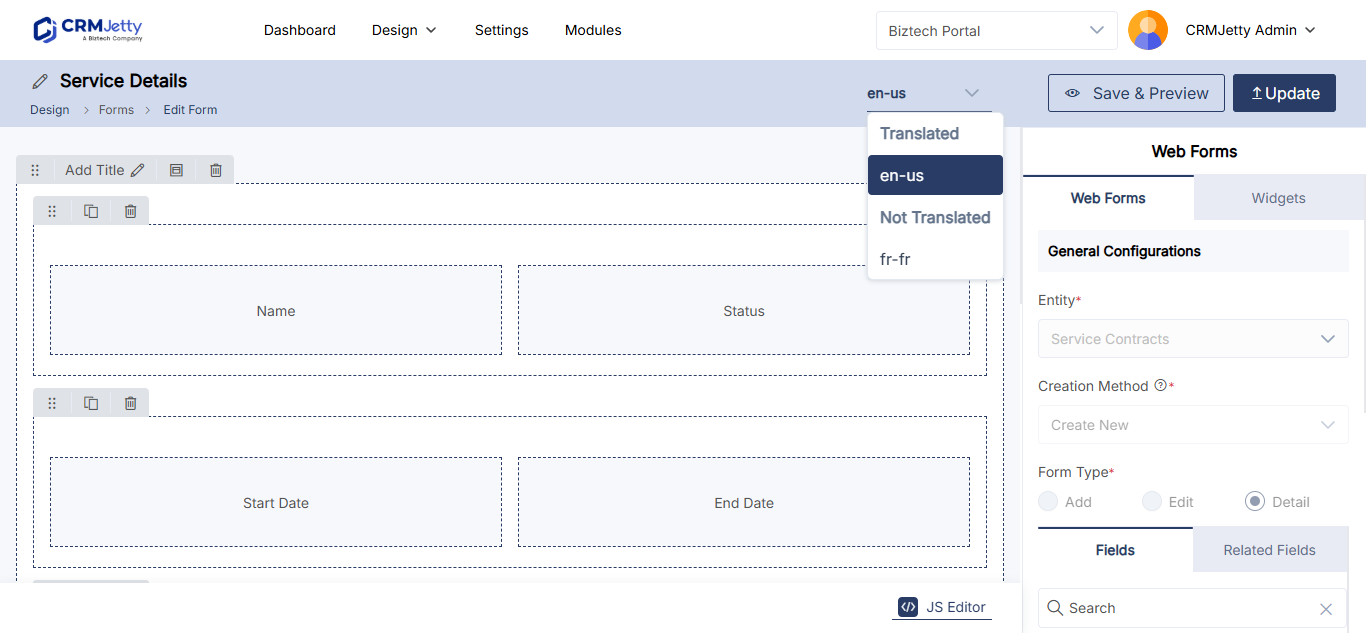
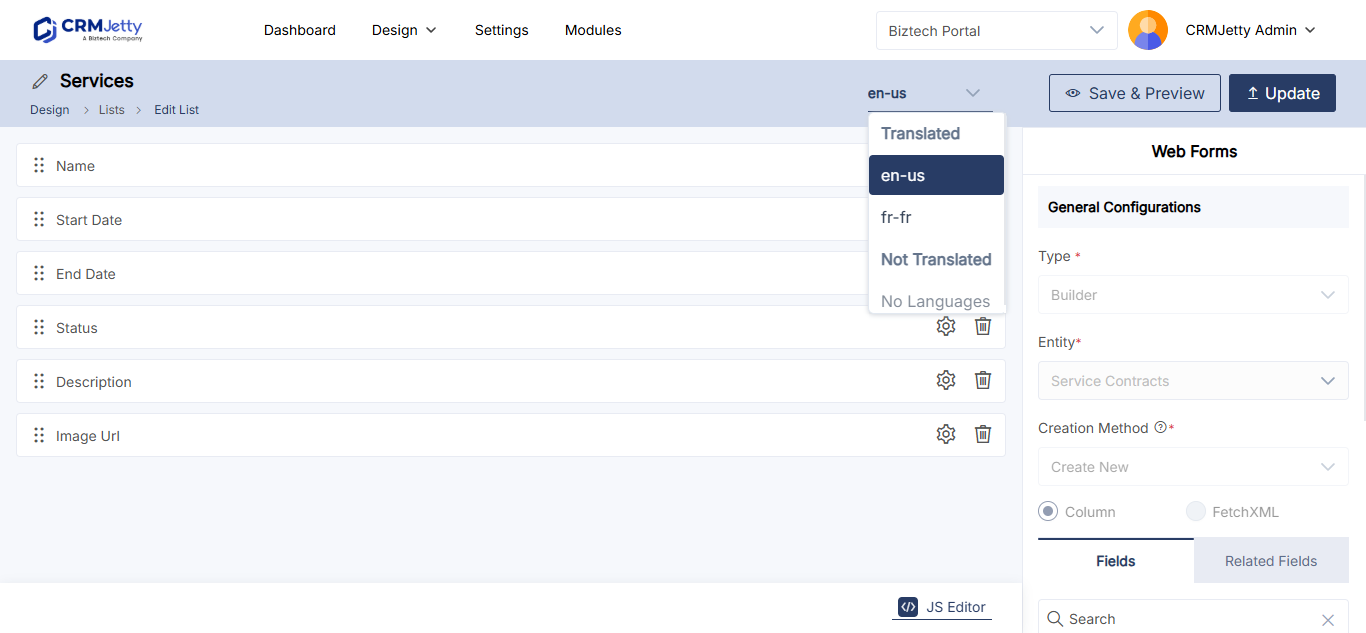
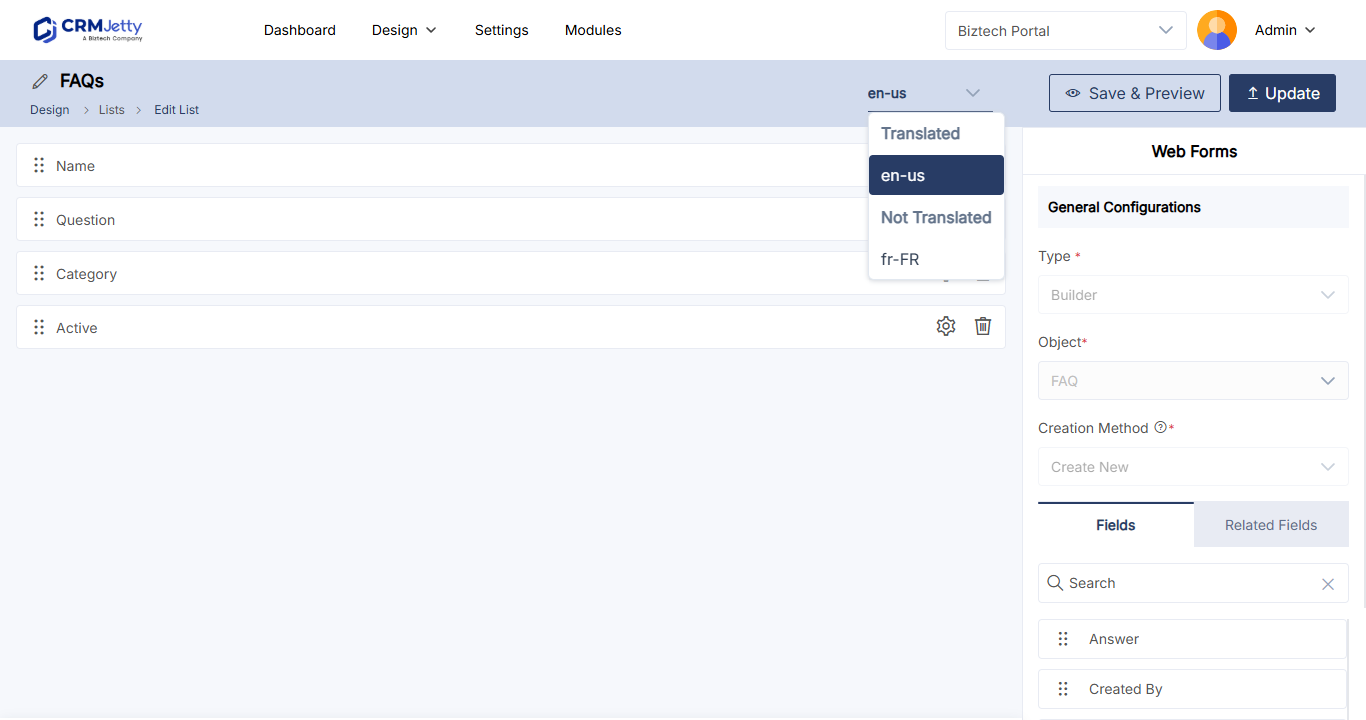
- At the top, under Languages, select the light-colored language.
The translation takes a few seconds, then an alert message appears. If the form is already translated into that language, the portal opens the translated version in edit mode, where you can check and adjust it.
Translate a list
From the list page
- Go to Design → Lists.
- In the Language column of the list, select the light-colored button of the language.
Or select the list’s record options and select the Translate icon.
From the list
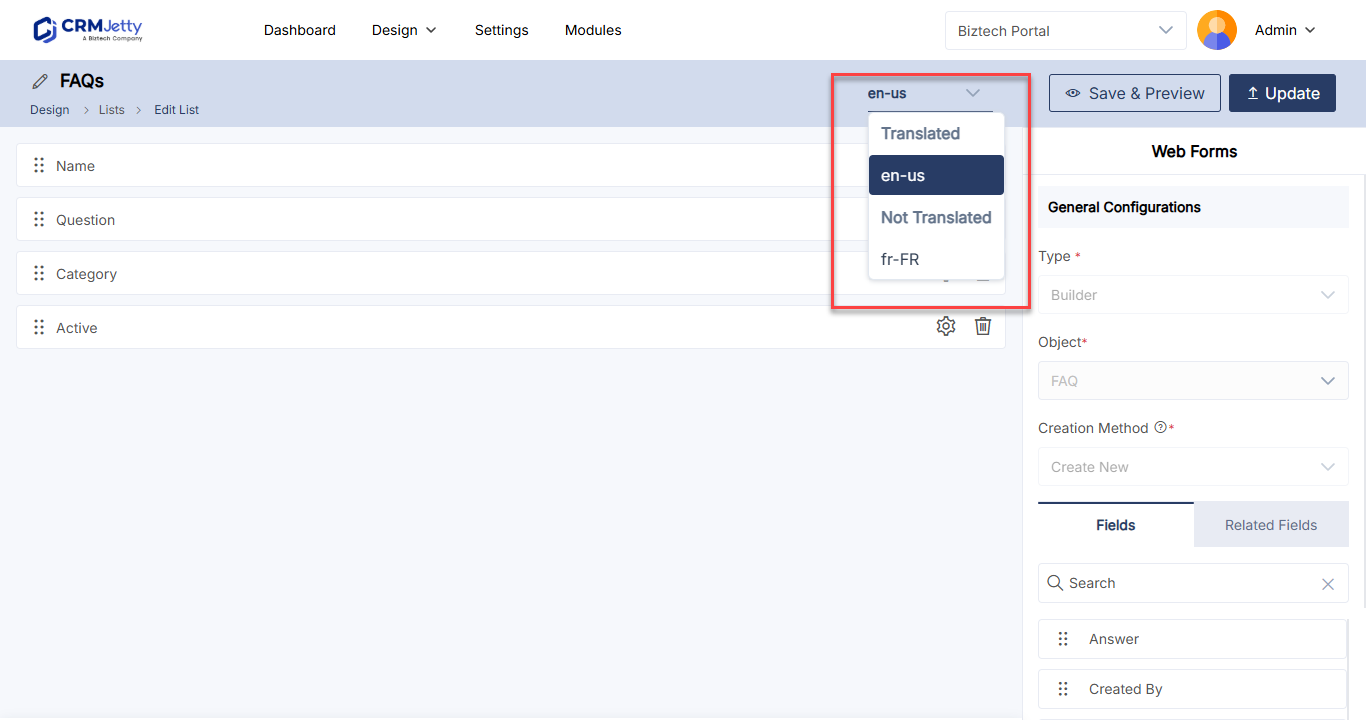
- Open the list in edit mode.
- At the top, under Languages, select the language.
- Select Update.
After a few seconds, the language button on the list page shows in the highlighted color, which confirms the translation.
Watch the list translation video for a walkthrough.
Translate several forms or lists at once
- On Design → Form Builder or Design → Lists, select the forms or lists to translate.
- Select the translate option for the selected records.
- If more than two languages are enabled, choose the language in the dropdown. With only two languages, the portal translates into the other language without asking.
- Review the report that appears. It shows the translation status of each form or list.
Note: Bulk translation translates into one language at a time. Repeat it for each language.
Pages
Page layouts are translated the same way, from Design → Page Builder: use the Language column, the Languages option at the top of the page editor, or bulk translation.
Troubleshooting
Some field labels are still in English after translating: Translate those labels under Settings → Portal Settings → Language Configuration with the CRM label type, then translate the form or list again.
A language has no button in the Language column: The language isn’t enabled in the portal. Enable it first; see How to Set Up a Multilingual Customer Portal.
Related articles
- How to Set Up a Multilingual Customer Portal
- How to Create a Portal Form for Any CRM Entity
- How to Create List Views in CRMJetty Portal
- How to Edit Form Field Labels and Placeholders
- How to Create Pages in CRMJetty Portal