
How to Embed External Content with an IFrame
The IFrame widget embeds another web page inside a portal page. Use it to show content from an external source, such as a map, a form, a booking tool or another web application, without portal users leaving the portal.
Before you start
- You need access to Design → Page Builder in the admin portal.
- Create the page and add a section with a grid. See How to Create Pages in CRMJetty Portal.
- Get the embed code from the site you want to show. Most services offer it under a Share or Embed option. It starts with
<iframe. - Check that the external site allows embedding. Some sites block being shown inside another site.
Add the IFrame widget
- In the page layout editor, select the IFrame widget. It is added to the grid.
- Select the Settings icon on the widget. The configuration panel opens.
- In Embedded Code, paste the iframe embed code.
- Optionally, set the widget settings in the table below.
- Select Save.
- Publish the page.
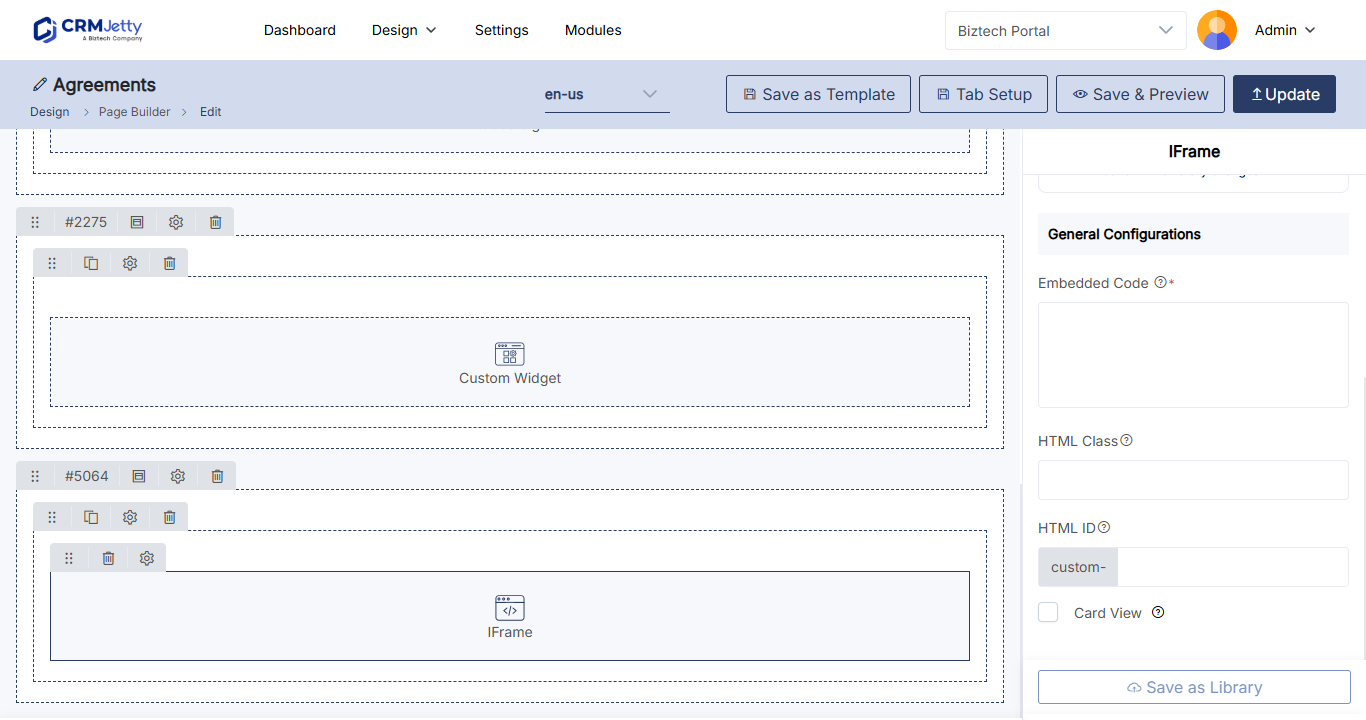
| Setting | What it does |
|---|---|
| Embedded Code | The iframe embed code of the content you want to show. |
| HTML Class | Adds custom CSS classes to style the widget. |
| HTML ID | Adds a unique ID. The portal adds the prefix custom- automatically. |
| Card View | Displays the IFrame widget in a card-style layout. |
To remove the widget, select its Delete icon in the page layout editor.
Important: Embed content only from sources you trust, and use
https://URLs. Content in an iframe runs from the other site, outside your portal’s control.
Tip: To set the size of the embedded content, change the
widthandheightvalues in the embed code before you paste it.
When to use another widget
| To show | Use |
|---|---|
| A YouTube or other video | The Video widget. See How to Embed Videos in a Portal Page. |
| A Power BI report | The Power BI widget. See How to Embed Power BI Reports in the Portal. |
| Your own HTML, CSS and JavaScript | A custom widget. See How to Build Custom Portal Widgets. |
Troubleshooting
The IFrame widget is blank or shows a “refused to connect” message: The external site does not allow other sites to embed it. Check the site’s embed options, or link to it with a Button widget instead. See How to Add Buttons to a Portal Page.
Related articles
- How to Create Pages in CRMJetty Portal
- How to Embed Videos in a Portal Page
- How to Add Custom HTML IDs and CSS Classes to Widgets