
How to Enable Email Verification and Admin Approval
New users can register for the portal themselves. Email verification makes them confirm they own their email address. Admin approval makes them wait until an admin approves them. Use one or both to keep fake or unwanted accounts out of your portal.
Before you start
- You need access to the CRMJetty admin portal.
- Set up SMTP first. Both settings depend on emails reaching your users. See How to Configure SMTP Email in CRMJetty Portal.
- Make sure your portal has a registration page with the Registration widget. A fresh portal includes a default Registration page.
What each setting does
| Setting | What happens after a user registers |
|---|---|
| Email Verification | The portal emails the user a verification link. They confirm their email address before they can use the portal. |
| User Approval | The user is saved as Not Approved. They can access the portal only after an admin approves them. |
Both settings also apply to users who sign in with a social or Microsoft account, such as Google, Facebook or Microsoft. Those users receive the verification email and need admin approval in the same way. Social login is available on selected plans; see How to Enable Social Login and Microsoft SSO.
Turn on email verification and admin approval
- Go to Settings → Portal Settings → Site Management.
- Open your site for editing.
- Go to the Security settings.
- Turn on Email Verification.
- Turn on User Approval.
- Select Save.
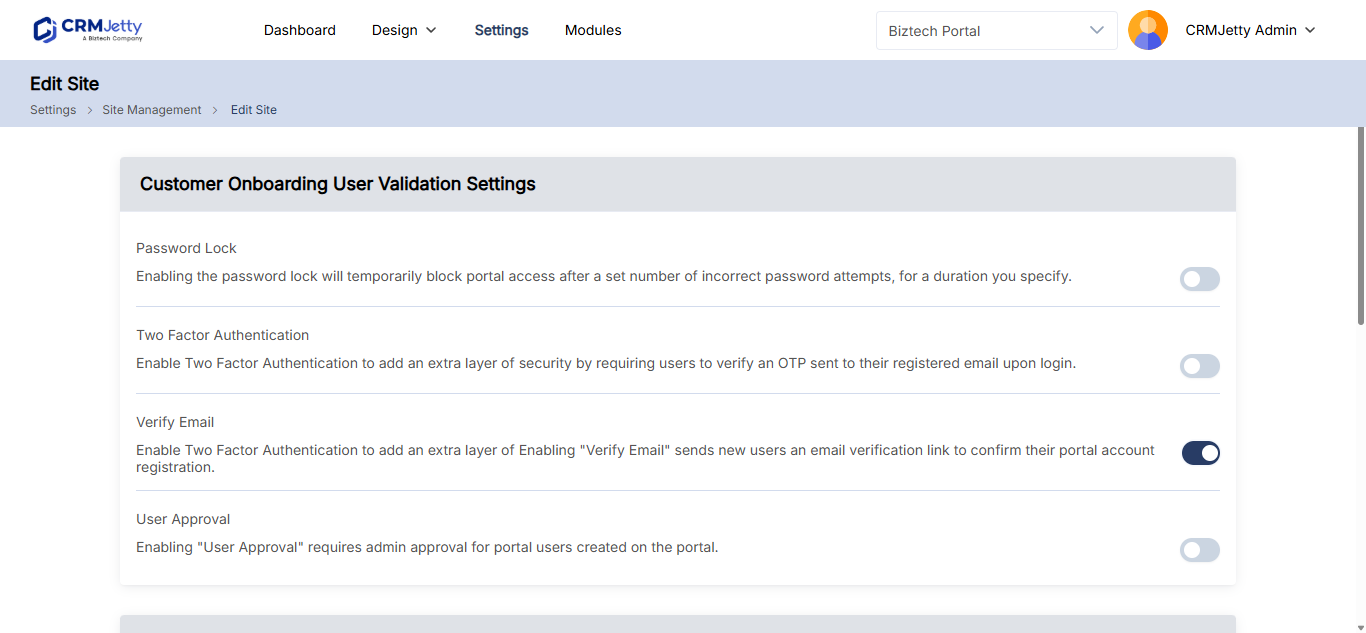
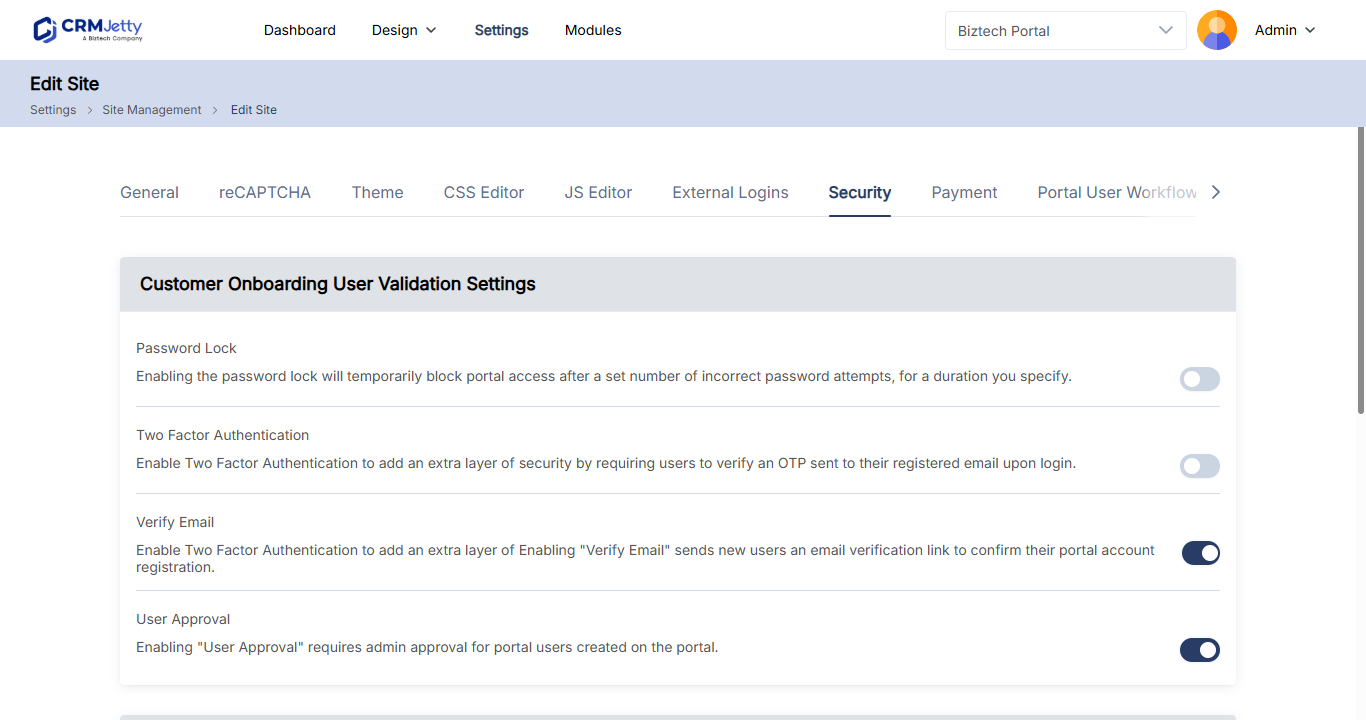
You can turn on either setting by itself. For example, turn on only Email Verification for an open customer portal, or both for a partner or vendor portal where you check each applicant.
Approve new users
With User Approval on, new registrations appear in Settings → User Settings → Portal User Setup as Not Approved. Select them and approve them, one at a time or in bulk. See How to Approve Multiple Portal Users at Once.
Customize the emails
The portal uses these email actions for the registration flow. Edit their templates under Settings → Portal Settings → Template Scripting → Email Templates.
| Email action | Sent when |
|---|---|
| Registration | A user registers. Confirms the registration and gives next steps. |
| Verify Portal User | Email verification is on. Sends the link the user selects to confirm their account. |
| Approve Portal User | An admin approves the user. Tells them their portal access is approved. |
For how to edit templates and use parameters such as [FULLNAME] and [PORTALNAME], see How to Customize Portal Email Templates.
Troubleshooting
New users don’t receive the verification or approval email: Check your SMTP settings and send a test email. See How to Fix Portal Emails That Are Not Sending.
Related articles
- How to Approve Multiple Portal Users at Once
- How to Set a Default Role for New Portal Users
- How to Enable Two-Factor Authentication in the Portal
- How to Enable Social Login and Microsoft SSO
- How to Customize Portal Email Templates