
How to Configure SMTP Email in CRMJetty Portal
The portal sends all its email, to portal users and to admins, through the SMTP account you configure here. Set up SMTP first, before you connect your CRM, so that verification and notification emails can go out. The CRM authentication screen sends its OTP by email.
Before you start
- You need access to the CRMJetty admin portal.
- Have the details of the mail account you want to send from: SMTP host, port, username and password, or a Client ID and Client Secret if you use OAuth.
- You can use any email address for SMTP. It does not have to match the credentials you use to sign in to the admin portal.
Choose an authentication type
The Authentication Type setting decides how the portal signs in to your mail server.
| Authentication type | Use it when | What you enter |
|---|---|---|
| Credential/App Password | You send from a mail account with a username and password, such as Gmail, Outlook.com or iCloud Mail. | From name and address, SMTP host and port, username, password |
| Google OAuth | You send through a Google account and want to connect without storing a password. | Client ID, Client Secret |
| Microsoft OAuth | You send through Microsoft 365 and want to authenticate without storing a password. Microsoft is replacing basic authentication with this method. | Client ID, Client Secret |
Set up SMTP with a username and password
- Sign in to the admin portal.
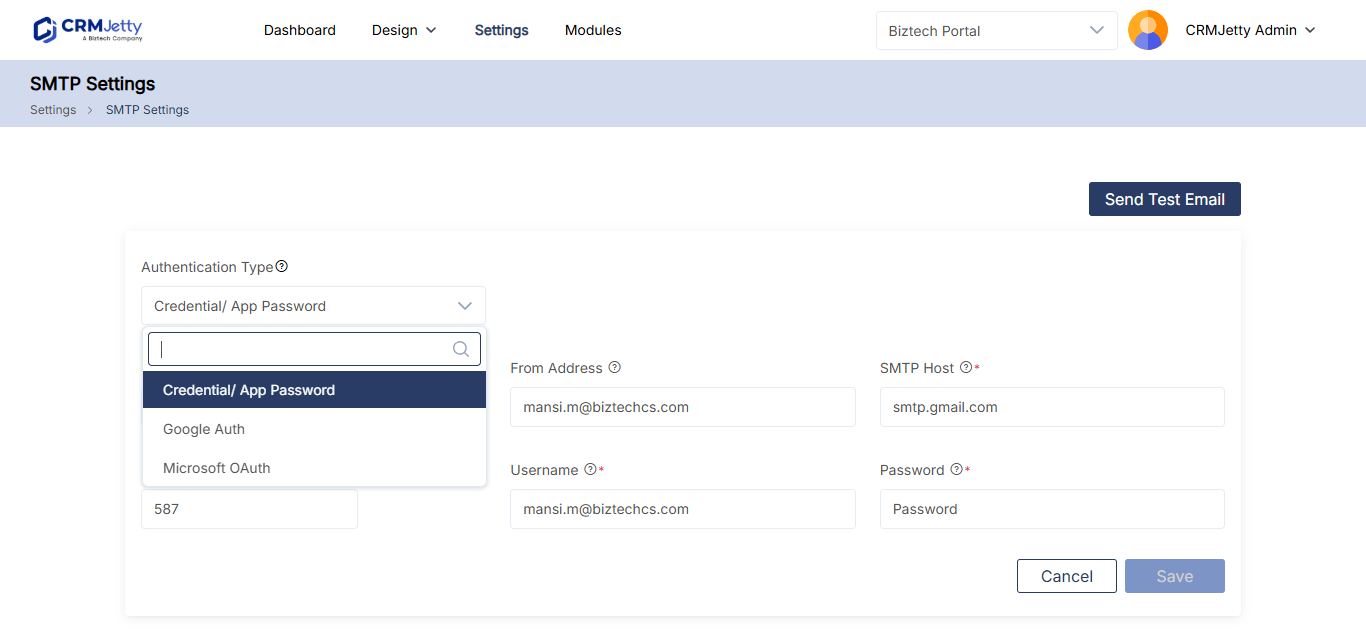
- Go to Settings → Portal Settings → SMTP Settings.
- In Authentication Type, select Credential/App Password.
- Fill in the fields in the table below.
- Select Save.
| Field | What to enter |
|---|---|
| From Name | The sender name recipients see in their inbox. |
| From Address | The sender email address recipients see. |
| SMTP Host | The host address of your outgoing mail server, for example smtp.gmail.com. |
| SMTP Port | The port your outgoing mail server uses, for example 587. |
| Username | The username or email address of the mail account. |
| Password | The password for that username. |
Note: Google OAuth and Microsoft OAuth are not available on Business Central portals. On Business Central, use Credential/App Password.
Note: Each mail server has its own authentication rules. Follow the requirements of your email provider, for example an app password where the provider asks for one.
Set up SMTP with Google or Microsoft OAuth
This option is not available on Business Central portals.
- Go to Settings → Portal Settings → SMTP Settings.
- In Authentication Type, select Google OAuth or Microsoft OAuth.
- Enter the Client ID of your Google or Microsoft app.
- Enter the Client Secret of the same app.
- Select Save.
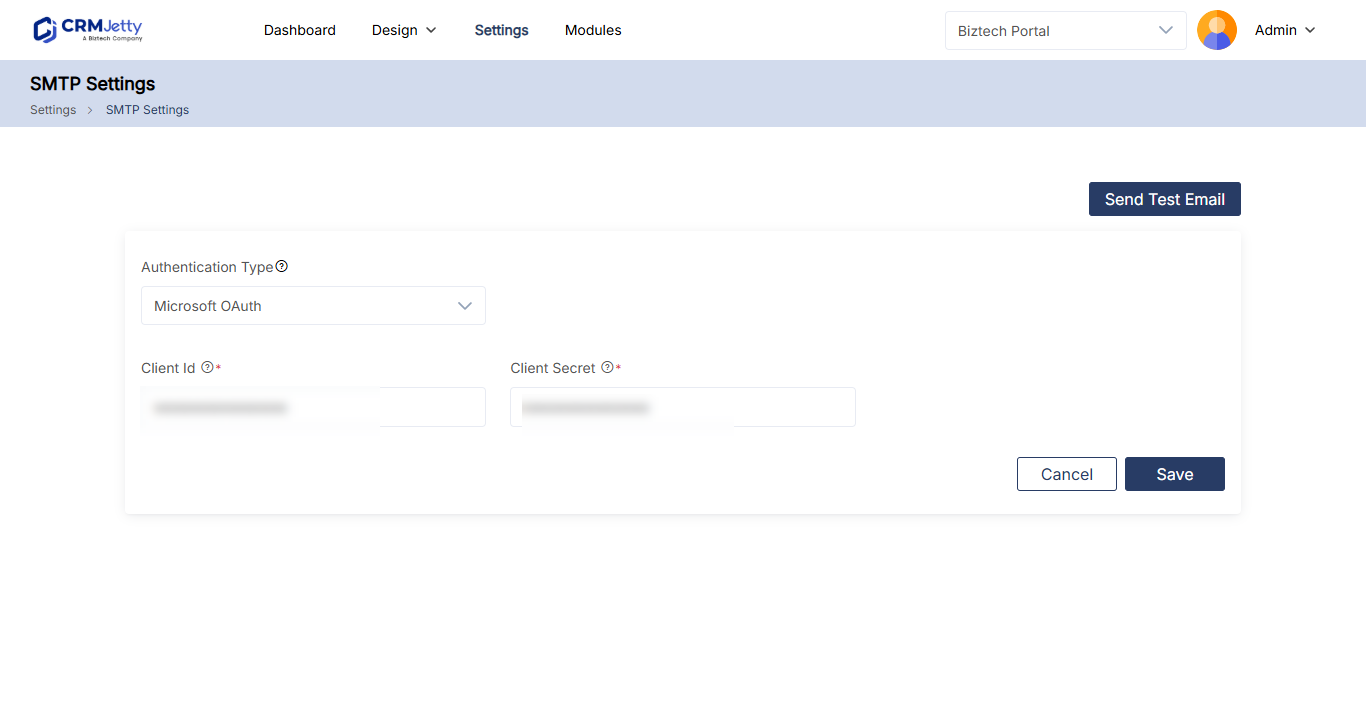
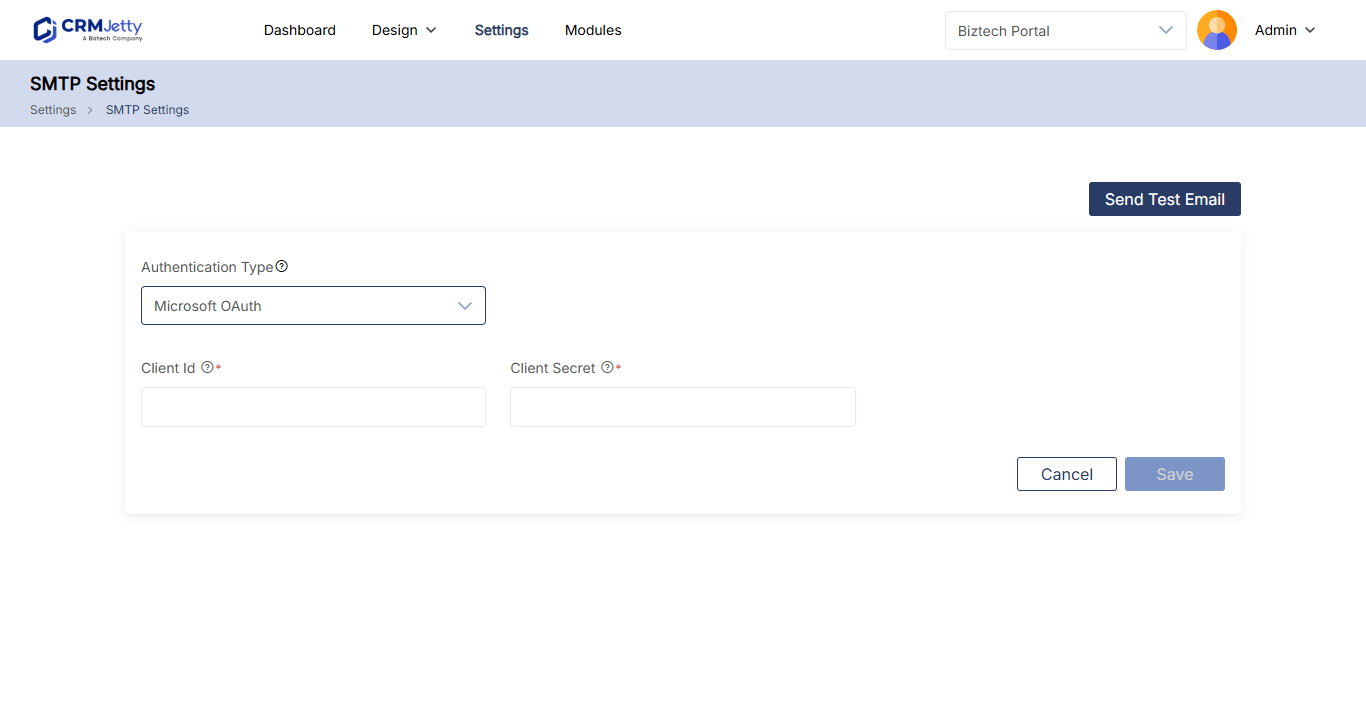
For how to create the app and get these values, see How to Set Up SMTP with Microsoft or Google OAuth.
Send a test email
After you save the settings, check that the portal can send email.
- On the SMTP Settings page, select Send Test Email.
- In the pop-up, enter a recipient email address and a description.
- Select Send Mail.
- Check the recipient inbox.
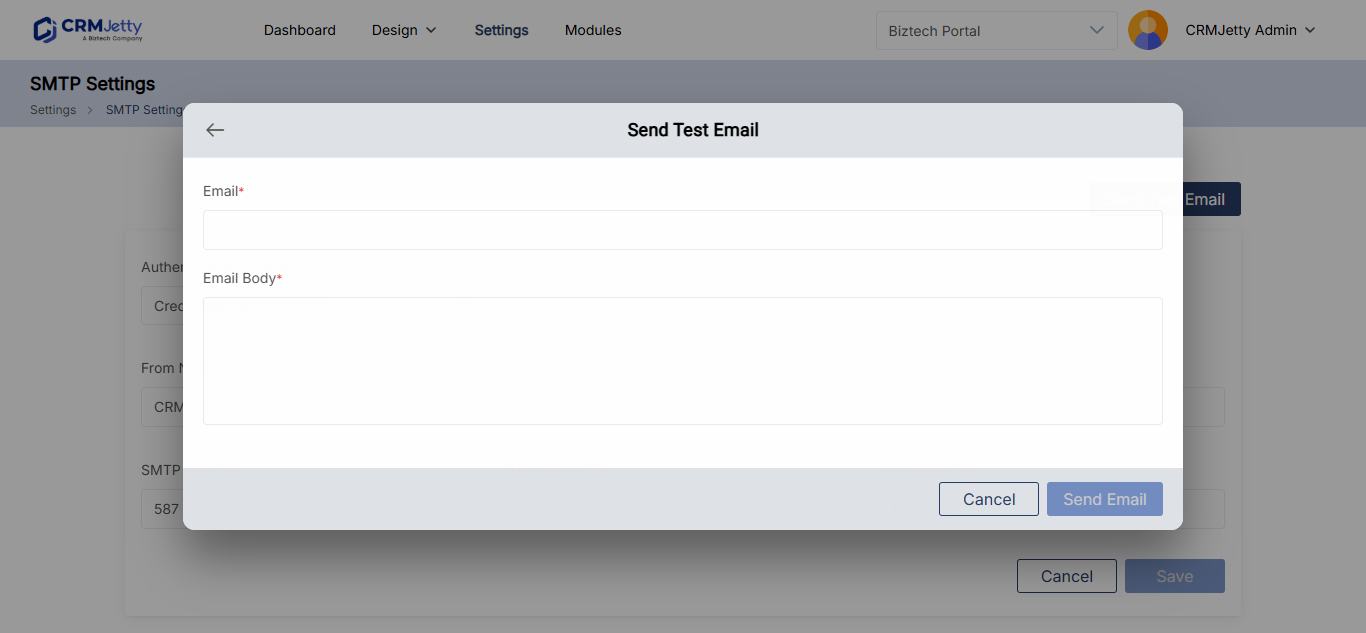
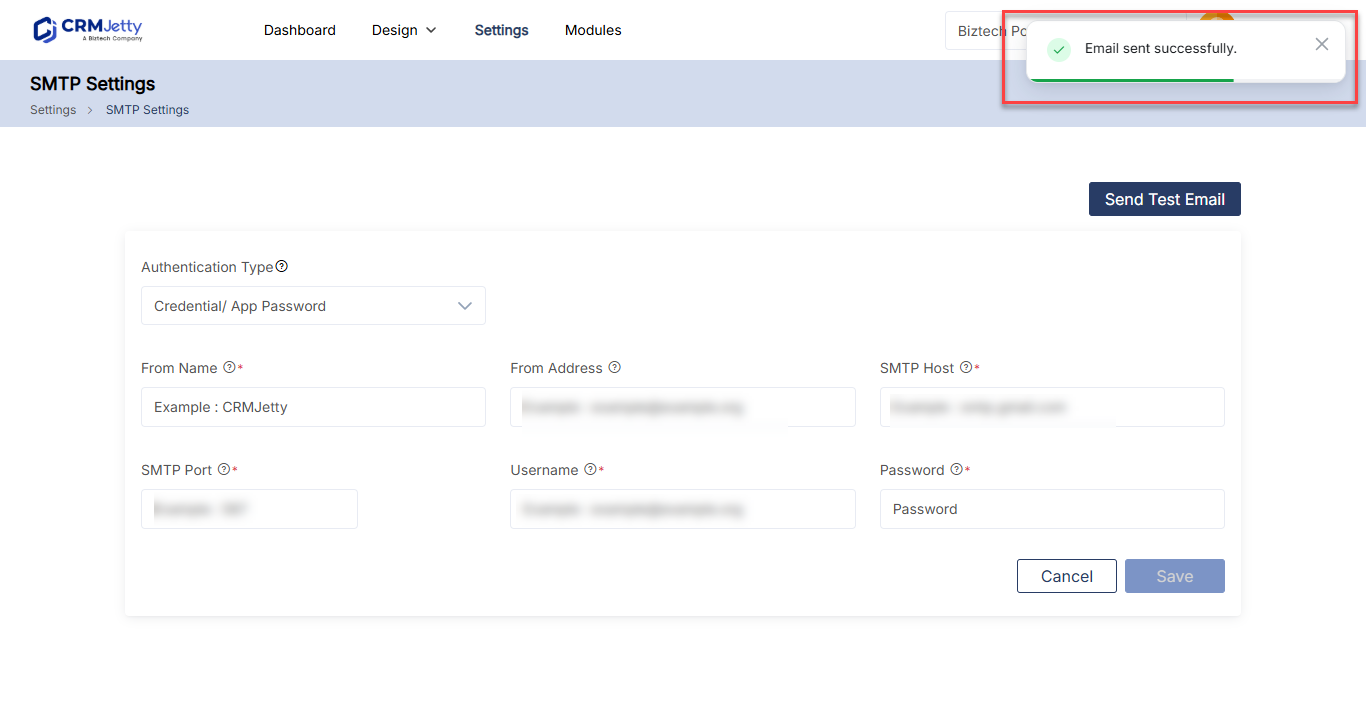
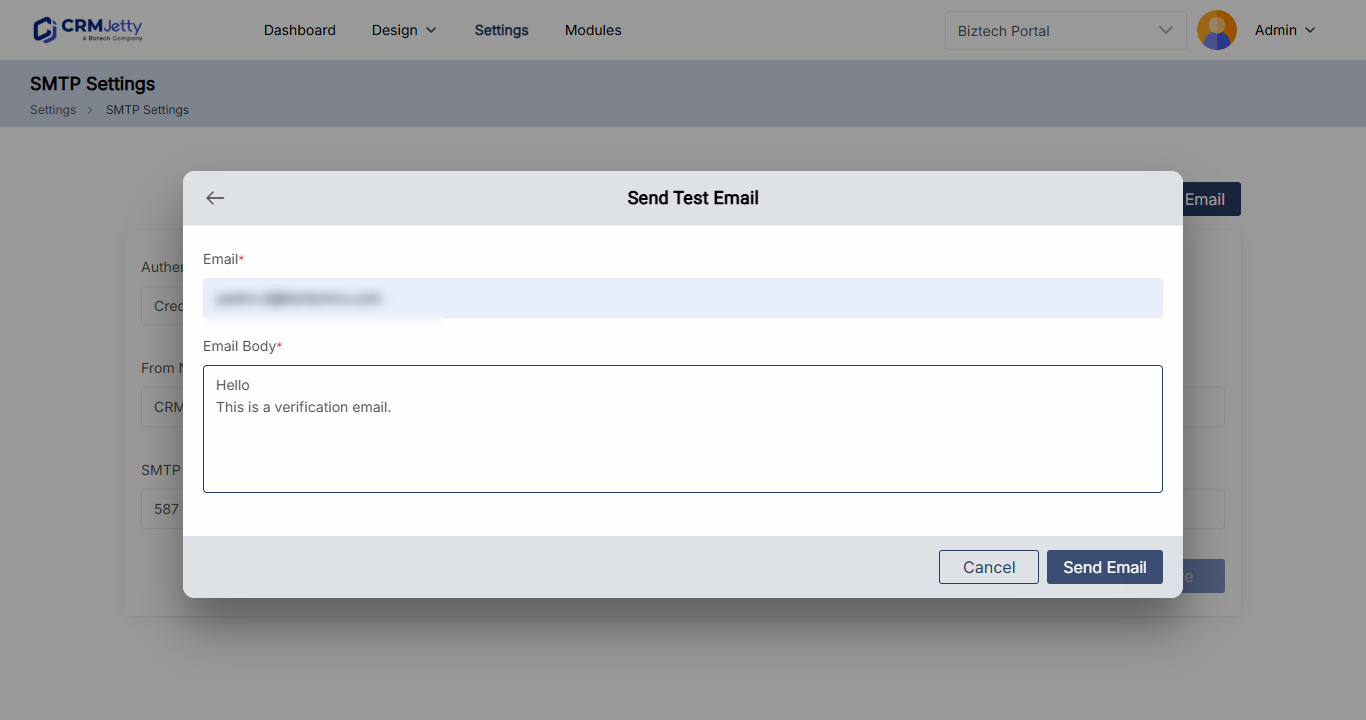
If the test email arrives, SMTP is connected. If it does not arrive, the connection failed; see Troubleshooting below.
Common SMTP server settings
These settings are widely used, but always confirm the current values with your email provider.
| Provider | SMTP host | Port |
|---|---|---|
| Microsoft 365 / Exchange Online | smtp.office365.com |
587 |
| Outlook.com / Hotmail | smtp-mail.outlook.com |
587 |
| Gmail / Google Workspace | smtp.gmail.com |
587 |
| Yahoo Mail | smtp.mail.yahoo.com |
587 |
| AOL | smtp.aol.com |
587 |
Note: Gmail, Yahoo and AOL require an app password for SMTP. Microsoft 365 is retiring basic authentication for SMTP; use Microsoft OAuth.
Troubleshooting
The test email does not arrive: Check that SMTP Host, SMTP Port, Username and Password are correct, then save and send the test email again. Make sure your setup follows your mail server’s authentication rules.
Related articles
- How to Customize Portal Email Templates
- How to Enable Email Verification and Admin Approval
- How to Send Confirmation Emails After Form Submission