
Guides / Forms
How to Enable Notes and Attachments in the Portal
Short answerIn Design → Form Builder, open the record's form, drag the Notes & Attachment widget onto the grid, set the label, create and delete options, accordion behavior, global access and a Chat Style or Grid Style layout, then save and publish the form.
Notes and attachments let portal users communicate on a record, for example by adding a comment and a file to a support case. Add the Notes & Attachment widget to the form of the entity, and the notes and attachments of the record show in the portal.
Before you start
- You need access to Design → Form Builder in the admin portal.
- Have a form for the entity (Dynamics 365), object (Salesforce) or table (Business Central), for example a Case detail form. See How to Create a Portal Form for Any CRM Entity.
Steps
- Go to Design → Form Builder.
- Open the form where portal users should see notes and attachments.
- Drag the Notes & Attachment widget onto the grid where the section should appear.
- Select the Settings icon on the widget.
- Fill in the settings in the table below.
- Select Save.
- Publish the form.
| Setting | What it does |
|---|---|
| Label | The heading of the section, for example Notes. |
| Allow Creating Records | Lets portal users add notes and attachments. |
| Button Label | The label of the create button, for example Create. |
| Allow Deleting Records | Lets portal users delete notes and attachments. |
| Default Accordion Behavior | Whether the section is Expanded or Collapsed when the form opens. |
| Enable Global Access | Lets portal users see global data. When it is off, they see only their own records. |
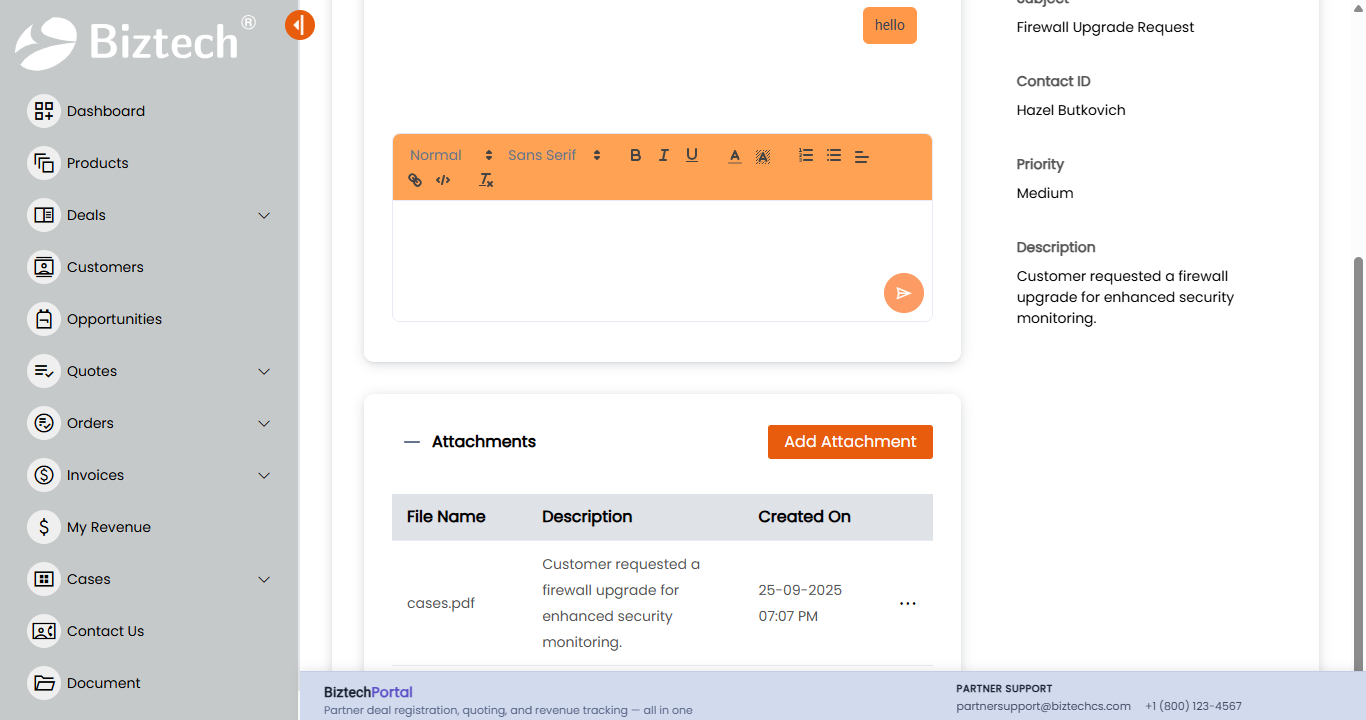
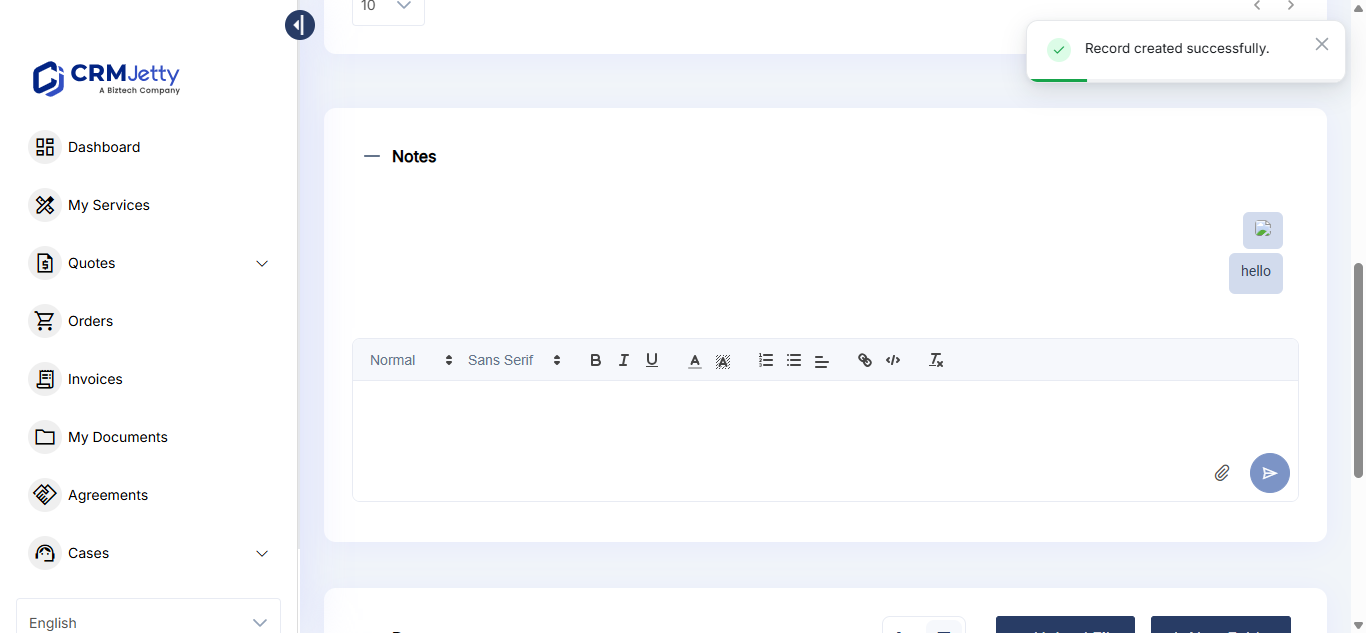
| Select Design Layout | Chat Style or Grid Style. See below. |
| Enable AI | Shows portal users the AI button for suggested replies. See How to Use AI Canned Responses in Notes and Comments. |
Choose a design layout
| Layout | How it looks | Good for |
|---|---|---|
| Chat Style | Each note or attachment appears like a chat message. | Conversations, such as comments on a support case, where portal users follow the discussion. |
| Grid Style | Notes and attachments appear in a grid or table with rows and columns. | Records with many documents, such as task files, where portal users compare files and notes side by side. |
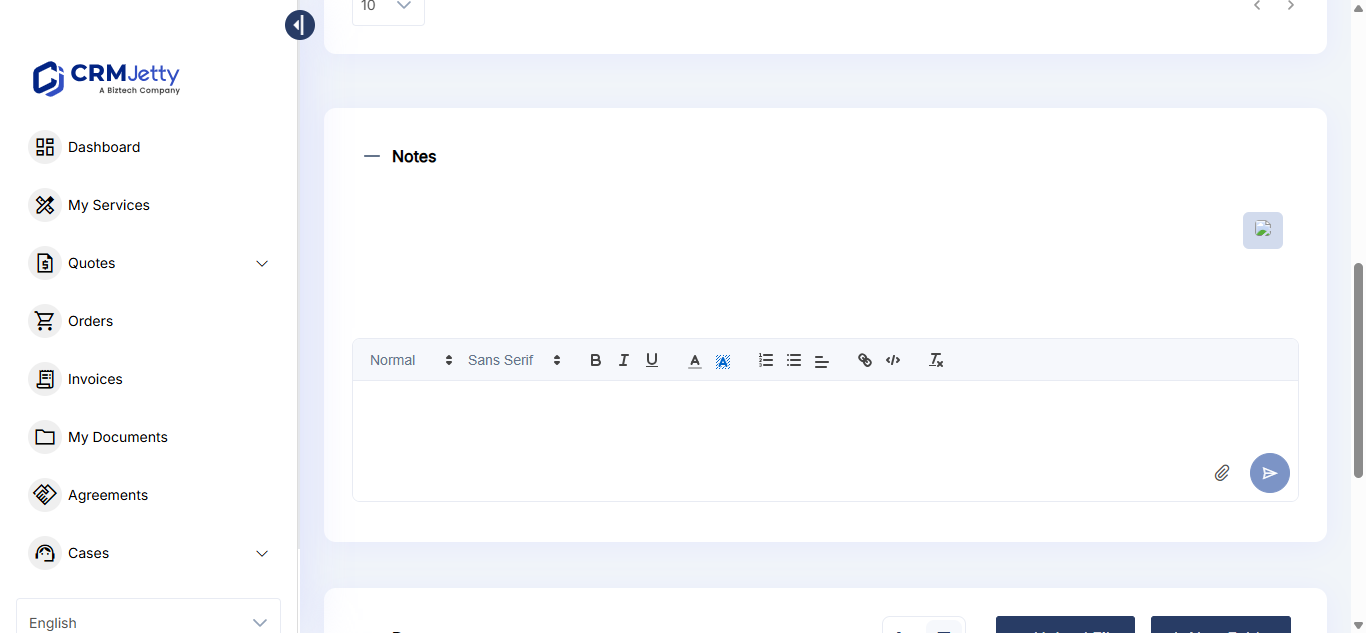
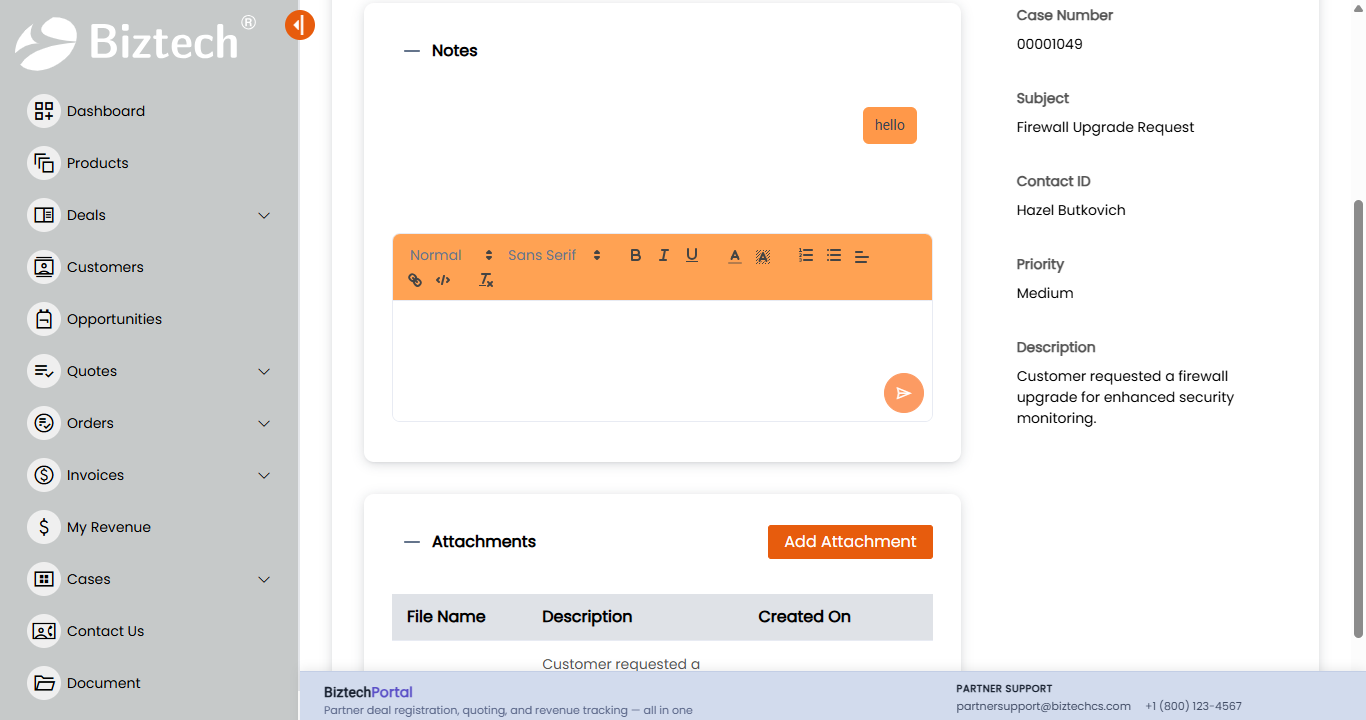
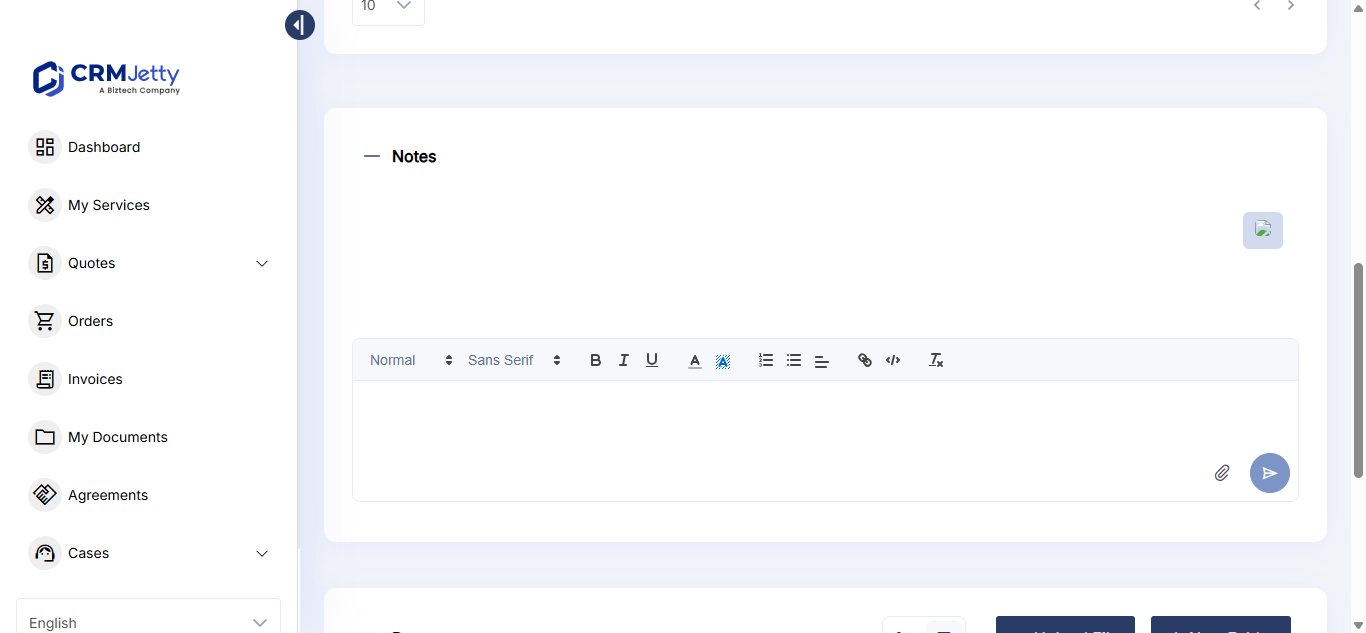
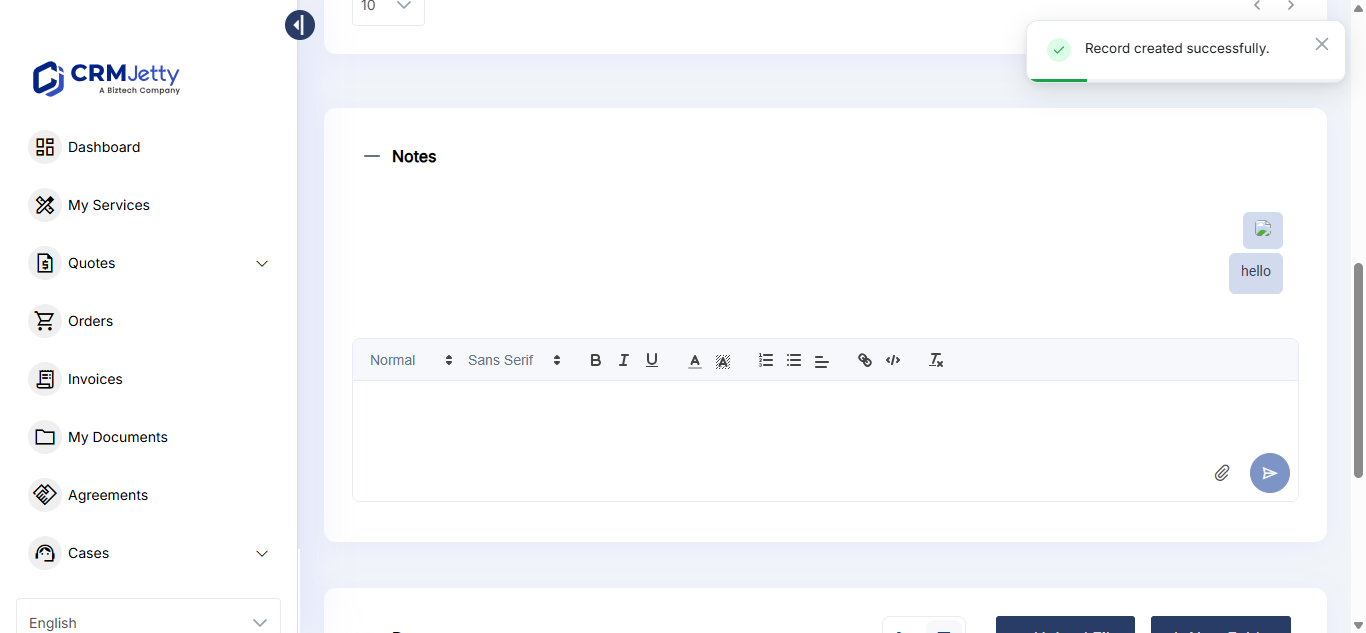
Tip: When Enable AI is on, portal users can get suggested replies when they write a note. See How to Use AI Canned Responses in Notes and Comments.
Business Central: Notes and Attachment widgets
In the Business Central portal, notes and attachments are two separate widgets in the Form Builder: Notes and Attachment.
- Both have Label, Allow Creating Records, Button Label, Allow Deleting Records and Default Accordion Behavior.
- Attachment also has Attachment Mandatory, which makes an attachment required on the form.
- The Business Central manual doesn’t list Enable Global Access or Select Design Layout for these widgets.
Troubleshooting
Portal users can’t add notes: Check that Allow Creating Records is on, then save and publish the form again.
Portal users don’t see notes added by others: Turn on Enable Global Access in the widget settings.
Related articles
- How to Create a Portal Form for Any CRM Entity
- How to Design Add, Edit and Detail Form Layouts
- How to Add Sub-Grids to Portal Forms
- How to Manage Support Cases in the Customer Portal
Did this solve it?No, contact support