
How to Let Portal Users Export Records to CSV
Portal users can download the records they see in the portal as a CSV file, for example to work with their invoices or orders in a spreadsheet. They can export the entire list or only the records they select. You turn export on per widget, so you decide on which pages it is available.
Before you start
- You need access to the Design menu in the admin portal.
- Show the records on a portal page with a List widget, a Data Card widget or a sub-grid. See How to Create List Views in CRMJetty Portal.
- Portal users can export only the records they can see. Their role and any data loading workflow on the widget decide which records those are.
Note: This article covers portal users exporting CRM records. Exporting portal configuration, such as pages, roles and workflows, is a different feature. See How to Export and Import Portal Configuration.
Turn on export in a List widget
- Go to Design → Page Builder.
- Open the page with the list in edit mode.
- Select the Settings icon on the List widget.
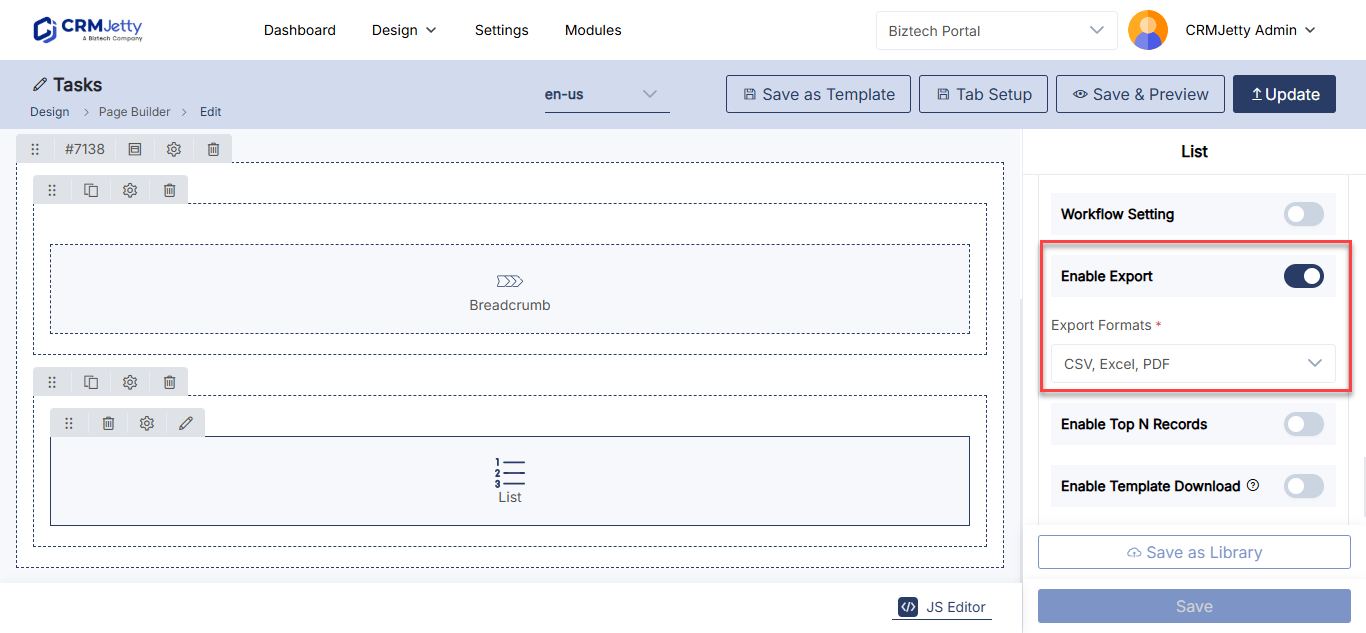
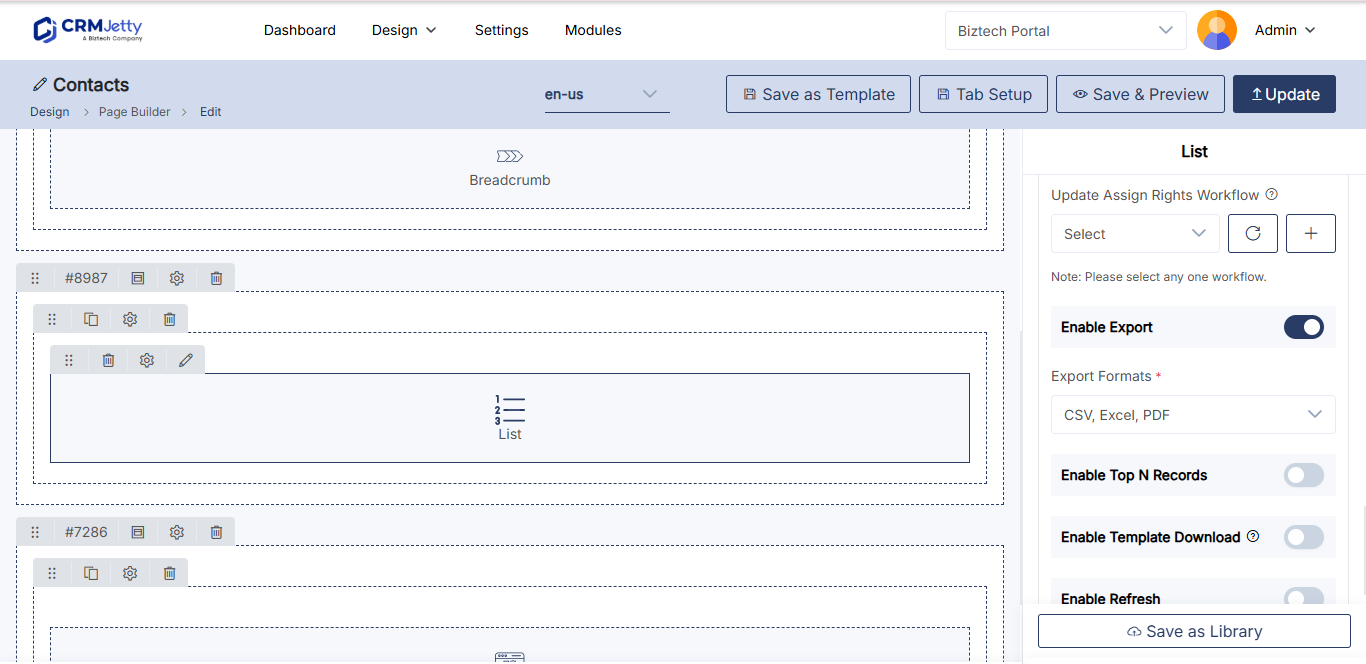
- Under Enable Export, turn on the Enable Export toggle.
- In Select Export Formats, select CSV. You can also select Excel and PDF.
- Select Save.
- Publish the page.
Turn on export in other widgets
| Widget | Setting | Formats |
|---|---|---|
| List | Enable Export, then Select Export Formats | CSV, Excel, PDF |
| Data Card | Enable CSV Export (Business Central: Enable Export, then Select Export Formats) | CSV (Business Central: the formats you select) |
| Sub-Grid (in an Edit or Detail form) | Enable Export, then Select Export Formats | CSV, Excel, PDF |
For the other Data Card settings, see How to Show CRM Records as Cards in the Portal. For sub-grids, see How to Add Sub-Grids to Portal Forms.
How portal users export records
- Open the page with the list.
- To export only some records, select the checkbox next to each one. Otherwise, the whole list is exported.
- Select the export option and choose CSV.
- Open the downloaded file in a spreadsheet app.
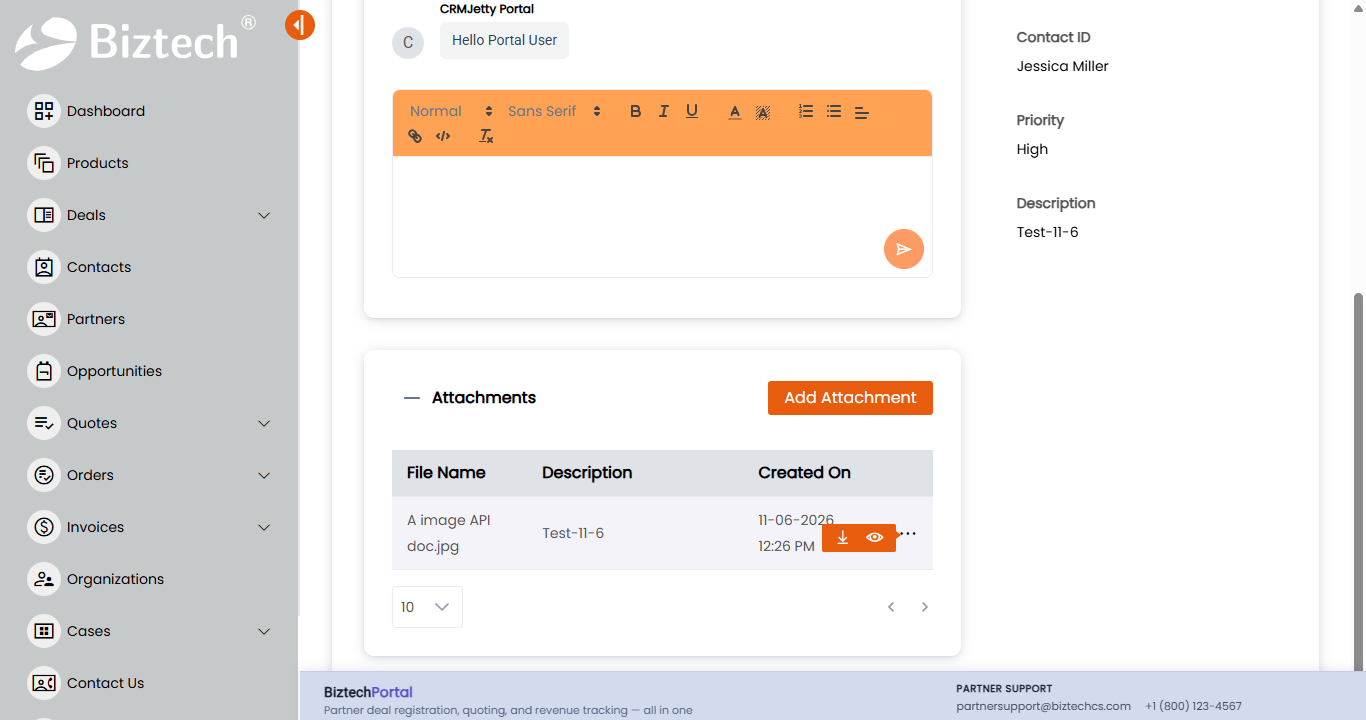
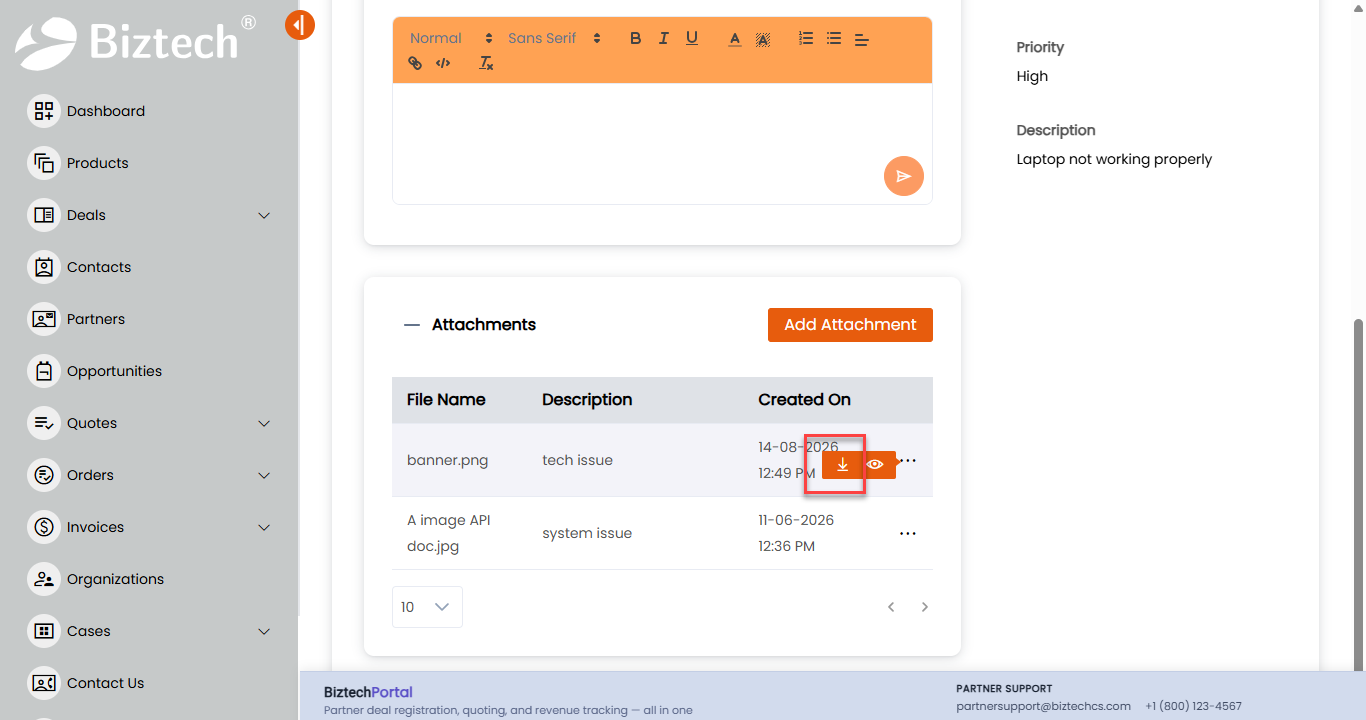
Tip: Export what portal users need and nothing more. A record that appears in the list can be exported, so use roles and workflows to control what the list shows. See How to Filter Which Records Portal Users See.
Troubleshooting
Portal users don’t see the export option: Check that Enable Export is on in the widget, that at least one format is selected in Select Export Formats, and that you saved the widget and published the page.
The export is missing some records: The export contains only records the portal user can see. Check the user’s role and any Data loading Workflow selected in the widget.
Related articles
- How to Create List Views in CRMJetty Portal
- How to Add Filters to Portal List Views
- How to Let Portal Users Delete Records in Bulk
- How to Show CRM Records as Cards in the Portal