
How to Generate Portal Login Credentials in Bulk
When you launch a portal, many of your customers, partners or vendors may already be contacts in your CRM. Instead of setting up each one, you can select them all and generate their portal credentials in one go. Each contact receives an email with a link to set a password and sign in.
Before you start
- You need admin access to the admin portal. Sub-admins can generate credentials only if their admin role allows it.
- Set up SMTP email first. The credential emails are sent through it. See How to Configure SMTP Email in CRMJetty Portal.
- Create the role you want to give these portal users. See How to Create Portal User Roles and Permissions.
- To change the credential email, see How to Customize Portal Email Templates.
Generate credentials for several contacts
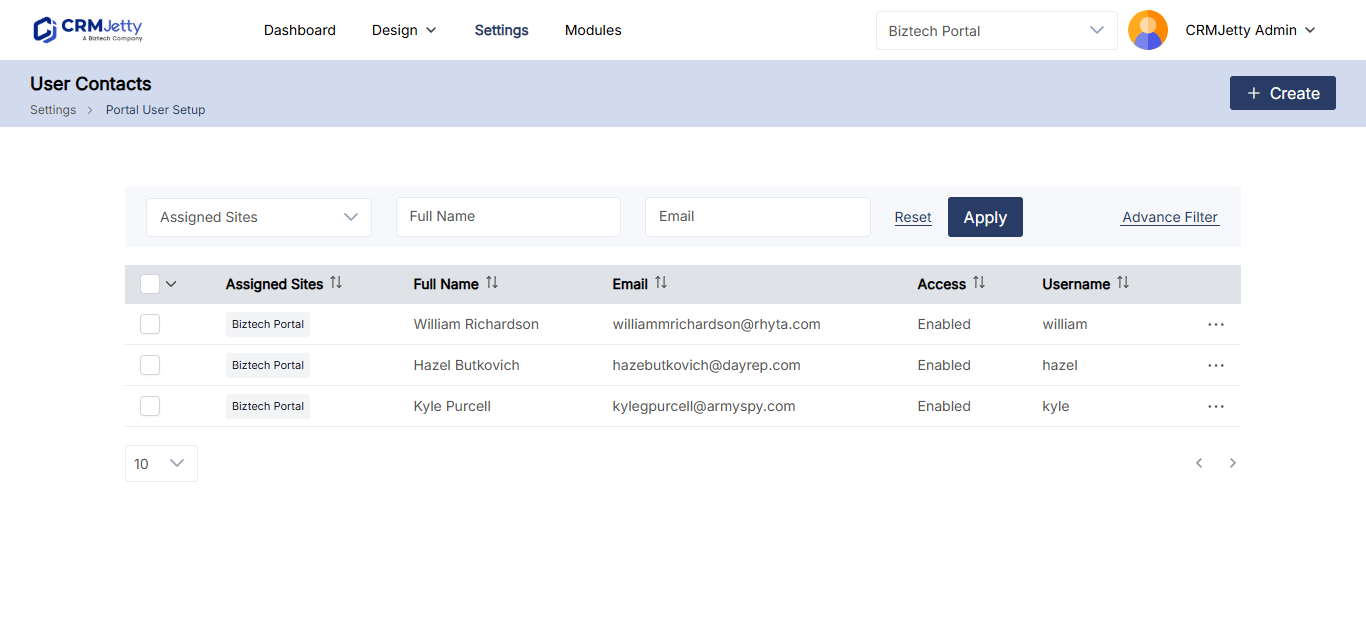
- Go to Settings → User Settings → Portal User Setup.
- Select the contacts that need portal access. You can include new contacts and contacts you disabled earlier.
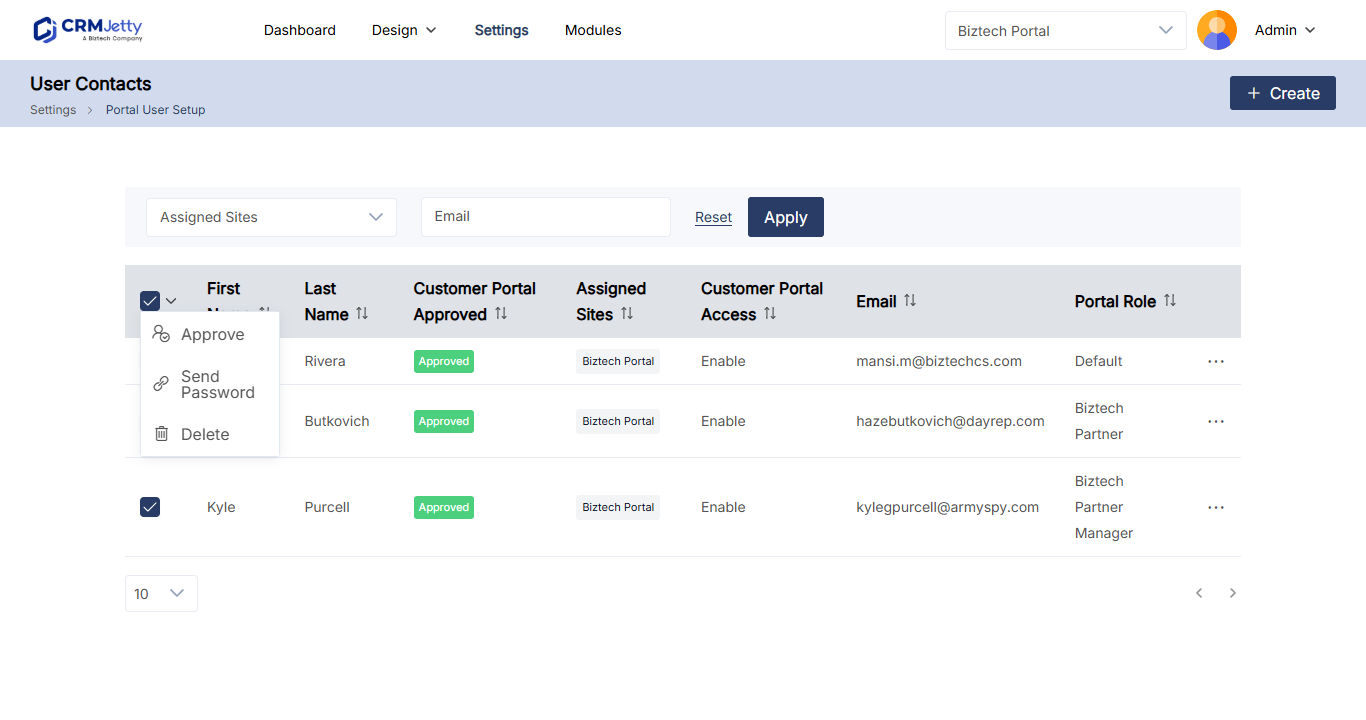
- In the Bulk Actions menu, select Enable.
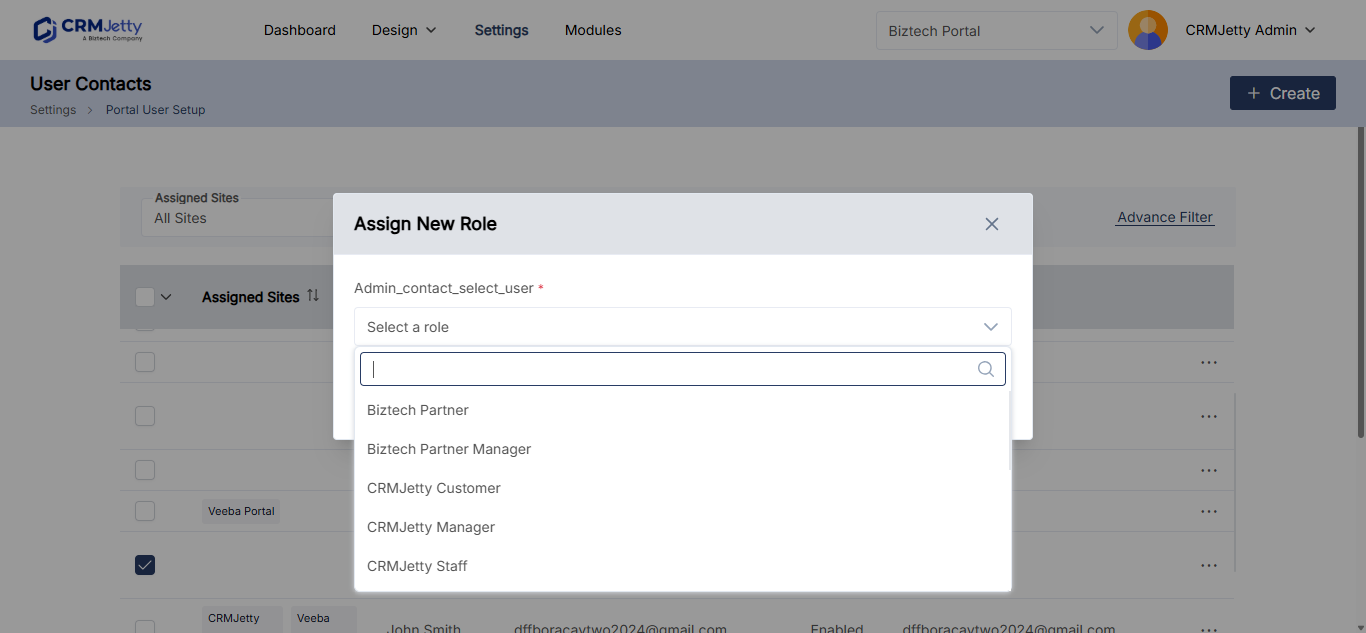
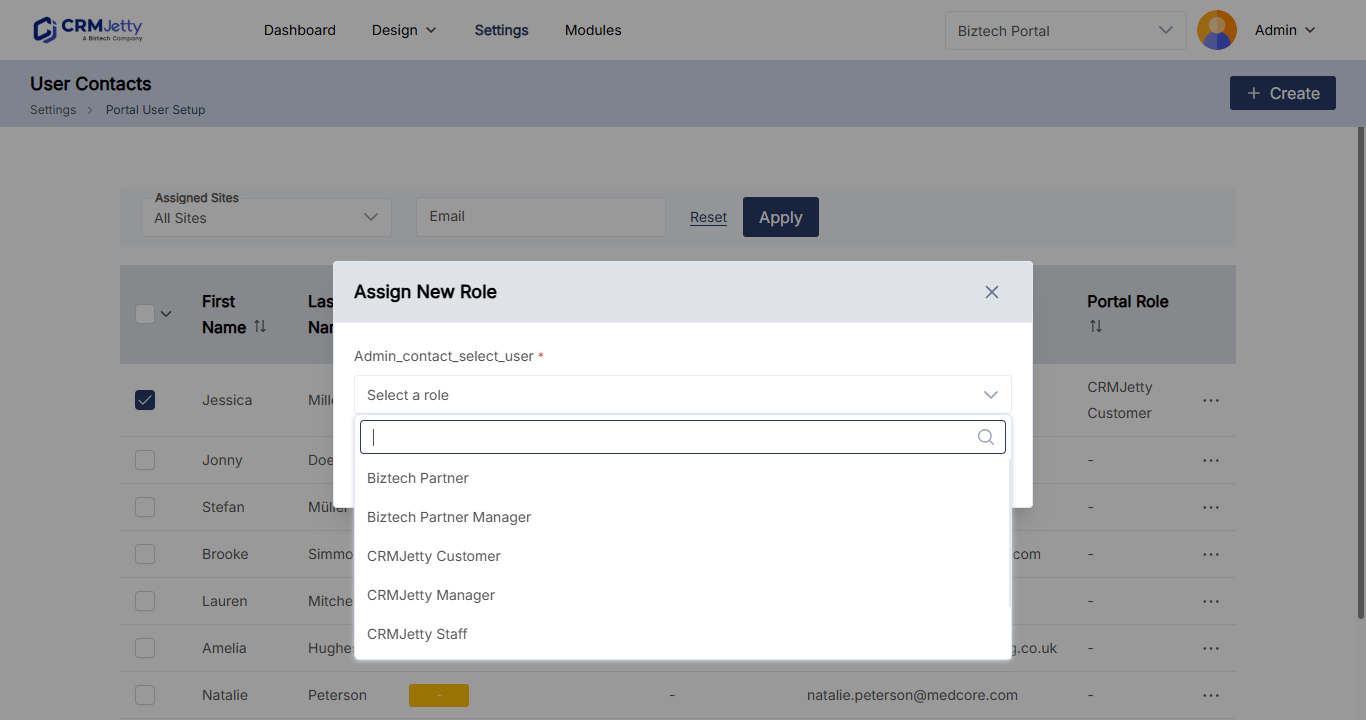
- In the pop-up, select the role these portal users get.
- Select Save.
- Review the summary: Selected User, Disabled Users and Conversion Pending.
- Select Apply.
The portal generates credentials for the selected contacts. Each one receives an email with a link to access the portal and set a password.
Tip: The admin Dashboard also has a Generate Credentials shortcut under Quick Access.
Approve and generate credentials together
If you require admin approval for new portal users, contacts must be approved before they can sign in.
- Approve only: select the contacts and select Approve. They receive a verification link, but their credentials stay pending.
- Approve and generate credentials: on the contact, select Approved and then Save & Generate Credentials. The contact receives an email with the portal access link.
See How to Approve Multiple Portal Users at Once and How to Enable Email Verification and Admin Approval.
Resend access to existing portal users
If portal users didn’t receive their email, or need a new password, send them a password link instead:
- Select the portal users on Portal User Setup.
- In the Bulk Actions menu, select Send Password Link.
- Review the pop-up showing the delivery status of each link.
Troubleshooting
Contacts don’t receive the credential email: Check your SMTP settings and send a test email. Then use Send Password Link for those contacts.
A contact doesn’t appear in Portal User Setup: Make sure the contact exists in your CRM. To create a contact from the admin portal, see How to Add Portal Users from CRM Contacts.
Related articles
- How to Add Portal Users from CRM Contacts
- How to Approve Multiple Portal Users at Once
- How to Assign Roles to Portal Users in Bulk
- How to Set Up Password Reset for Portal Users
- How to Configure SMTP Email in CRMJetty Portal