
How to Give Portal Users Account-Level Record Access
By default, a portal user sees only the records linked to their own contact. If several people from the same company use the portal, you can let them see the records of their whole account, such as every case or order the company has, by changing the relationship type on their role.
Before you start
- You need admin access to the CRMJetty admin portal.
- Enable the entity in the portal first. Only portal entities appear in a role’s permission list. See How to Enable CRM Entities and Custom Objects in the Portal.
- Each portal user’s contact must be linked to an account in your CRM. Account-level access uses that link.
- The entity must be related to the account or contact in your CRM. The relationship type uses the relationship created in your CRM between the contact or account and the entity.
How relationship types control record access
The Relationship Type you set for each entity in a role decides which records portal users with that role can access.
| Relationship type | Portal users can access |
|---|---|
| Contact | Only records related to their own contact profile. |
| Account | Records tied to their associated account. |
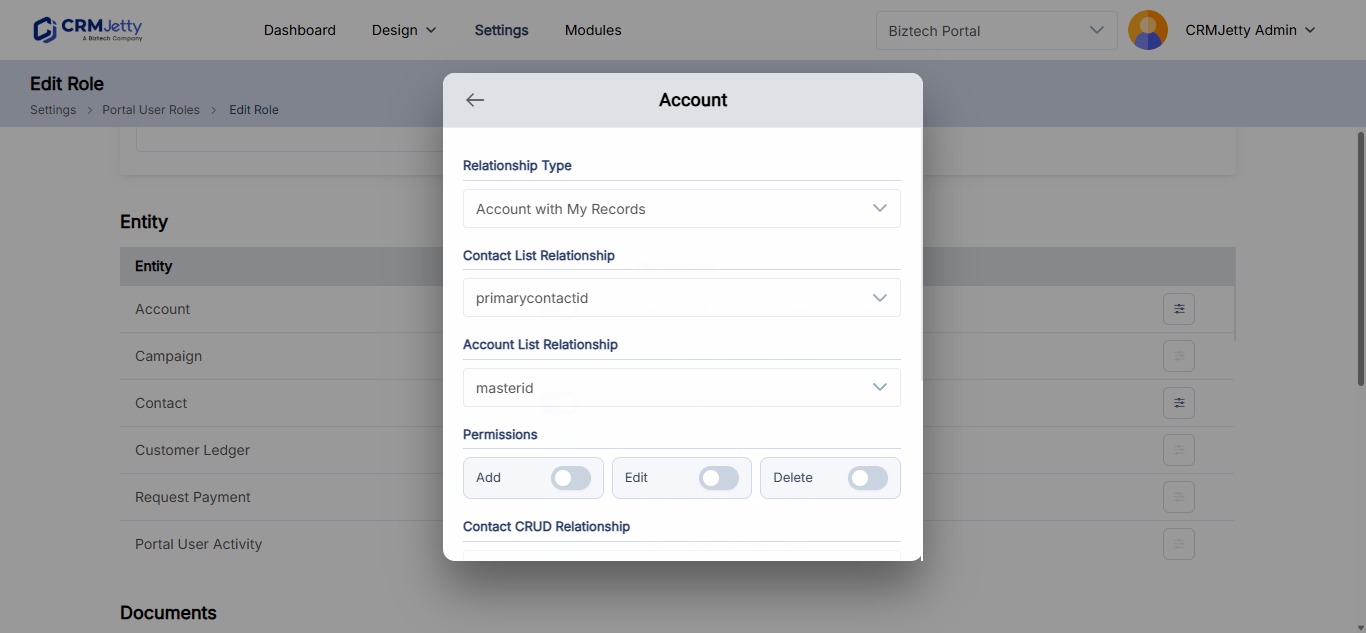
| Account with My Records | Their own records within the associated account. |
| Account with All Records | All records within their associated account, including other users’ records. |
- Contact relationships limit access to records linked directly to the portal user’s contact. Use them for personal data, such as a user’s own profile or own cases.
- Account relationships give access based on the organization the portal user belongs to. Use them when colleagues from one company need to see and work on the same records.
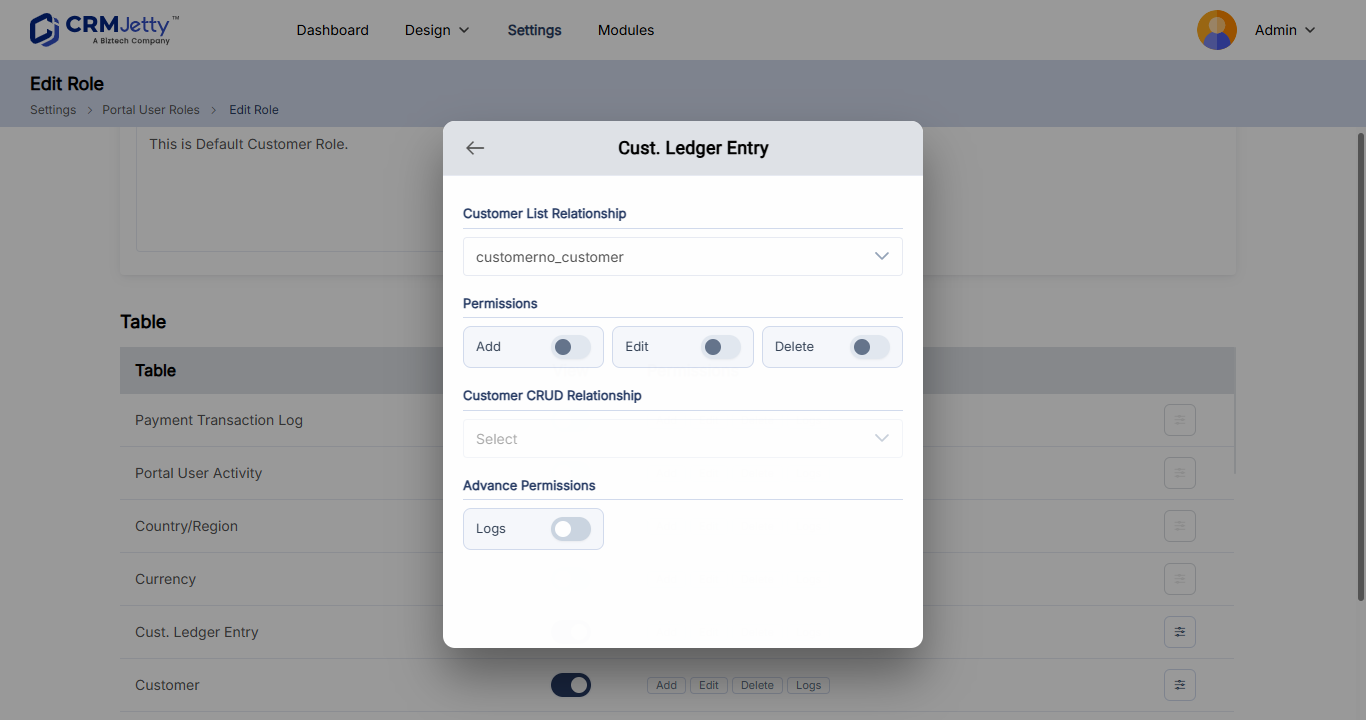
Note: In Business Central, portal users are linked to customers or vendors. The relationship types available depend on your connected system.
Set account-level access on a role
- Go to Settings → User Settings → Portal User Roles.
- Select Create to add a role, or select the three dots (…) next to a role and then the Edit icon.
- In Entity Permissions, find the entity, for example cases or orders.
- Select View. You must select View before you can set the other permissions.
- In Relationship Type, select Account, Account with My Records or Account with All Records.
- Select Add, Edit or Delete if portal users should also change these records.
- Repeat for each entity that should use account-level access.
- Select Save.
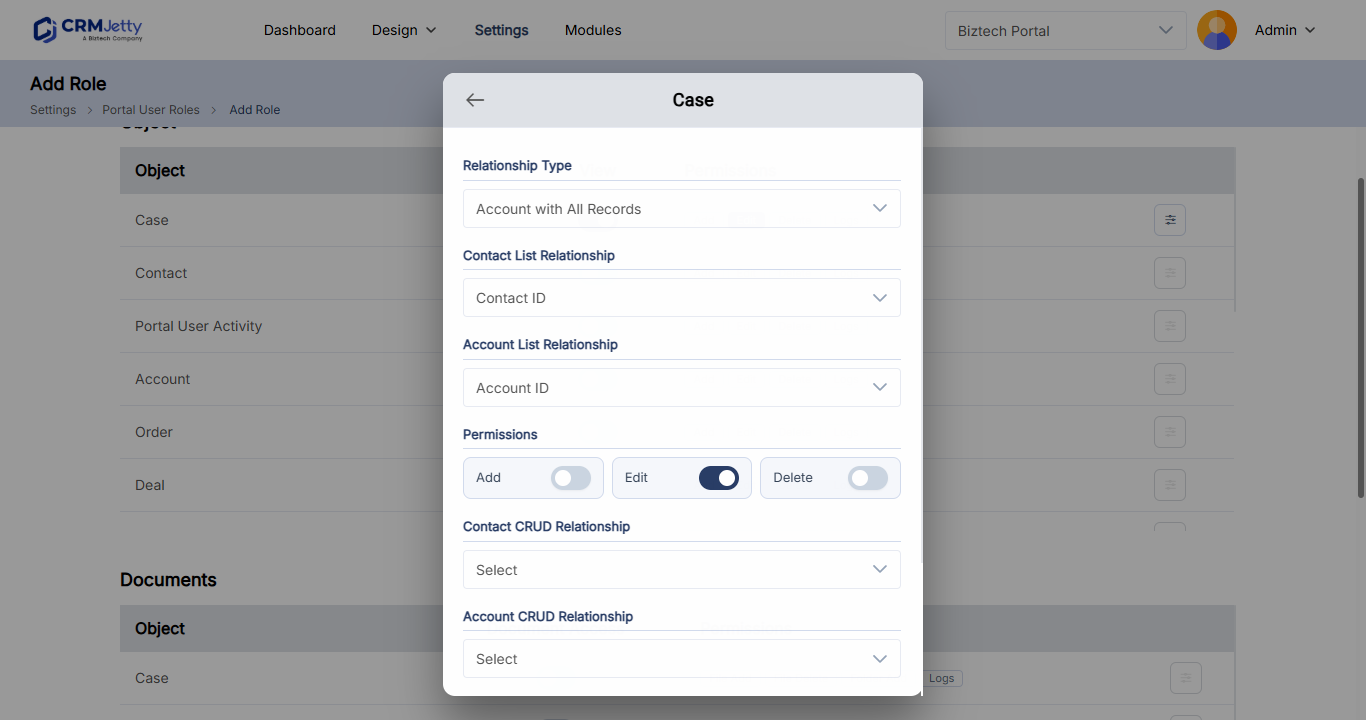
You can mix relationship types in one role. For example, set Contact for an entity that holds personal data and Account with All Records for cases, so every user from a company sees the company’s cases.
Important: Add, Edit and Delete apply to every record the relationship type makes visible. If you combine Account with All Records with Edit or Delete, portal users can change records created by their colleagues.
Assign the role to portal users
The new access applies to every portal user who has the role. To give the role to more users:
- Edit a single portal user and select the role. See How to Edit Portal User Details.
- Assign the role to many users at once. See How to Assign Roles to Portal Users in Bulk.
- Replace one role with another for all its users: in Portal User Roles, select the three dots (…) next to the role and select Replace Role.
Narrow account-level access with workflows
Account-level access shows every matching record in the account. To hide some of them, for example closed cases, or to remove edit or delete rights on records in a certain status, add a workflow for the role under Settings → Portal Settings → Workflow Management. See How to Restrict Record Access with Conditional Workflows.
Troubleshooting
A portal user still sees only their own records: Check that the user has the role you edited, and that the entity’s Relationship Type in that role is an account option, not Contact. Then check that the user’s contact is linked to the right account in your CRM.
A portal user sees records from the account but can’t edit them: Select Edit for the entity in the role. Also check whether a workflow removes edit rights for those records.
Related articles
- How to Create Portal User Roles and Permissions
- How to Set Add, Edit and Delete Permissions by Role
- How to Set Up Record-Based Hierarchy in the Portal
- How to Filter Which Records Portal Users See