
How to Set Up Record-Based Hierarchy in the Portal
Record-based hierarchy gives portal users hierarchical permissions on an entity: access follows the hierarchy defined on that entity’s records in your CRM, not only the portal user’s own records. You turn it on per entity, in the portal user role.
Before you start
- You need admin access to the CRMJetty admin portal.
- The entity must be enabled for a hierarchical relationship in your CRM. The portal shows the hierarchy option only for these eligible entities.
- The entity must be enabled in the portal. See How to Enable CRM Entities and Custom Objects in the Portal.
- Record-based hierarchy is included in every plan. See CRMJetty Plans and Feature Availability.
Steps
- Go to Settings → User Settings → Portal User Roles.
- Select the three dots (…) next to the role, then select the Edit icon. To start a new role, select Create.
- In Entity Permissions, find the entity.
- Select View for the entity, if it is not already selected.
- Select Enable Hierarchy.
- Select Save.
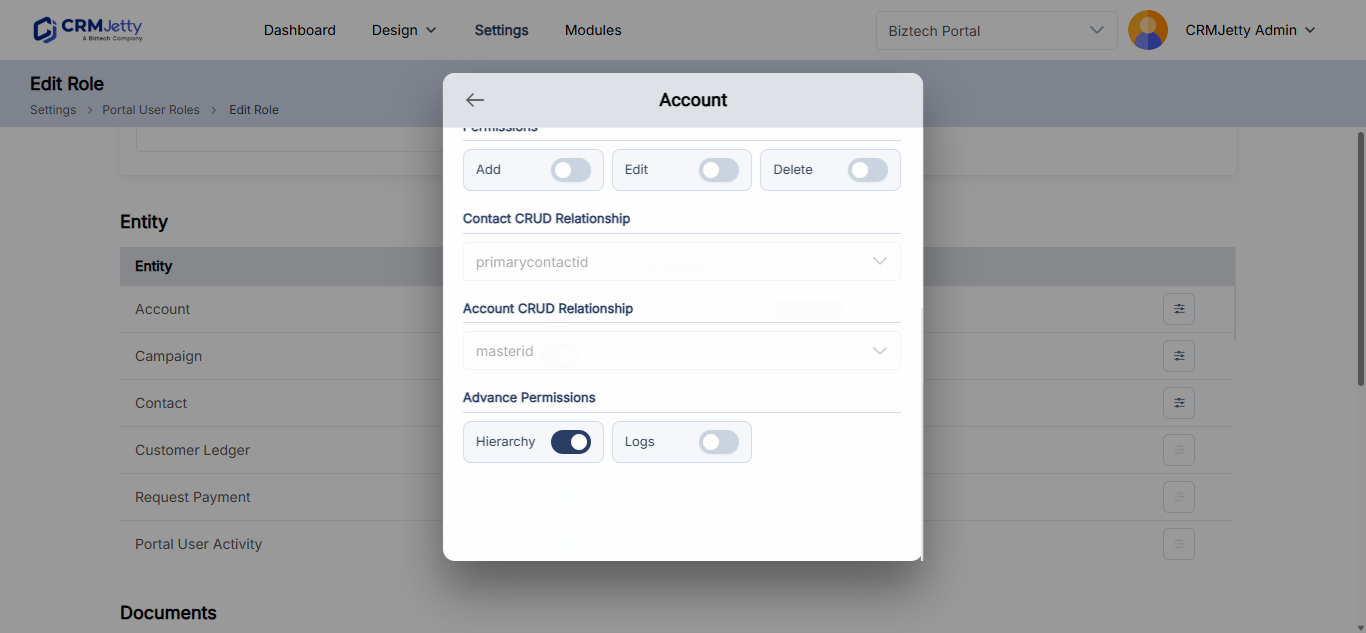
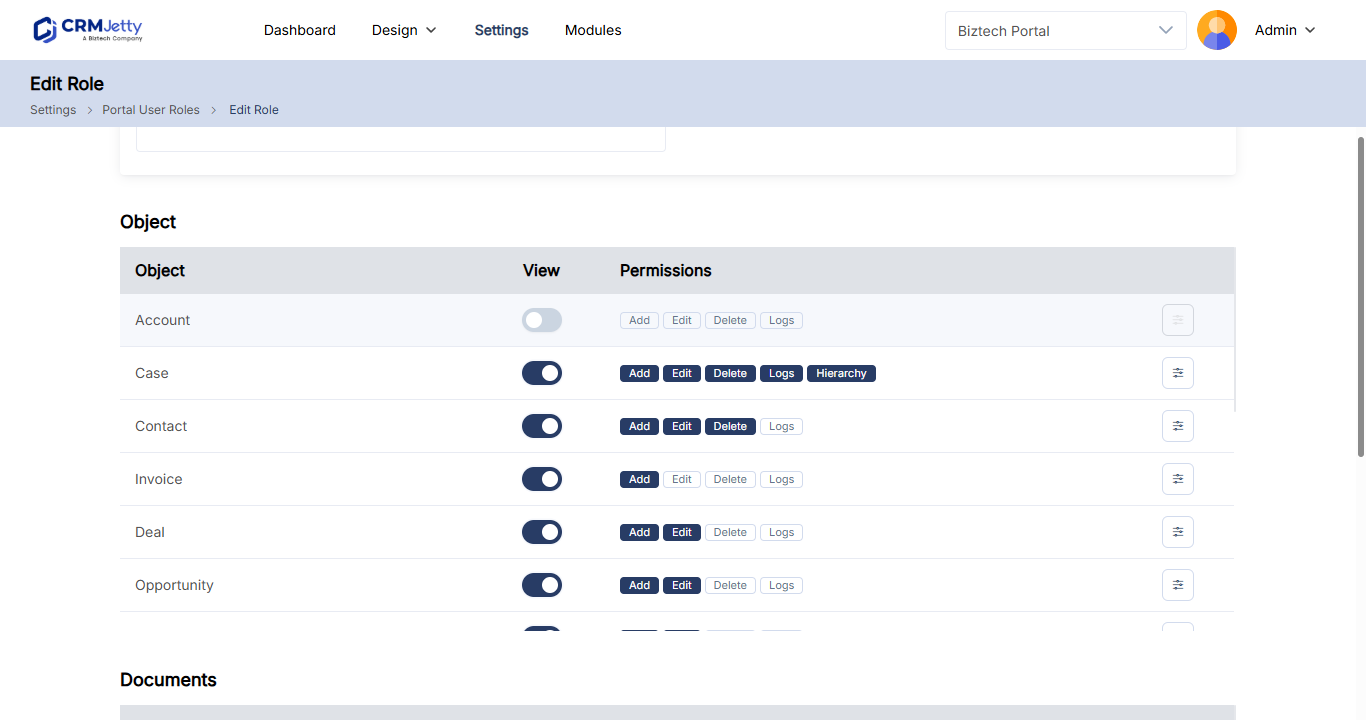
The setting applies to every portal user who has the role. To give the role to more users, see How to Assign Roles to Portal Users in Bulk.
Note: If you don’t see the Enable Hierarchy checkbox for an entity, the entity is not enabled for a hierarchical relationship in your CRM. Set up the hierarchy in your CRM first. If you change the entity in your CRM, sync the change to the portal; see How to Sync CRM Layout Changes to Your Portal.
Record-based hierarchy vs account-level access
Both settings widen what a portal user can see. They work on different things.
| Setting | Where you set it | What it uses |
|---|---|---|
| Relationship Type (Account options) | Per entity, in the role | The link between the portal user’s contact, their account and the entity’s records. See How to Give Portal Users Account-Level Record Access. |
| Enable Hierarchy | Per entity, in the role | The hierarchical relationship enabled on the entity in your CRM. |
Troubleshooting
The Enable Hierarchy checkbox is missing for an entity: The entity is not eligible. Only entities enabled for a hierarchical relationship in your CRM show the checkbox.
Portal users don’t see the expected records: Check that the users have the role you edited and that View and Enable Hierarchy are both selected for the entity. Also check for a workflow that filters the entity’s records for that role. See How to Filter Which Records Portal Users See.
Related articles
- How to Create Portal User Roles and Permissions
- How to Give Portal Users Account-Level Record Access
- Portal Roles vs CRM Roles Explained
- How to Filter Which Records Portal Users See