
How to Find Your Salesforce Consumer Key and Secret
The portal connects to Salesforce through an external client app (older orgs may use a connected app). Salesforce generates two credentials for that app: the Consumer Key and the Consumer Secret. These are Salesforce’s names for the OAuth client ID and client secret. Depending on how you connect, the portal also asks for your Salesforce username, password and security token.
Before you start
- You need Salesforce admin access to view external client apps.
- Create the app first. For a certificate connection, see How to Set Up Salesforce JWT Authentication for the Portal. For an older connected app, see How to Set Up a Salesforce Connected App for the Portal.
- Have access to the email address of the Salesforce user the portal connects as. Salesforce sends verification codes and the security token there.
What the portal asks for
| Value | Where it comes from |
|---|---|
| License Key (if the page asks for it) | From CRMJetty when you purchase the portal. |
| Consumer Key | Your Salesforce app. The OAuth client ID. |
| Consumer Secret | Your Salesforce app. The OAuth client secret. |
| Username | The Salesforce username of the user the portal connects as. |
| Password | That user’s Salesforce password. |
| Security token | Salesforce emails it to that user when they reset it. |
| Environment (older versions: Mode) | Live for your production org or Sandbox for a test org. |
Note: If you connect with a username, password and security token, your Salesforce org must allow the OAuth username-password flow. Newer orgs block it by default. See How to Set Up a Salesforce Connected App for the Portal.
Note: If you connect with JWT authentication, the connection uses the Consumer Key, the Salesforce username and your private key file (
server.key) instead of a password and security token. See How to Set Up Salesforce JWT Authentication for the Portal.
Find the Consumer Key and Consumer Secret
- In Salesforce, go to Setup.
- Type
External Client App Managerin the Quick Find box and select it. - Find your app, open its row menu and select Edit Settings, or select the app name to open it.
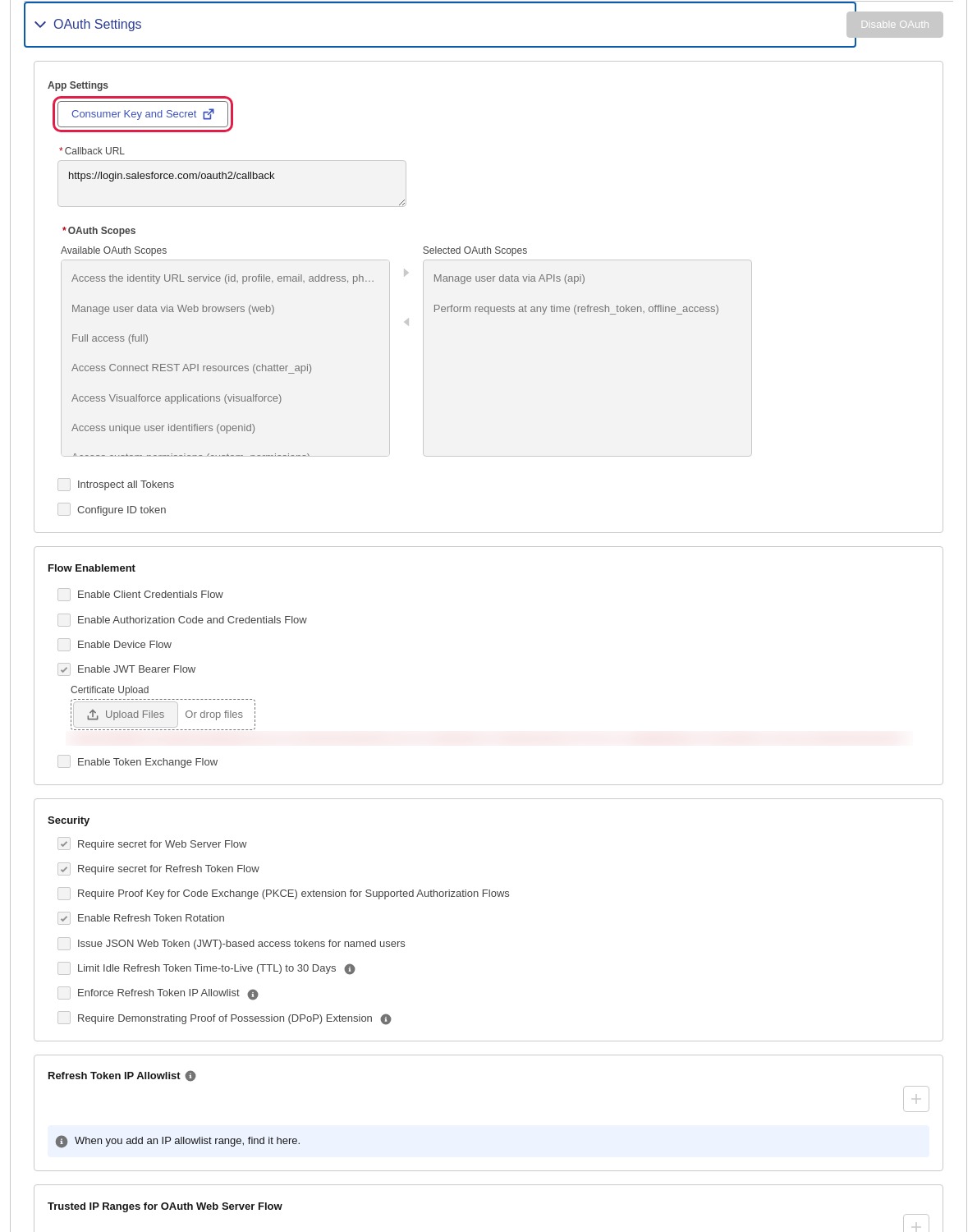
- Select the Settings tab and expand OAuth Settings.
- Select Consumer Key and Secret.
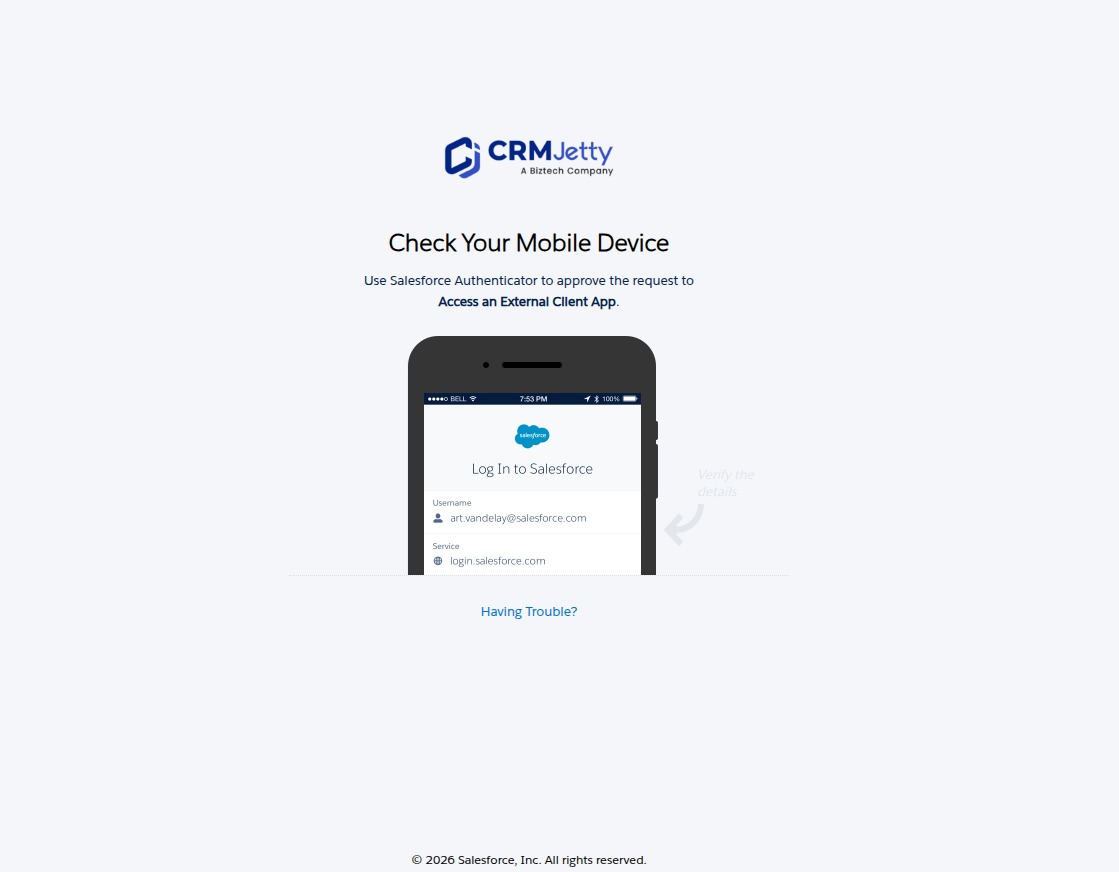
- If Salesforce asks you to verify your identity, approve the request in Salesforce Authenticator or enter the verification code it sends you.
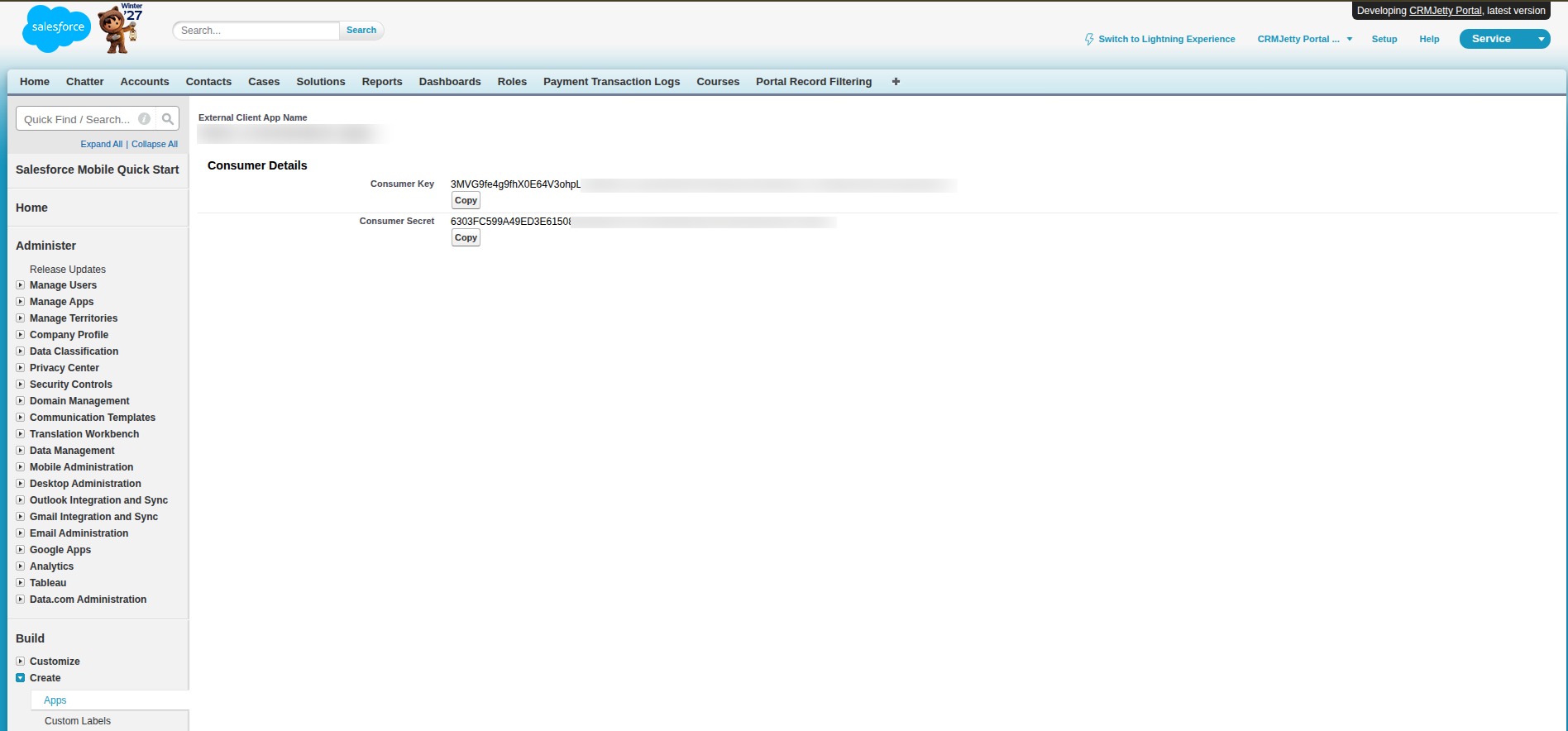
- On the Consumer Details page, copy the Consumer Key and the Consumer Secret.
Note: If your org still uses a connected app, select App Manager, open the app’s row menu, select View, then select Manage Consumer Details.
Important: Treat the Consumer Secret like a password. Do not share it by email or chat, and do not store it in plain text.
Get your security token
- In Salesforce, select your profile picture, then Settings.
- Under My Personal Information, select Reset My Security Token.
- Select Reset Security Token.
- Open the email Salesforce sends and copy the token.
Note: Salesforce sends a new security token when the user’s password changes. Update the token in the portal after every password change.
Enter the values in the portal
- Sign in to the portal admin.
- Go to Settings → Portal Settings → CRM Authentication.
- Enter the OTP sent to the super admin’s registered email address.
- Enter the values from the table above.
- Select Save.
For help with a field, select its tooltip icon and then Click Here. The tooltip explains where to get the client secret and security token.
Troubleshooting
The connection fails after a password change: the security token changed. Reset it again if needed and enter the new token in the portal.
You can’t see Manage Consumer Details: your Salesforce user needs permission to manage connected apps. Ask your Salesforce admin.
Related articles
- How to Set Up Salesforce JWT Authentication for the Portal
- How to Fix CRM Connection Errors in CRMJetty Portal