
How to Customize Portal Theme Colors and Fonts
The theme sets how your portal looks to portal users: the fonts, the main colors, and the style of the navigation menu. Match it to your brand without writing any CSS. Each portal site has its own theme, so different sites can have different branding.
Before you start
- You need admin access to Settings → Portal Settings.
- Have your brand fonts and color codes ready.
- To upload your logo and favicon, see How to Upload and Resize Your Portal Logo.
Open the theme settings
- Go to Settings → Portal Settings → Site Management.
- Open the site you want to change for editing.
- Open Theme.
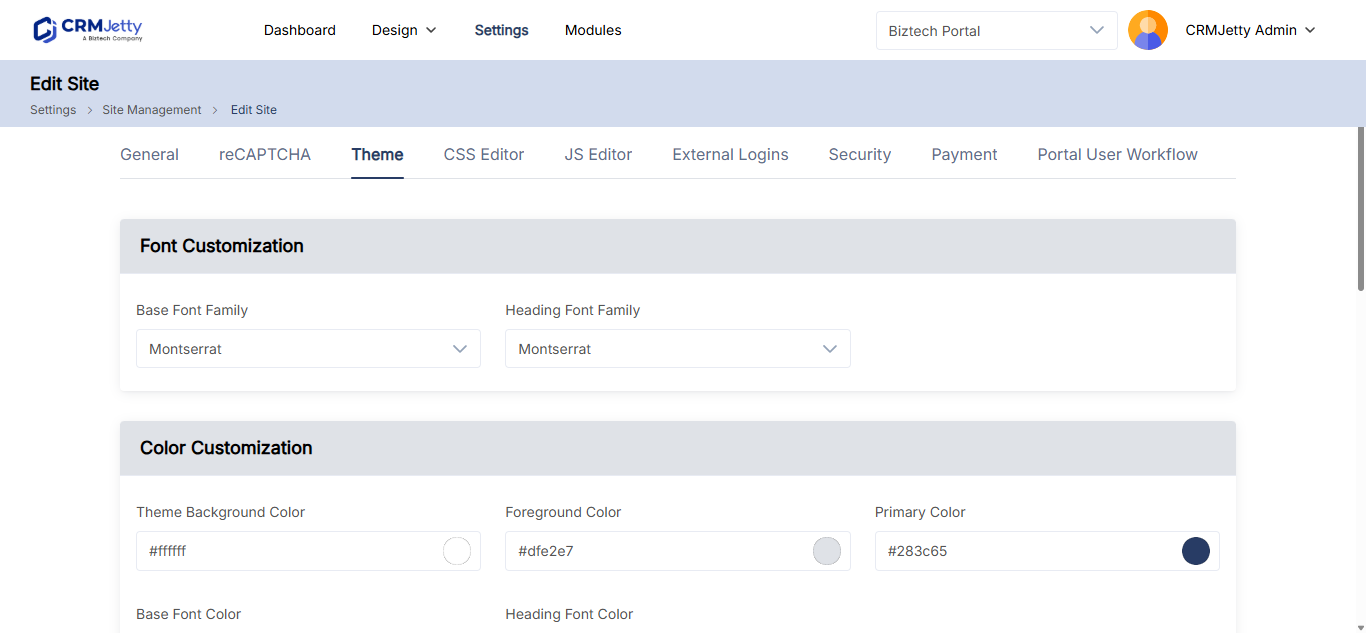
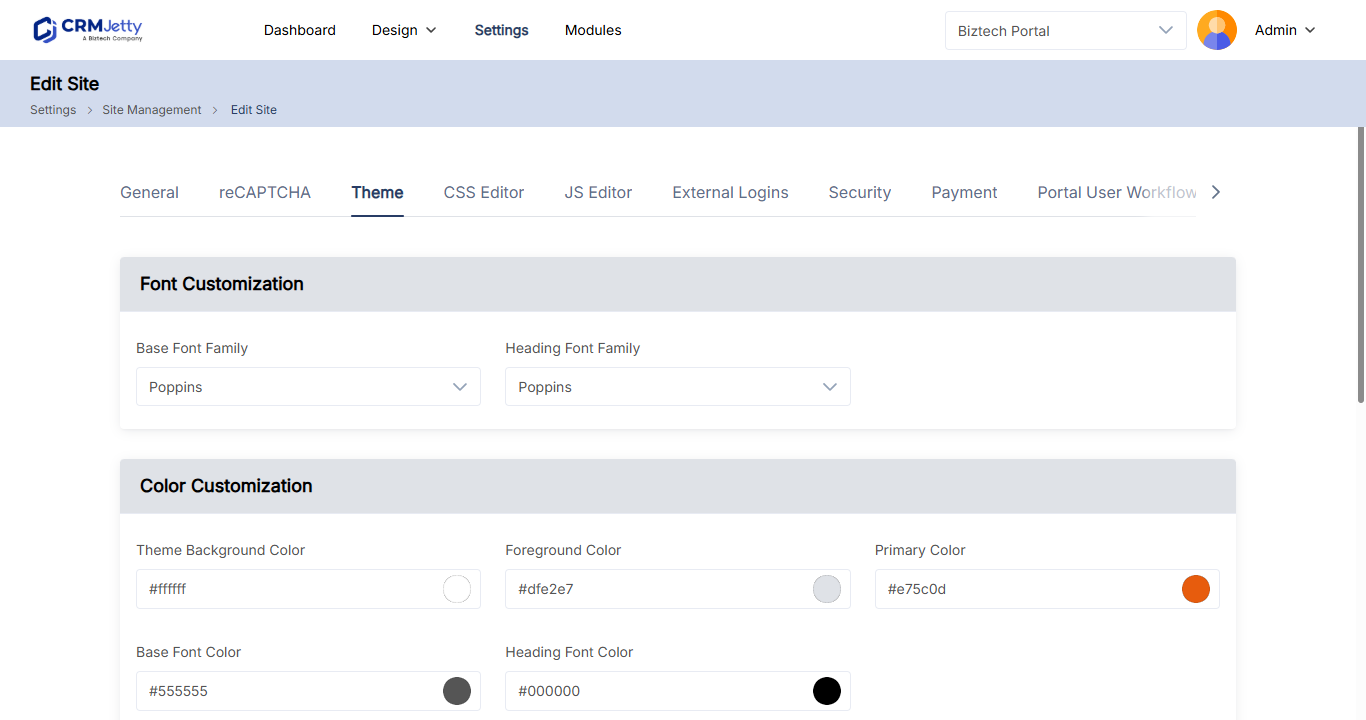
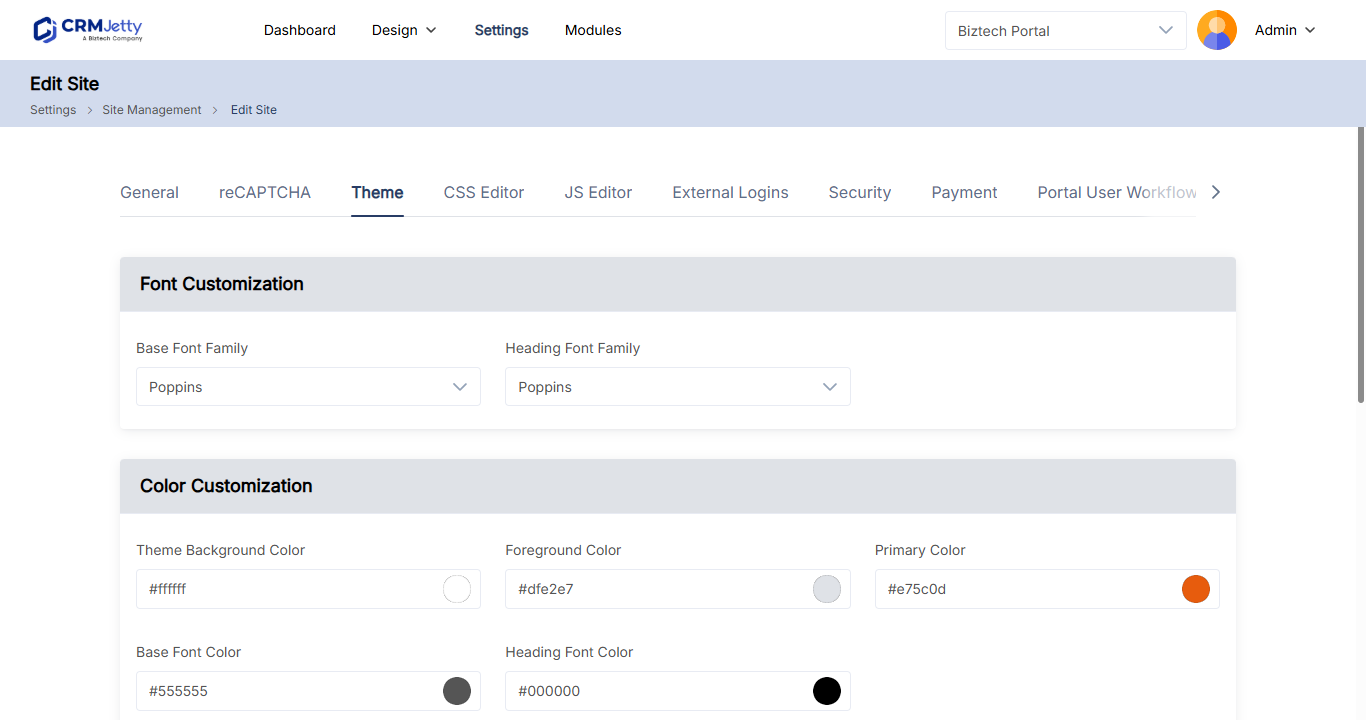
If you run several sites, edit each one separately. See How to Create and Manage Multiple Portal Sites.
Change the fonts
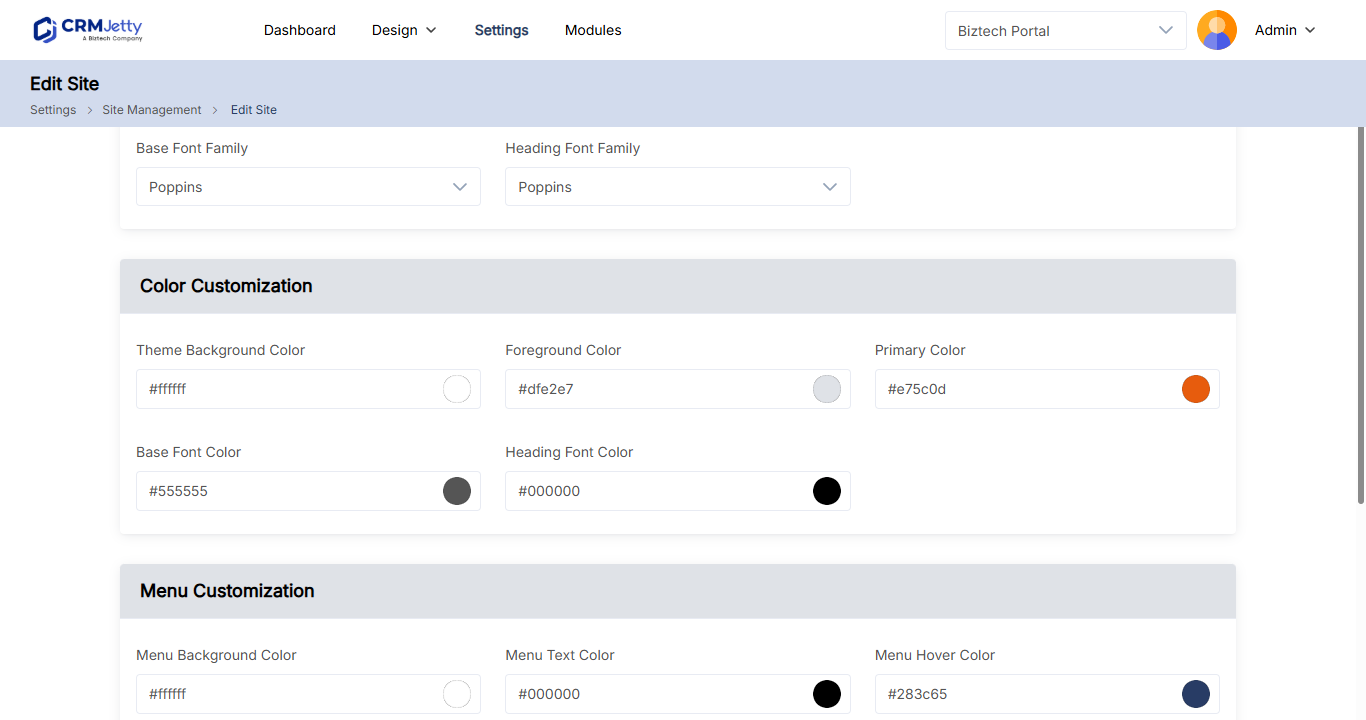
| Setting | What it changes |
|---|---|
| Base Font Family | The font for general text. |
| Heading Font Family | The font for headings and titles. |
Change the colors
| Setting | What it changes |
|---|---|
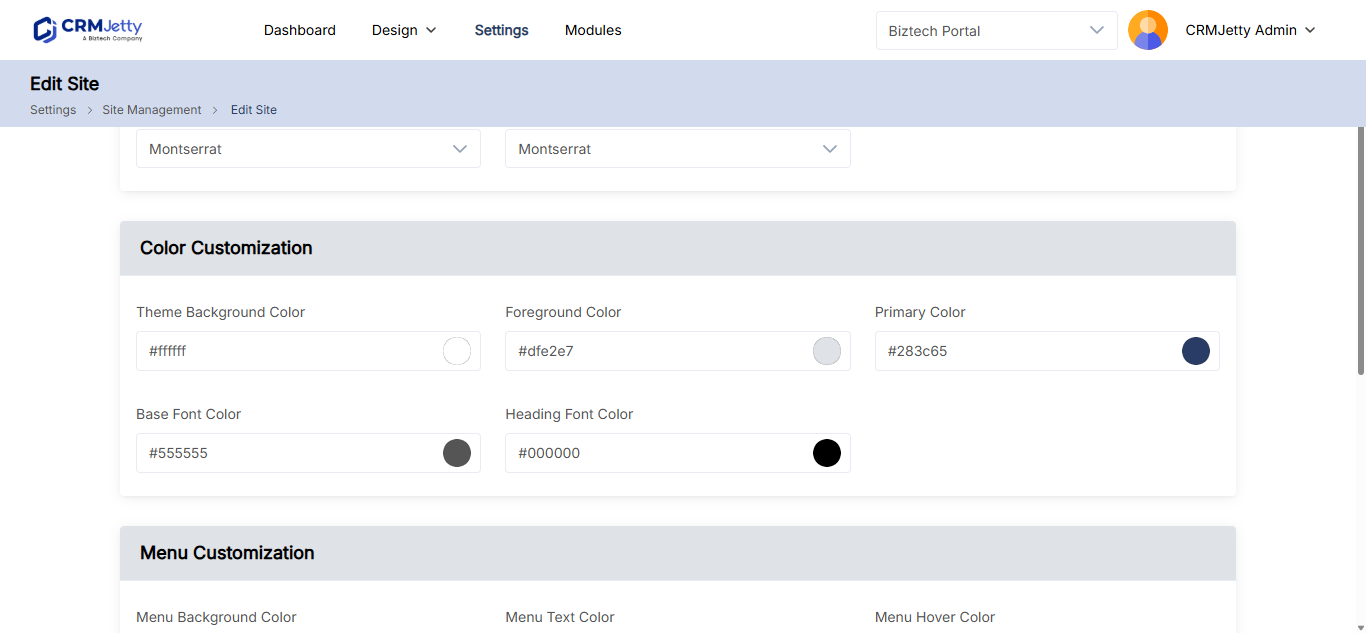
| Theme Background Color | The overall background color of the theme. |
| Foreground Color | The color of text and other foreground elements. |
| Primary Color | The color of primary buttons, links and accents. |
| Base Font Color | The color of general text content. |
| Heading Font Color | The color of headings. |
To pick a color, select the color field. The Color Picker panel opens.
Style the menu and submenus
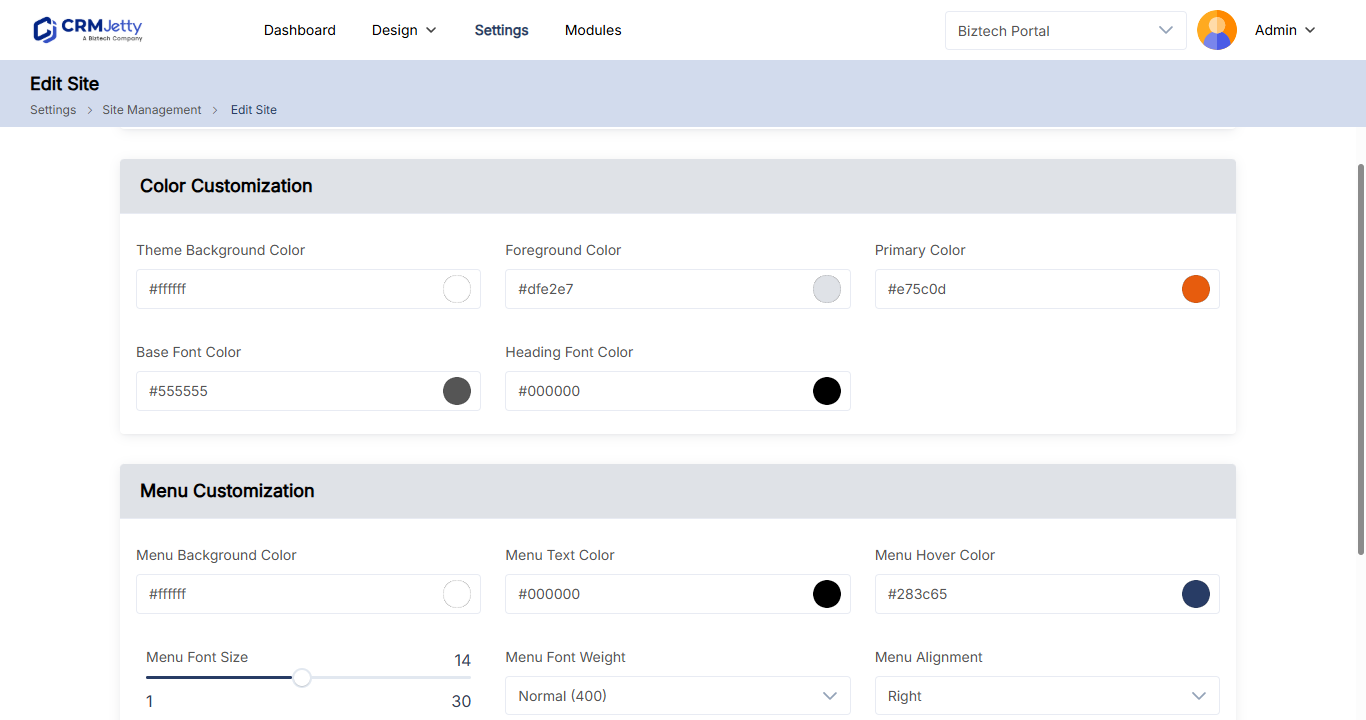
| Setting | What it changes |
|---|---|
| Menu Background Color | The background color of the menu. |
| Menu Text Color | The color of menu text. |
| Menu Hover Color | The color of a menu item when the pointer is over it. |
| Menu Font Size | The font size of menu items, from 14 to 30. |
| Menu Font Weight | The weight of menu text, for example normal or bold. |
| Menu Alignment | Where menu items sit: left, center or right. |
| Submenu Background Color | The background color of submenus. |
| Submenu Text Color | The color of submenu text. |
| Submenu Hover Color | The color of a submenu item when the pointer is over it. |
| Submenu Font Size | The font size of submenu items, from 14 to 30. |
| Submenu Font Weight | The weight of submenu text, for example normal or bold. |
To build the menus themselves, see How to Create Portal Navigation Menus.
Save or reset the theme
- Select Save to apply your theme.
- Open the portal and check the result on a few pages.
To undo your changes and return to the default theme, select Reset to Default.
Tip: Check that text stays readable against its background, especially Base Font Color on Theme Background Color and Menu Text Color on Menu Background Color.
For styling the theme settings don’t cover, such as one page section or widget, add custom CSS. See How to Add Custom CSS to CRMJetty Portal.
Related articles
- How to Add Custom CSS to CRMJetty Portal
- How to Create Portal Navigation Menus
- How to Create and Manage Multiple Portal Sites