
How to Link Parent and Child Records in a Form
A parent-child link combines the fields of two related entities in one form. When a portal user submits the form, the portal creates the parent record and the linked child record in your CRM. For example, one form can create a customer order and its order items.
Before you start
- You need access to Design → Form Builder in the admin portal.
- Enable both the parent and the child entity (Dynamics 365), object (Salesforce) or table (Business Central) in the portal. See How to Enable CRM Entities and Custom Objects in the Portal.
- The two must be related in your CRM. The relationship is what you select in Relationship Type.
- The parent-child link works only on Add type forms.
- You can’t update a parent-child form through the Use Existing option.
Steps
- Go to Design → Form Builder.
- Open an Add form for the parent entity, or create one. See How to Create a Portal Form for Any CRM Entity.
- In the form configuration, turn on the Parent-Child Link toggle.
- In Child Entity, select the entity that acts as the child.
- In Relationship Type, select the relationship that connects the parent and the child.
- In Create Unique Records On, select the parent field that identifies unique records.
- Drag the child entity fields you need from the field list onto the form layout.
- Select Save, then publish the form.
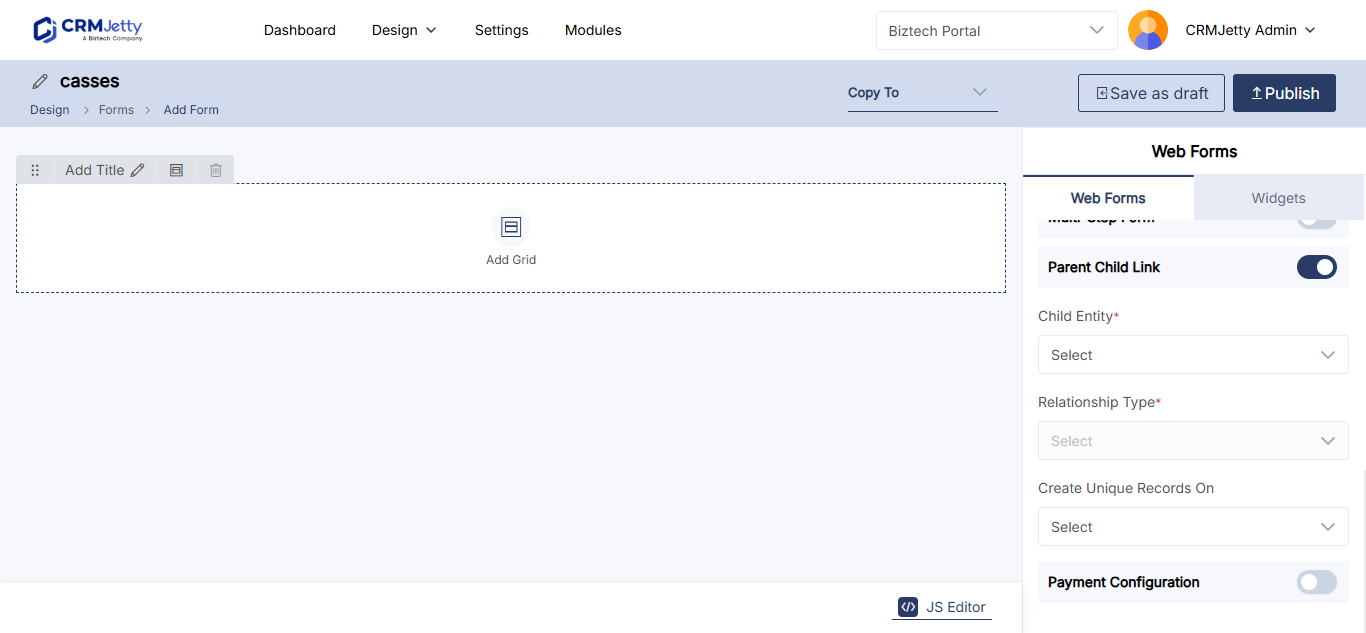
Parent-child settings
| Setting | What it does |
|---|---|
| Child Entity | The entity that acts as the child in the relationship. |
| Relationship Type | The relationship that defines how the parent and child entities are connected. |
| Create Unique Records On | The field the portal uses to make sure each record is unique when it creates the entry in your CRM. |
| Fields Display | Shows the child fields you can add to the form, based on the selected relationship type. |
Example: customer orders and order items
You run a customer order portal and want portal users to enter an order and its items in one form.
- Open the Add form for the Customer Order entity.
- Turn on the parent-child link.
- In Child Entity, select Order Items.
- In Relationship Type, select Order (Customerid). Each customer order can have several order items.
- In Create Unique Records On, select Order ID, so each order record is unique.
- Drag the child fields Item Name, Quantity and Price onto the form.
- Publish the form.
Tip: To send the submitter a confirmation email from a parent-child form, the email template can use fields of both entities. See How to Send Confirmation Emails After Form Submission.
Parent-child link or sub-grid?
| Use | When you want portal users to |
|---|---|
| Parent-child link | Create a parent record and its child record together in one Add form. |
| Sub-grid | See and manage the existing related records of a record they are editing or viewing. See How to Add Sub-Grids to Portal Forms. |
Troubleshooting
The parent-child option is missing: Check the form type. The link is available only on Add forms, not on Edit or Detail forms.
No child fields appear: Select a Relationship Type first. The child fields shown depend on the relationship you select.
The child entity is not in the list: Enable it in the portal and sync it. The Form Builder shows only entities synced with the portal.
Related articles
- How to Create a Portal Form for Any CRM Entity
- How to Add Sub-Grids to Portal Forms
- How to Create Multi-Step Forms in the Portal
- How to Send Confirmation Emails After Form Submission