
How to Set Up Password Reset for Portal Users
Portal users who forget their password can request a reset link by email and set a new password themselves. You set this up with the Forgot Password widget and a link from the login page. As an admin, you can also send reset links to portal users from the admin portal.
Before you start
- You need access to Design → Page Builder in the admin portal.
- Set up SMTP first. The reset link is sent by email. See How to Configure SMTP Email in CRMJetty Portal.
- Check your pages. When you first connect your CRM, the portal creates default pages such as Login and Forgot Password. You can use the default Forgot Password page or create your own.
How password reset works
- On the login page, the portal user selects the forgot password link.
- The portal opens the page that holds the Forgot Password widget.
- The portal user enters their registered email address and selects the button, for example Send Reset Password Link.
- The portal emails a password reset link to that address.
- The portal user opens the link and sets a new password.
The new password must be different from the old one.
Add the Forgot Password widget to a page
Skip this section if you use the default Forgot Password page.
- Go to Design → Page Builder.
- Select Create to create a page, or edit an existing page.
- In Page Access, select Public. Portal users must be able to open this page before they sign in.
- Choose a Page Layout and select Next.
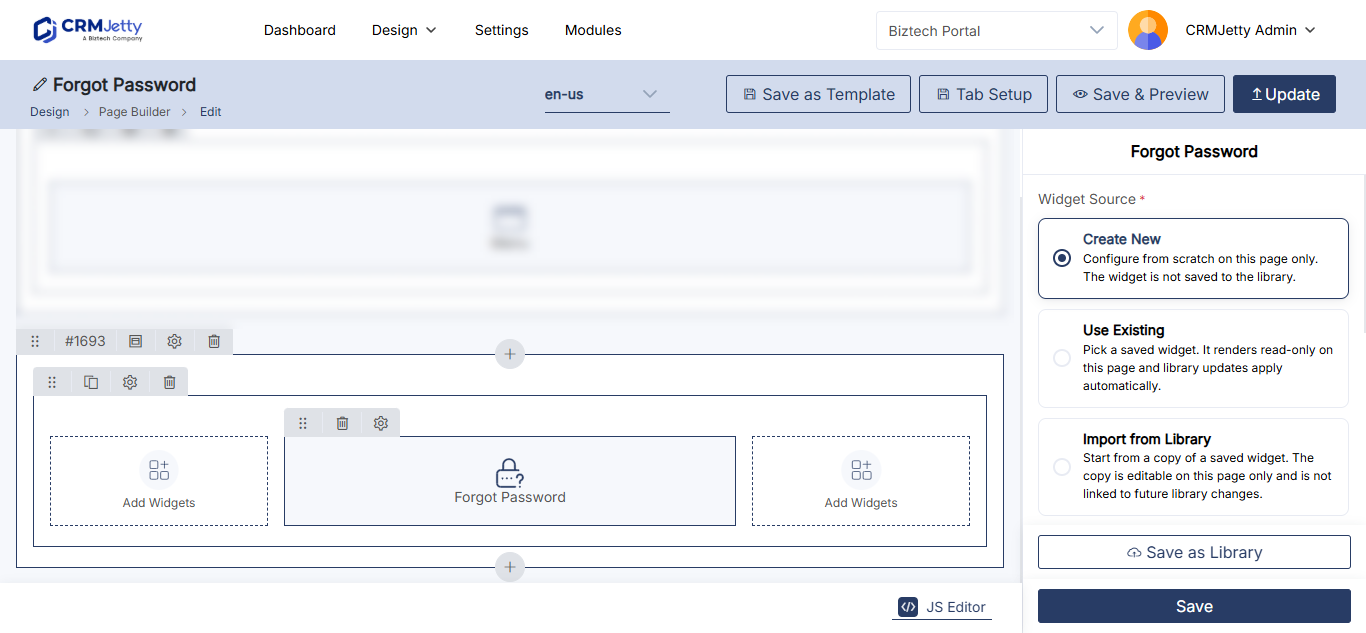
- In the widget panel, select the Forgot Password widget. It is added to the grid.
- Select the Settings icon on the widget.
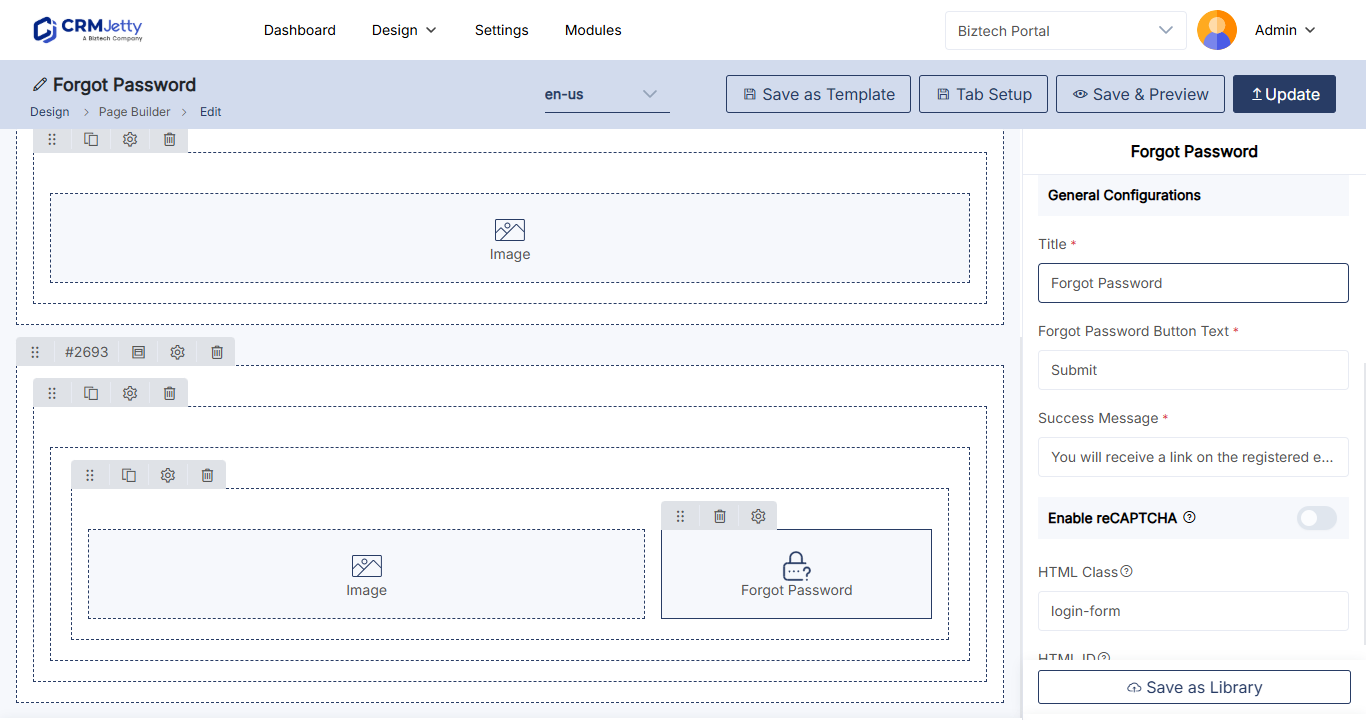
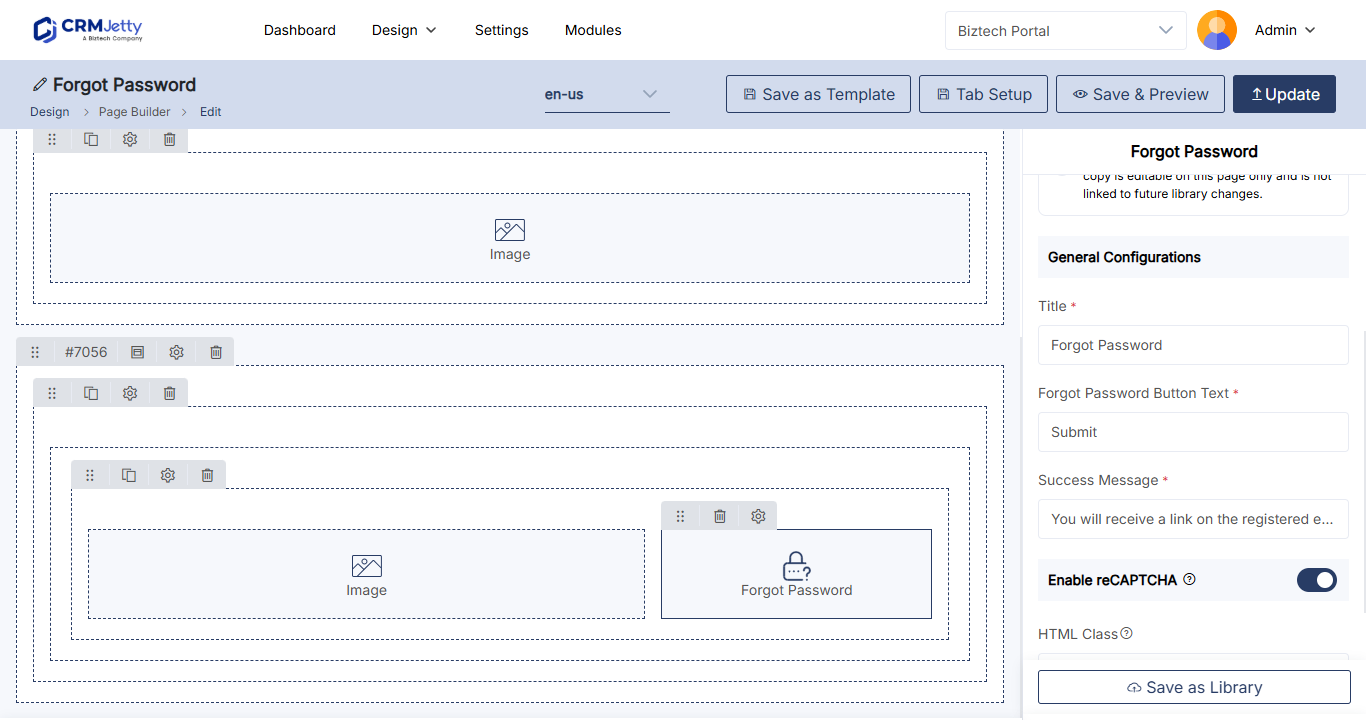
- Fill in the settings in the table below.
- Select Save.
- Select Publish.
| Setting | What to enter |
|---|---|
| Title | The heading of the forgot password section, for example Forgot Password. |
| Forgot Password Button Text | The text of the button that sends the reset link, for example Send Reset Password Link. |
| Enable reCAPTCHA | Protects the form from spam. The reCAPTCHA version (V2 or V3) comes from your site’s reCAPTCHA settings. |
| HTML Class | A custom class for styling or scripting the widget. |
| HTML ID | A unique ID for the widget, usually starting with custom-. |
| Card View | Shows the forgot password section as a card. |
For more on page settings, see How to Set Public and Login-Only Portal Pages.
Link the login page to the reset page
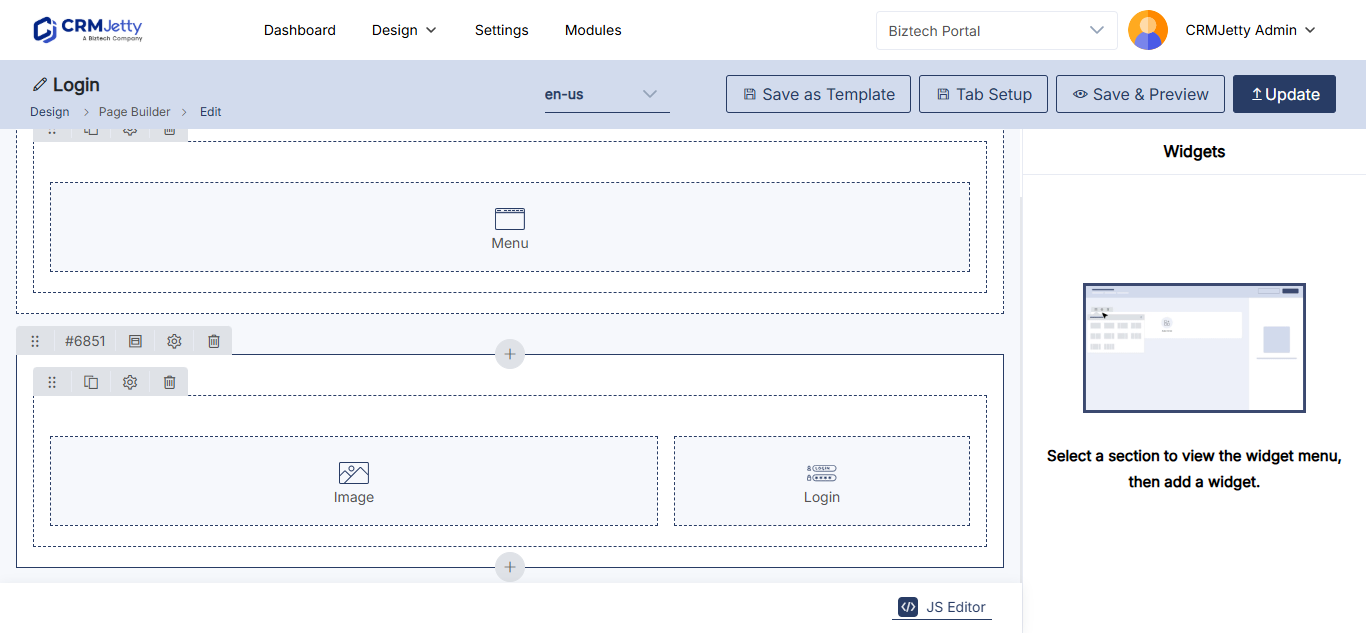
- Go to Design → Page Builder and edit the page that holds the Login widget.
- Select the Settings icon on the Login widget.
- Turn on Forgot Password.
- In Select Forgot Password Redirection Page, select the page with the Forgot Password widget.
- Select Save.
- Select Publish.
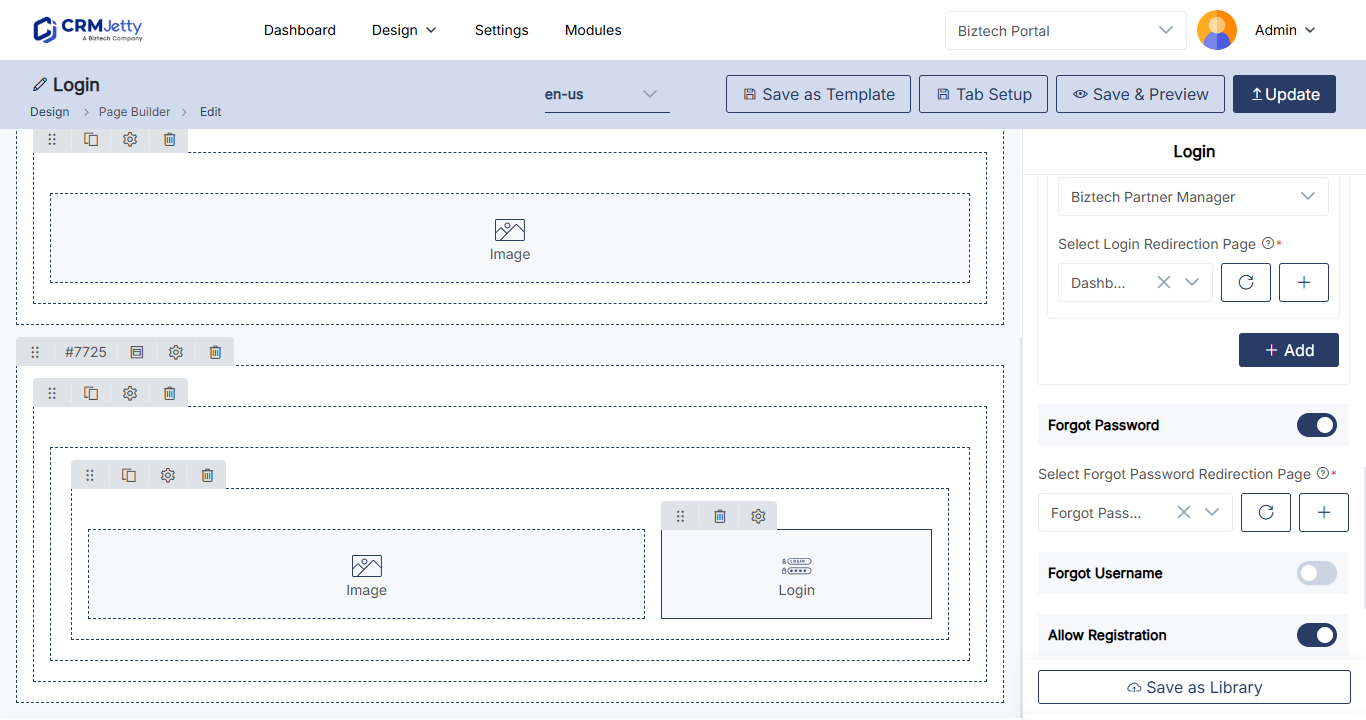
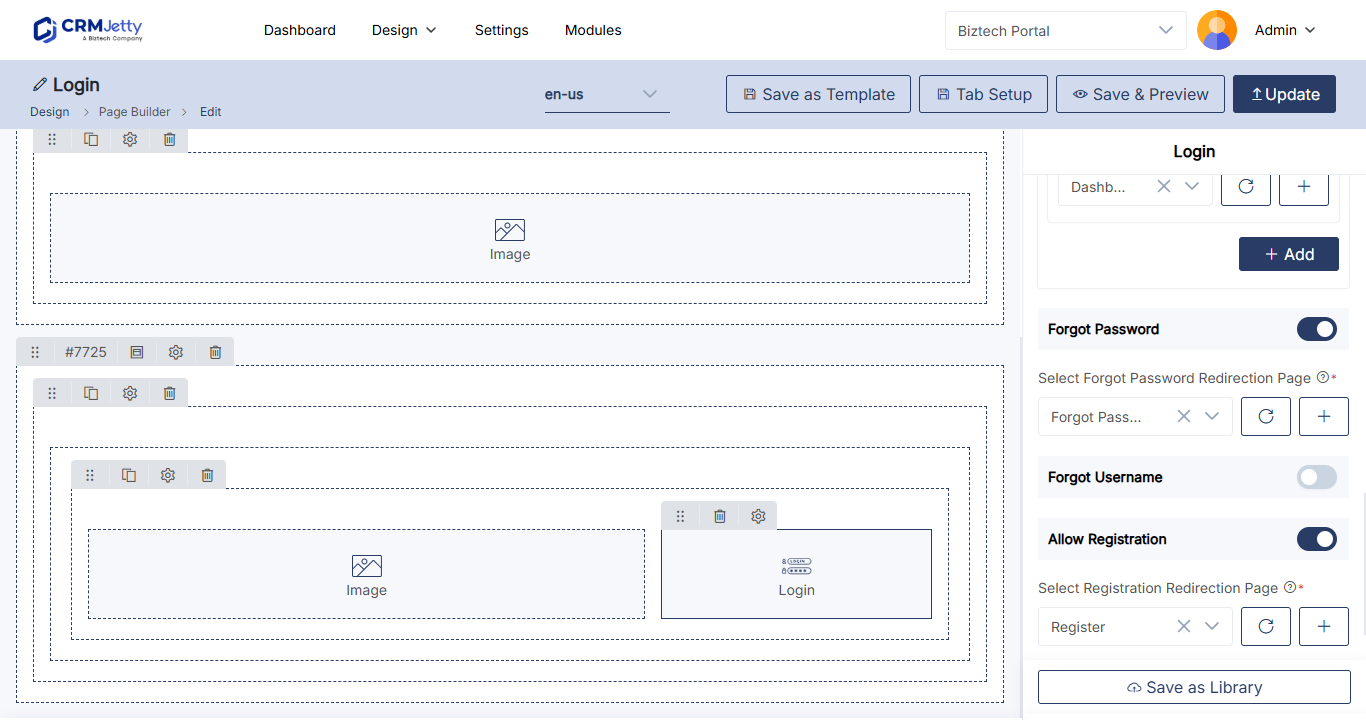
Tip: The Login widget has matching settings for usernames: Forgot Username and Select Forgot Username Redirection Page. Use them with the Forgot Username widget if your portal users sign in with a username.
Customize the reset email
The reset email uses the Forgot Password email action. To change its subject or text, edit the template under Settings → Portal Settings → Template Scripting → Email Templates (Business Central: Settings → Portal Settings → Email Templates). See How to Customize Portal Email Templates.
Send a reset link from the admin portal
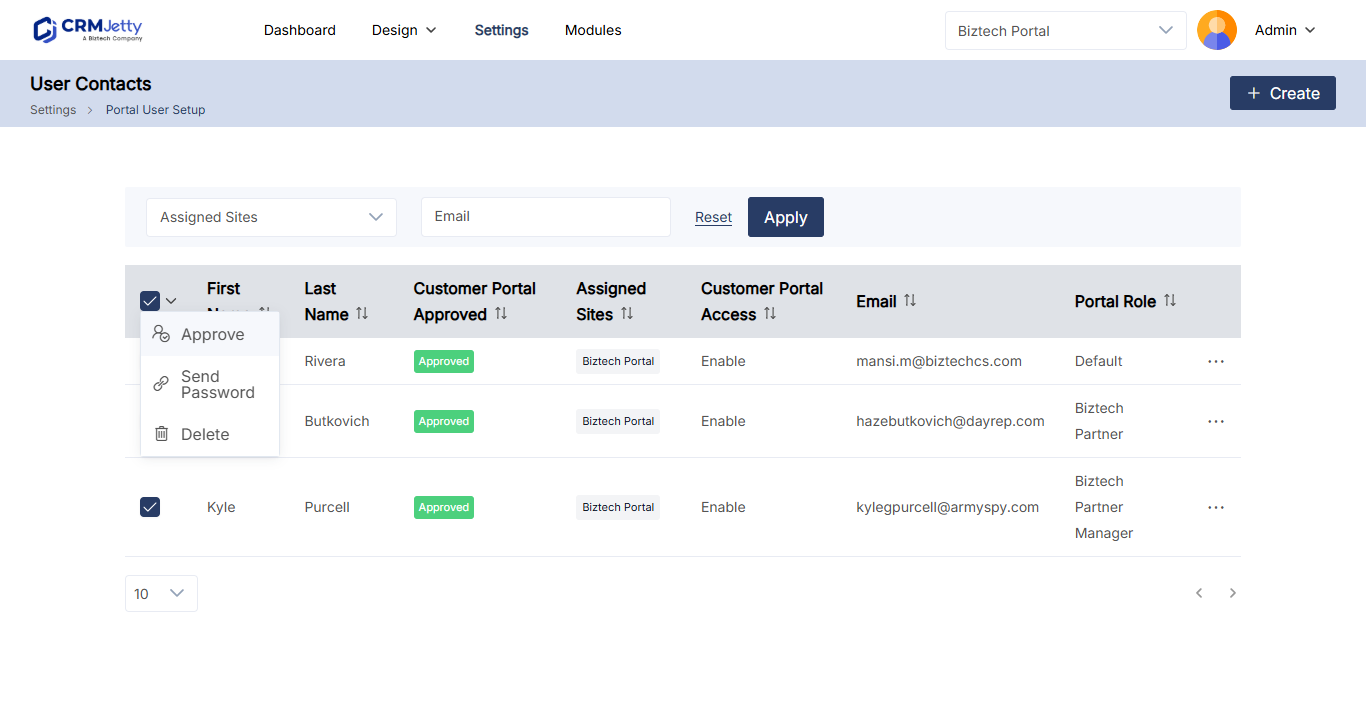
Use this when a portal user can’t reset their password themselves, or to send links to several portal users at once.
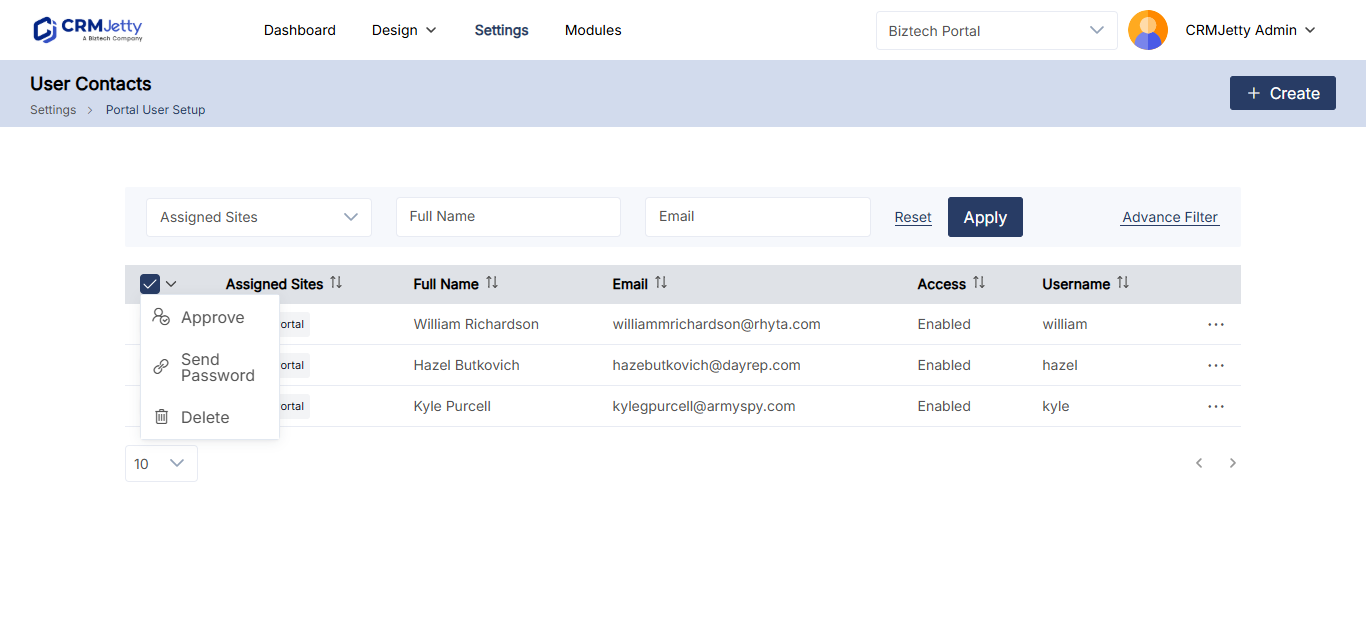
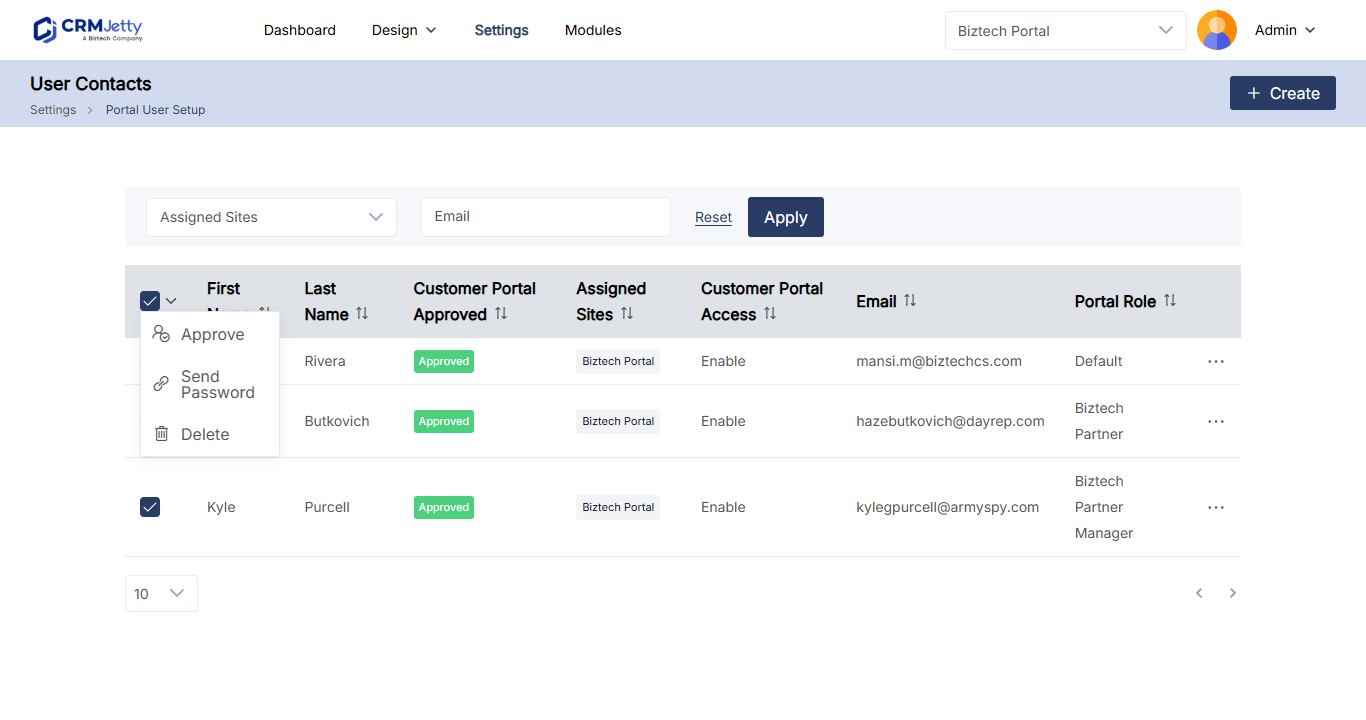
- Go to Settings → User Settings → Portal User Setup (Business Central: Portal User Customer or Portal User Vendor).
- Select the portal users who need a reset link.
- In the Bulk Actions menu, select Send Password Link.
- Review the pop-up showing the delivery status of each link.
Password rules that affect resets
These settings are in your site’s Security settings, under Settings → Portal Settings → Site Management.
| Setting | Effect on passwords |
|---|---|
| Custom Password Complexity | Sets the password length range and the required character types: uppercase, lowercase, digits and special characters. |
| Password Expiration | Makes portal users set a new password after a set period: Never Expire, 1 Day, 2 Days, 1 Month, 3 Months, 6 Months or 1 Year. Resetting a password through Forgot Password restarts the period. |
| Password Lock | Locks a portal user out for a set time after too many wrong passwords. |
For password lock and two-factor authentication, see How to Enable Two-Factor Authentication in the Portal.
Troubleshooting
Portal users don’t receive the reset email: Check your SMTP settings and send a test email. See How to Fix Portal Emails That Are Not Sending.
The forgot password link sends portal users to the login page: The reset page is set to Authenticate. Change its Page Access to Public and publish it again.
The forgot password link doesn’t appear on the login page: Turn on Forgot Password in the Login widget, select the redirection page, then save and publish the page.
A portal user can’t save the new password: The new password must be different from the old one and meet your password complexity rules.
Related articles
- How to Generate Portal Login Credentials in Bulk
- How to Edit Portal User Details
- How to Add reCAPTCHA to Portal Forms
- How to Enable Two-Factor Authentication in the Portal
- How to Customize Portal Email Templates